
6 posts tagged with "Web"

View all tags

What is CORS? An Explanation of Security for Beginners

· 6 min read

This article explains CORS (Cross-Origin Resource Sharing), a web browser security feature, for beginners, covering "why it's necessary" and "what dangers it entails." Understanding it correctly will enable secure web development.

The Background of the Need for CORS: Same-Origin Policy

In the early 1990s, when JavaScript was incorporated into browsers, the concept of web security was almost nonexistent. At that time, malicious websites could freely access data from other sites, making it easy for session hijacking and data theft to occur.

To solve this problem, a restriction known as the Same-Origin Policy was introduced. This is a simple yet powerful rule that states, "JavaScript loaded from a web page cannot access data from a different origin."

For example, JavaScript loaded from a page at https://www.example.com cannot access data from https://www.bank.com. This ensures that even if a user accesses a malicious site while logged into their bank site, their banking information cannot be stolen.

What is an Origin?

Origin is determined by the following three factors:

  • Protocol: either http:// or https://
  • Host (domain): either example.com or api.example.com
  • Port: either 80 or 8080

For example,

URLProtocolHostPortOrigin
https://www.example.com/pageHTTPSwww.example.com443 (default)https://www.example.com
https://api.example.com/dataHTTPSapi.example.com443 (default)https://api.example.com

Since these are different hosts, they are considered different origins.

What the Same-Origin Policy Prevents

Requests to different origins via JavaScript's XHR (XMLHttpRequest) or Fetch API are restricted.

Example: A malicious script on evil.com

fetch('https://bank.example.com/api/transfer', {
method: 'POST',
body: JSON.stringify({ amount: 1000000 })
});

Without the Same-Origin Policy, JavaScript from a malicious site (evil.com) could send a transfer request while the user is logged into their bank site. Preventing this scenario is the purpose of the Same-Origin Policy.

Why CORS is Necessary

However, modern web design often involves cooperation among multiple origins.

  • Frontend: https://www.example.com
  • API Server: https://api.example.com
  • CDN / Static Files: https://cdn.example.com

These are operated by the same company and are legitimate communications. But if restricted by the Same-Origin Policy, the application would not function.

This is where CORS (Cross-Origin Resource Sharing) comes into play.

What is CORS: Explicitly Allowing Access

CORS is a mechanism by which the server explicitly declares, "requests from this origin are permitted."

By simply returning the following response headers, the browser can relax the restrictions.

Access-Control-Allow-Origin: https://www.example.com
Access-Control-Allow-Methods: GET, POST, PUT
Access-Control-Allow-Headers: Content-Type, Authorization

Unless the server says "allowed," the browser will not pass the results of the request back to JavaScript. This achieves cross-origin access while maintaining security.

Security Risks of CORS: Common Configuration Mistakes

Although CORS is convenient, incorrect settings can create security vulnerabilities.

Mistake: Allowing All Origins

Access-Control-Allow-Origin: *

This means, "Anyone from anywhere can access this server."

// JavaScript from https://evil.com
fetch('https://api.example.com/user/profile')
.then(r => r.json())
.then(data => {
// Process to steal user profile information
console.log(data);
});

This is particularly dangerous for requests that include authentication credentials (such as cookies), as a user logged into api.example.com could have their personal information stolen when accessing evil.com.

Half Dangerous: * Prohibited for Requests Including Cookies

fetch('https://api.example.com/user/profile', {
credentials: 'include' // Include cookies
})

When including authentication credentials, Access-Control-Allow-Origin: * cannot be used. You must always specify a specific origin.

Access-Control-Allow-Origin: https://www.example.com
Access-Control-Allow-Credentials: true

Mistake: Allowing User-Specified URLs Directly

// Dangerous implementation example (server-side)
const origin = request.headers.get('Origin');
response.headers.set('Access-Control-Allow-Origin', origin); // Return as is!

This can allow requests from https://evil.com, resulting in a response with Access-Control-Allow-Origin: https://evil.com, which can be exploited.

The correct approach is to prepare a whitelist and allow only those origins.

const allowedOrigins = [
'https://www.example.com',
'https://admin.example.com'
];

if (allowedOrigins.includes(origin)) {
response.headers.set('Access-Control-Allow-Origin', origin);
}

Mistake: Allowing All Headers

Access-Control-Allow-Headers: *

This means "Any header is accepted," allowing injections of malicious data through custom headers.

List only the necessary headers.

Access-Control-Allow-Headers: Content-Type, Authorization

CORS Preflight Request: Browser's Prior Check

For requests other than simple requests (GET, HEAD, POST), the browser automatically sends an OPTIONS method request to check "Is this okay?" This is known as a preflight request.

1. JavaScript tries to send a PUT request

2. The browser automatically sends an OPTIONS preflight request
OPTIONS /api/resource HTTP/1.1
Origin: https://www.example.com
Access-Control-Request-Method: PUT
Access-Control-Request-Headers: Content-Type

3. The server responds with "OK"
HTTP 200 OK
Access-Control-Allow-Origin: https://www.example.com
Access-Control-Allow-Methods: PUT
Access-Control-Allow-Headers: Content-Type

4. The browser sends the actual PUT request

If the server does not support the OPTIONS method, the preflight will fail, and the actual request will not be sent.

Key Points:

  • Explicitly specify allowed origins in the whitelist
  • Use credentials: true to handle requests including cookie authentication
  • Allow only necessary methods and headers
  • Options preflight request

Common Questions

Q. I encountered a CORS error. Can I allow all origins to resolve it?

A: No. It might work temporarily, but allowing * in a production environment poses a security risk. You need to revisit the server-side settings or redesign the API.

Q. I want to access origins at different ports during local development. Is that okay?

A: Disabling CORS just for the local development environment is acceptable.

Q. Does CORS matter when calling APIs from mobile apps?

A: CORS is a browser security feature, so it does not apply to mobile apps. Instead, you need to implement authentication and authorization using API keys or OAuth.

Summary

PointExplanation
Purpose of CORSAllow cross-origin access while maintaining browser security
Dangerous ConfigurationUsing Access-Control-Allow-Origin: * for APIs requiring authentication
Correct ConfigurationExplicitly specify allowed origins in the whitelist
When Including CookiesMust specify Access-Control-Allow-Credentials: true and a specific origin
PreflightComplex requests like PUT/DELETE require the browser to pre-check with OPTIONS

CORS is not just a "cause of errors," but an important mechanism in web security. Misconfigurations can lead to security incidents, so it must be handled with care.
References

How I Achieved Near-Perfect Lighthouse Scores on a Docusaurus Blog — SEO, Performance & Accessibility

· 5 min read

I improved this blog's mobile Lighthouse scores to Performance 99, Accessibility 100, Best Practices 100, and SEO 100. Here's what I did, broken down into SEO, performance, and accessibility improvements.

Problems Before the Improvements

Running Lighthouse on the Docusaurus blog revealed several issues:

  • SEO: No meta description, no OGP/Twitter Cards, no structured data, no sitemap priority
  • Performance: Synchronous Google Tag Manager (GTM) loading causing large unused JS, external CDN avatar fetching as a bottleneck
  • Accessibility: Primary color contrast ratio failing WCAG AA requirements

SEO Improvements

Adding meta description, OGP & Twitter Cards

I added default site-wide metadata to themeConfig.metadata in docusaurus.config.ts:

themeConfig: {
metadata: [
{ name: 'description', content: "Hikari's tech notebook..." },
{ property: 'og:locale', content: 'ja_JP' },
{ name: 'twitter:card', content: 'summary_large_image' },
{ name: 'twitter:site', content: '@ptrqr' },
],
}

I also swizzled src/theme/Layout/index.tsx to provide locale-specific fallback descriptions for pages without their own description (blog listing, tag pages, etc.).

Adding robots.txt

Added static/robots.txt to explicitly point crawlers to the sitemap.

BlogPosting JSON-LD (Structured Data)

I initially swizzled src/theme/BlogPostItem/index.tsx to output BlogPosting JSON-LD on article pages with headline, datePublished, dateModified, and author.

Later I discovered that Docusaurus's built-in BlogPostPage/StructuredData already outputs equivalent data. I removed the custom JSON-LD and instead added a keywords fallback (frontMatter.keywordstags) to the built-in component. Duplicate structured data can hurt SEO, so this cleanup was important.

WebSite JSON-LD

Added WebSite type JSON-LD in docusaurus.config.ts's headTags to help Google correctly identify the site name.

headTags: [
{
tagName: 'script',
attributes: { type: 'application/ld+json' },
innerHTML: JSON.stringify({
'@context': 'https://schema.org',
'@type': 'WebSite',
name: 'ひかりの備忘録',
url: 'https://www.hikari-dev.com/',
}),
},
],

Auto-Generated OGP Images for All Posts

Created scripts/generate-ogp.js to automatically generate OGP images with tag-based gradient backgrounds. This ensures every post has an eye-catching image when shared on social media. All posts now have an image: field in their frontmatter.

Sitemap Improvements

Used the createSitemapItems callback to set the homepage priority to 1.0 and blog posts to 0.8. Also added automatic lastmod extraction from the date in each URL.

hreflang x-default

In src/theme/Root.tsx, I inject an hreflang="x-default" <link> tag on every page, mapping English pages (/en/...) back to the default (Japanese) URL. This helps search engines correctly identify language variants.

const defaultPath = pathname.replace(/^\/en(?=\/|$)/, '') || '/';
const xDefaultUrl = `${siteConfig.url}${defaultPath}`;

<Head>
<link rel="alternate" hreflang="x-default" href={xDefaultUrl} />
</Head>

Performance Improvements

Lazy-Loading GTM

I replaced @docusaurus/plugin-google-gtag with a custom src/clientModules/gtag.js that dynamically injects the GTM script after the window.load event. This significantly reduced unused JS blocking initial render.

function loadGtag() {
const script = document.createElement('script');
script.async = true;
script.src = `https://www.googletagmanager.com/gtag/js?id=${GA_ID}`;
document.head.appendChild(script);
}

window.addEventListener('load', loadGtag, { once: true });

SPA page transitions use Docusaurus's onRouteDidUpdate hook to manually call window.gtag. A further improvement defers loading to requestIdleCallback for even better idle-time utilization.

Self-Hosting & WebP Avatar

Moved the avatar image from GitHub's CDN (avatars.githubusercontent.com) to self-hosted. GitHub CDN has a 5-minute cache TTL, which Lighthouse flagged on every run.

Converted the avatar to WebP format, reducing file size from 34 KB (PNG) to 3.5 KB — roughly a 90% reduction.

Image Size Optimization & CLS Fix

  • Added ?size=64 to the GitHub avatar URL, shrinking from 460 px to 64 px (saving 33 KB)
  • Added width/height attributes to the navbar logo to fix CLS (Cumulative Layout Shift)
  • Added loading="lazy" to <img> tags

rspack / SWC

Introduced @docusaurus/faster, replacing webpack with rspack + SWC + lightningCSS:

future: {
v4: true,
experimental_faster: true,
},

This improved both build speed and bundle size.

Disabling Unused Plugins

Disabled the unused docs plugin to prevent unnecessary JS from being shipped to clients.

Mobile-Only Google Fonts

Google Fonts (Noto Sans JP) was only needed on mobile. Using matchMedia, the font stylesheet is now dynamically injected only on mobile devices, saving approximately 130 KB of unused CSS on desktop.

Accessibility Improvements

Fixing Contrast Ratios

Changed the primary color from #F15EB4 to #C82273, achieving a contrast ratio of 5.3:1 against white (WCAG AA compliant). Dark mode uses #F36AB2 (7.0:1 against the dark background).

Post date text color is now managed via the --post-date-color CSS variable: #595959 (7.0:1) in light mode, #9e9e9e in dark mode.

Font Unification

Changed heading and <strong> fonts from Noto Serif JP to Noto Sans JP for consistency with body text.

Results

CategoryScore
Performance99
Accessibility100
Best Practices100
SEO100

Near-perfect scores on mobile.

Summary

The three most impactful changes were:

  1. Lazy-loading GTM: Dramatically reduced unused JS and boosted performance scores
  2. OGP & structured data: Achieved SEO 100 and improved social media sharing appearance
  3. Contrast ratio fixes: WCAG AA compliance brought accessibility to 100

Docusaurus generates high-quality sites by default, but achieving near-perfect Lighthouse scores requires fine-tuning GTM loading strategy, metadata, and accessibility details. I hope this helps others working on similar improvements.

Building a Blog Comment API with AWS Serverless

· 3 min read

I wanted to add a comment section to this blog, so instead of using an off-the-shelf solution like Disqus or giscus, I built my own API on AWS serverless. Here's a look at the design and implementation.

Architecture

Requests flow through the following stack:

Browser (www.hikari-dev.com)
↓ HTTPS
API Gateway
├── GET /comment?postId=... → Fetch comments
├── POST /comment → Submit a comment
└── PATCH /comment/{id} → Admin (toggle visibility)

Lambda (Node.js 20 / arm64)

DynamoDB (comment storage)
+ SES v2 (admin email notifications)

The code is written in TypeScript and managed as IaC with SAM (Serverless Application Model). Lambda runs on arm64 (Graviton2) to shave a bit off the cost.

DynamoDB Table Design

The table is named blog-comments, with postId as the partition key and commentId as the sort key.

KeyTypeDescription
postIdStringPost identifier (e.g. /blog/2026/03/20/hime)
commentIdStringULID (lexicographically sortable by time)

Using ULID for the sort key means comments retrieved with QueryCommand are automatically returned in chronological order — which is why I chose ULID over UUID.

Spam Filtering

Before writing a comment to DynamoDB, the handler checks it against a keyword list defined in keywords.json.

If a keyword matches, the comment is saved with isHidden: true and isFlagged: "1", hiding it automatically. If nothing matches, it goes live immediately.

isFlagged is used as the key for a Sparse GSI. Comments that pass the filter don't get this attribute at all, which keeps unnecessary partitions from appearing in the index — good for both cost and efficiency. This is achieved simply by setting removeUndefinedValues: true on the DynamoDB Document Client.

export const ddb = DynamoDBDocumentClient.from(client, {
marshallOptions: {
removeUndefinedValues: true,
},
});

Admin Email Notifications

Every time a comment is submitted, SES v2 sends me an email containing the author name, body, rating, IP address, and flag status.

The email is sent asynchronously, and any failure is silently swallowed. This keeps the POST response time unaffected by email delivery.

sendCommentNotification(record).catch((err) => {
console.error("sendCommentNotification error:", err);
});

Privacy

IP addresses and User-Agent strings are stored in DynamoDB for moderation purposes, but they are never included in GET responses. This separation is enforced at the type level.

Security

LayerMeasure
NetworkAWS WAF rate limit: 100 req / 5 min / IP
CORSRestricted to https://www.hikari-dev.com
Admin APIAPI Gateway API key auth (X-Api-Key header)
SpamKeyword filter with automatic hiding

For the admin endpoint (PATCH /comment/{id}), setting ApiKeyRequired: true in the SAM template is all it takes to enable API key authentication — no need to implement a custom Lambda Authorizer.

Wrap-up

The serverless setup means no server management, and DynamoDB's on-demand billing keeps costs minimal for a low-traffic personal blog.

The whole thing is packaged with SAM + TypeScript + esbuild, and deploying is as simple as sam build && sam deploy.

My Number Card (Myna Card) - What Have I Used It For?

· 5 min read

This post summarizes how I've used my My Number Card, obtained in 2018, and what conveniences it has brought. I'll also cover the inconvenient aspects.

Things I've Used It For

  1. Printing Certificates at Convenience Stores
    • Copy of Resident Record
    • Certificate of Income

This is convenient because there's no need to specially visit a city hall (or branch office) and wait in line.

  1. Identity Verification
    • Smartphone communication contracts
    • Opening a securities account
    • Opening a bank account
    • Identity verification for "XXXX Pay" services
    • Identity verification for COVID-19 vaccine appointments

In the future, identity verification might become difficult without a My Number Card. Society is becoming less based on trust, so it might be unavoidable. It's good that I don't have to get a driver's license just for ID purposes when I don't drive. Probably about 20% of people are in this situation.

  1. Tax Returns (Kakutei Shinkoku)

I just had to enter numbers into the form and submit it. It's convenient, as it can also calculate medical expense deductions.

  1. Using it as a Health Insurance Card

It's good not to have to carry my health insurance card, but I've encountered problems several times where it couldn't be used due to bugs in the qualification verification system, so it seems best to carry my physical health insurance card just in case. It's convenient that information on medicines prescribed at pharmacies can be checked on MyNa Portal (especially for people with drug allergies). If I use my health insurance card instead of my Myna Card, will it still calculate medical expenses? I'm not sure about that.

  1. Moving-out Notification

Going to the city hall (or branch office) to submit a moving-out notification during the busy period at the end of March is daunting, but you can submit it online using MyNa Portal. The important thing to remember is not to forget the moving-in notification. (By the way, going to a branch office is less crowded than going to the main city/ward office.) It was a hassle to have to reset my My Number PIN when moving in.

  1. Smartphone Electronic Certificate

You can load your My Number electronic certificate onto your smartphone. It might be convenient as you can log in to MyNa Portal card-less.

Dissatisfactions

  1. Smartphone App NFC Even though the electronic certificate is on my smartphone, it always requests NFC. It's inconvenient that the app won't open without NFC being enabled, so I hope for improvement.

  2. My Number is Written on It Having the My Number written on the My Number Card creates a risk if it's lost. Although misuse is hard to imagine. I wish it were numberless like a credit card.

  3. Monochrome Photo The photo embedded in the My Number Card is monochrome. Why wasn't it in color?

  4. Troublesome Renewal Due to electronic certificate security, renewals are every 5 years. However, the card's validity period is 10 years. What? It seems it might or might not be improved.

  5. Hospitals Where the Card Cannot Be Used It seems the government provides some subsidies, so I hope they will support it.

  6. Too Many PIN Types There are four types of PINs. I wish there were just one, but is it difficult due to security? I don't know.

  7. Unstylish Card Design I wish it would emulate the design of a radio operator's license.

Probably Misunderstood Things

There are many off-base criticisms of the My Number Card, so I'll summarize them. Please understand the system before criticizing.

  1. Personal Information Linked from the My Number Card is Extracted This is partially correct. The My Number Card itself only contains basic personal information like address, name, gender, and date of birth. It probably contains less information than a driver's license. To view information linked to the My Number Card, you need to open the linked site and authenticate using the My Number Card. Linked information cannot be viewed without the My Number Card and its PIN. Of course, if you write the PIN on the card and then lose it, various pieces of personal information could be extracted. This point is similar to a cash card.

  2. The PIN is only 4 digits, and security is weak It's incorrect that security is weak. Consider logging into SNS on a computer; you can log in with an ID and password. On SNS, the ID is easily known, so you can log in if you have the password. No matter how complex the password, it's a single-factor authentication. On the other hand, the My Number Card uses two-factor authentication: possession of the card + knowledge of the PIN. The reason Windows and other systems allow logging in with a PIN is that two-factor authentication (possession + memory) is said to be more secure than single-factor authentication using a complex password.

  3. Errors in Health Insurance Card Linkage This is a linkage error by the health insurance association, a human error. The My Number Card is merely a personal authentication mechanism and is not the problem itself. However, there is an argument to be made about how to deal with errors in linkage by health insurance associations. Health insurance information can be checked on MyNa Portal, so it's advisable to check it once.

  4. 100% burden at the counter without a My Number Card is outrageous As before, you can receive a refund by processing it through your health insurance association. However, it seems they will introduce a "qualification certificate" system, which defeats the purpose.

Install Firefox Build

· One min read

Ubuntu 22.04 seems to have the snap version of Firefox installed, and it wasn't launching in some environments, so I'm documenting how to install the pre-built Firefox.

Uninstall apt / snap version of Firefox

sudo apt purge firefox
sudo snap remove firefox

Install Firefox Build

# Download
wget "https://download.mozilla.org/?product=firefox-latest-ssl&os=linux64&lang=ja" --trust-server-names

# Extract
tar xvf firefox-*.tar.bz2

# Install
sudo cp -r firefox /usr/lib

# Create a symbolic link to the executable
sudo ln -s /usr/lib/firefox/firefox /usr/bin/firefox

# Download and place the desktop file
sudo mkdir -p /usr/share/applications
sudo wget https://bit.ly/3Mwigwx -O /usr/share/applications/firefox.desktop

How to Create an Icon (.ico)

· One min read
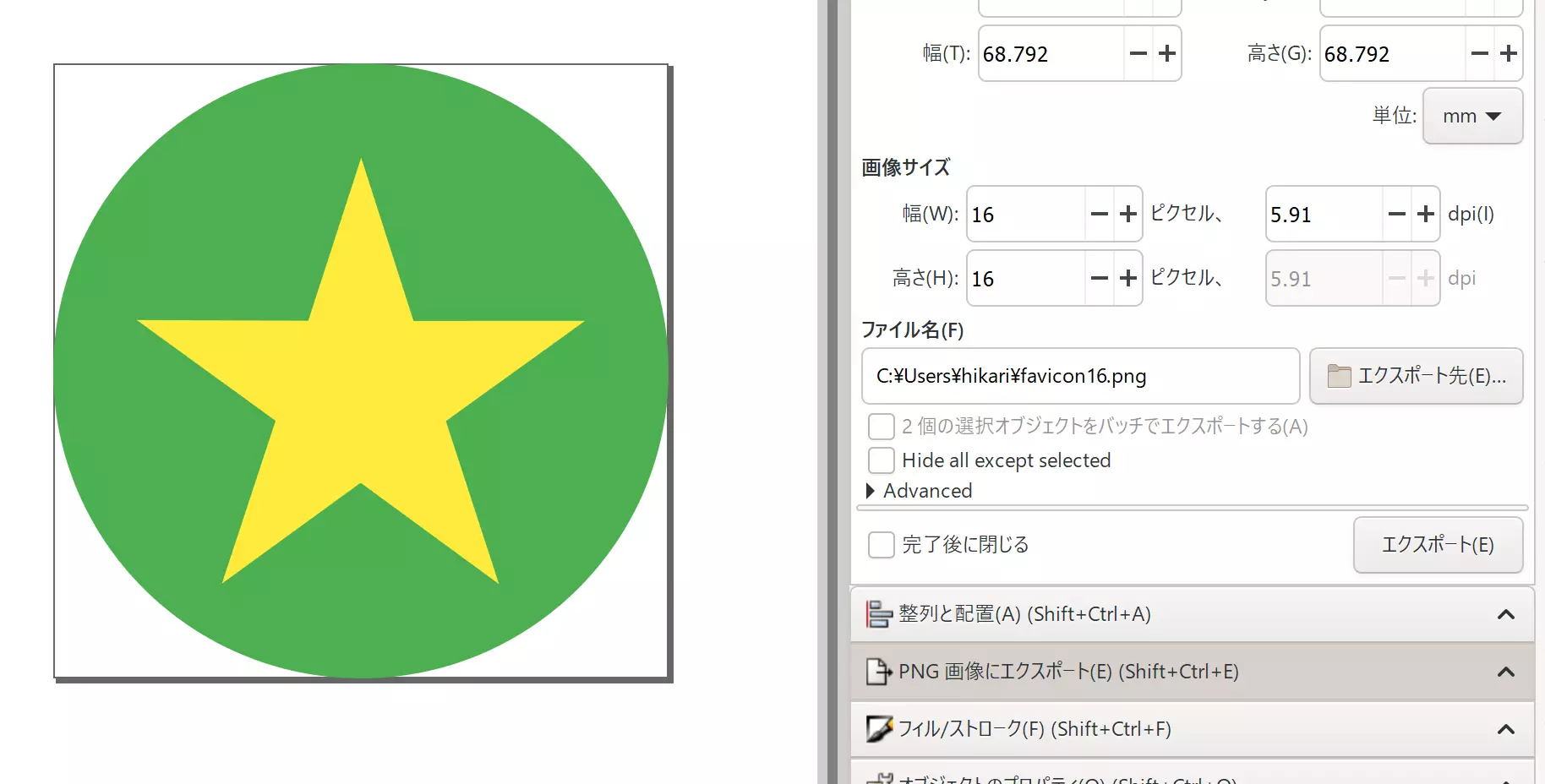
  1. Create an icon.

    How to create an icon

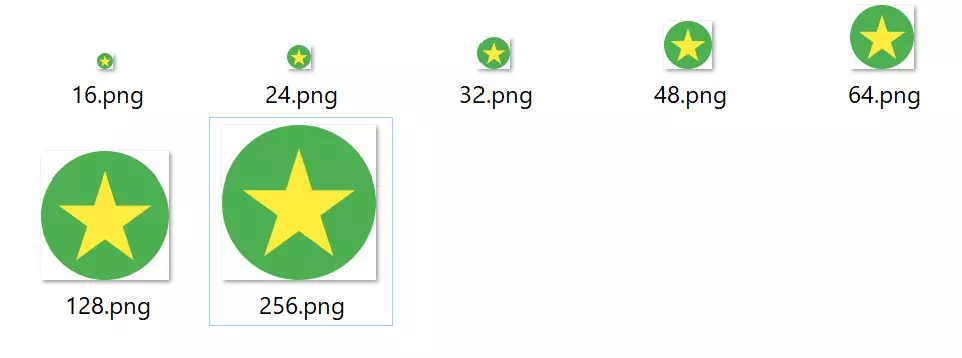
  2. Prepare seven PNG images of sizes 16, 24, 32, 48, 64, 128, and 256. How to create an icon

  3. Create an icon using the convert command. How to create an icon

convert *.png favicon.ico