6 posts tagged with "Python"

View all tags

Development of the translation CLI tool translate-mcp supporting multiple languages using OpenAI API

· 4 min read

translate-mcp is a translation tool that utilizes OpenAI's API. It supports both CLI mode and MCP server usage. It is useful in a wide range of scenarios, from translating an entire file to being integrated into AI tools.

What is translate-mcp

translate-mcp is a translation-specific tool using the OpenAI API. It is implemented in Python and has two usage modes.

  1. CLI Mode: Translate files directly from the command line.
  2. MCP Server Mode: Operates as a Model Context Protocol (MCP) server, integrating with AI tools.

Features

  • Multi-language support: Supports various languages.
  • Simple usage: Can be started with just one API key.
  • Two usage modes: Operates both as a CLI script and as an MCP server.
  • Lightweight: Relies solely on the OpenAI API without dependency on external libraries.
  • Error handling: In CLI mode, errors are returned in stderr, while in MCP mode, errors are returned in JSON format.

Setup

Prerequisites

  • Python must be installed.
  • An OpenAI API key must be obtained.

Installing uv

Since translate-mcp is managed by uv, you first need to install uv.

For installation instructions, refer to Installation | uv.

# macOS / Linux
curl -LsSf https://astral.sh/uv/install.sh | sh

# Windows (PowerShell)
powershell -ExecutionPolicy ByPass -c "irm https://astral.sh/uv/install.ps1 | iex"

Installing translate-mcp

You can install it using the following command with uv.

uv tool install git+https://github.com/Himeyama/translate-mcp

Alternatively, you can run it directly without installation using uvx.

uvx git+https://github.com/Himeyama/translate-mcp --help

How to Use

CLI Mode

To translate a file, run the following command:

translate --input blog/2026-04-02-example.md --from Japanese --to English

The result will be output to standard output. You can save it to a file using redirection.

translate \
--input blog/2026-04-02-example.md \
--from Japanese \
--to English \
--output i18n/en/blog/2026-04-02-example.md

Parameters

  • --mcp: MCP mode
  • --input: Path to the file to be translated
  • --from: Source language (e.g., Japanese, English)
  • --to: Target language (e.g., English, Taiwanese)
  • --output (optional): Destination to save the translated text
  • --model (optional): OpenAI model (e.g., gpt-5-mini)
  • --debug (optional): Debug mode

In case of errors

If an error occurs, it will be output to stderr.

MCP Server Mode

Start it as an MCP server, making it accessible from Claude Code and other AI tools.

translate --mcp

Practical Examples

This section describes how to translate a blog article from Japanese to English and Traditional Chinese (Taiwan).

Japanese Version (Original Article)

# Japanese article exists in blog/2026-04-02-example.md

Generate English Version

translate \
--input blog/2026-04-02-example.md \
--from Japanese \
--to English > i18n/en/docusaurus-plugin-content-blog/2026-04-02-example.md

Generate Taiwan Version (Traditional Chinese)

translate \
--input blog/2026-04-02-example.md \
--from Japanese \
--to Taiwanese > i18n/zh-TW/docusaurus-plugin-content-blog/2026-04-02-example.md

Advantages and Disadvantages

Advantages

  • High accuracy: Uses OpenAI's high-quality models (such as GPT-4).
  • Skill support: Can be integrated with various tools like ChatGPT and Claude.
  • Simplicity: Very easy to set up and use.
  • Customizable: The source code is open, allowing for customization.

Disadvantages

  • API costs: Costs incurred from OpenAI API usage based on translation volume.
  • Internet connection required: Cannot be used offline as API calls are necessary.
  • Rate limiting: Subject to OpenAI API's rate limits.

Conclusion

translate-mcp is a simple and high-quality translation tool that leverages the OpenAI API. It is effective in various scenarios, including multi-language support for blog articles, document translation, and integration into AI tools.

In particular, it is effective to use as an automation script for supporting multiple languages in static site generators like Docusaurus.

References
Common Matplotlib (Pyplot) Code Examples

· 5 min read

I'll introduce commonly used code examples with graphs.

Table of Contents

Creating Graphs

First, import the required libraries.

import matplotlib.pyplot as plt
import numpy as np

Single Graph

fig, ax = plt.subplots()

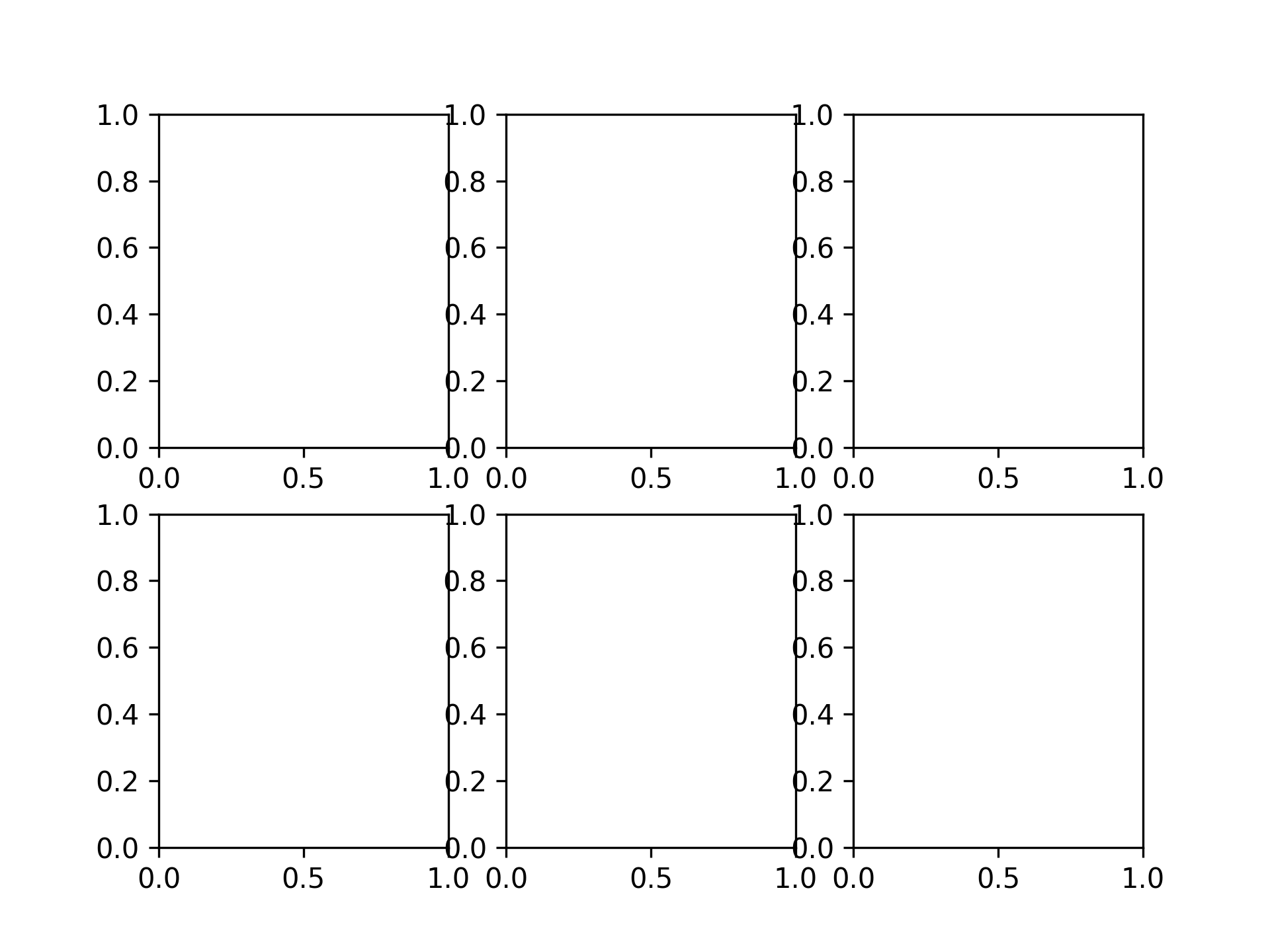
2 x 3 Graphs

fig, axs = plt.subplots(2, 3)

Plotting Graphs

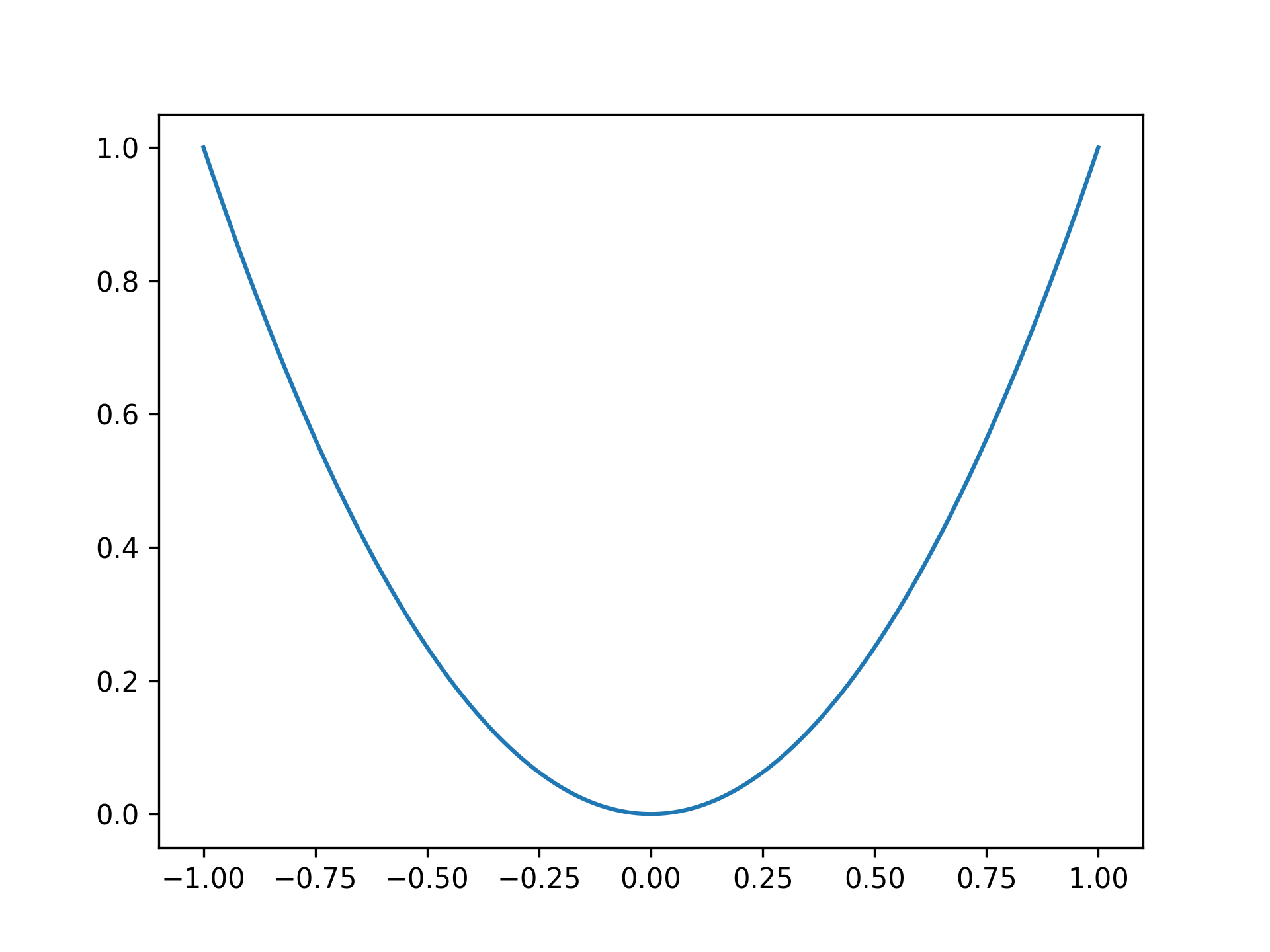
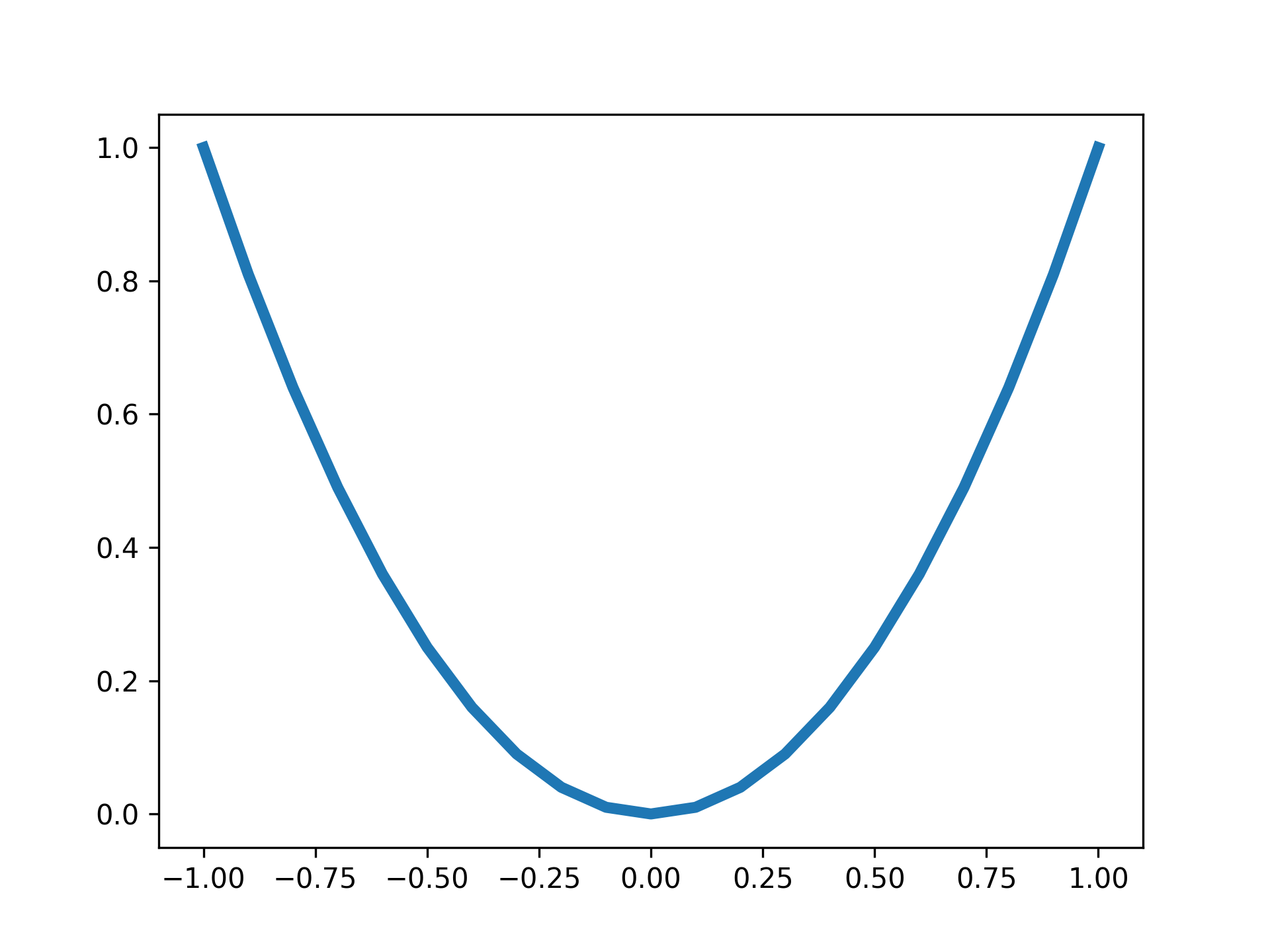
Plotting a parabola

x = np.linspace(-1, 1, 201)
y = x ** 2

fig, ax = plt.subplots()
ax.plot(x, y)

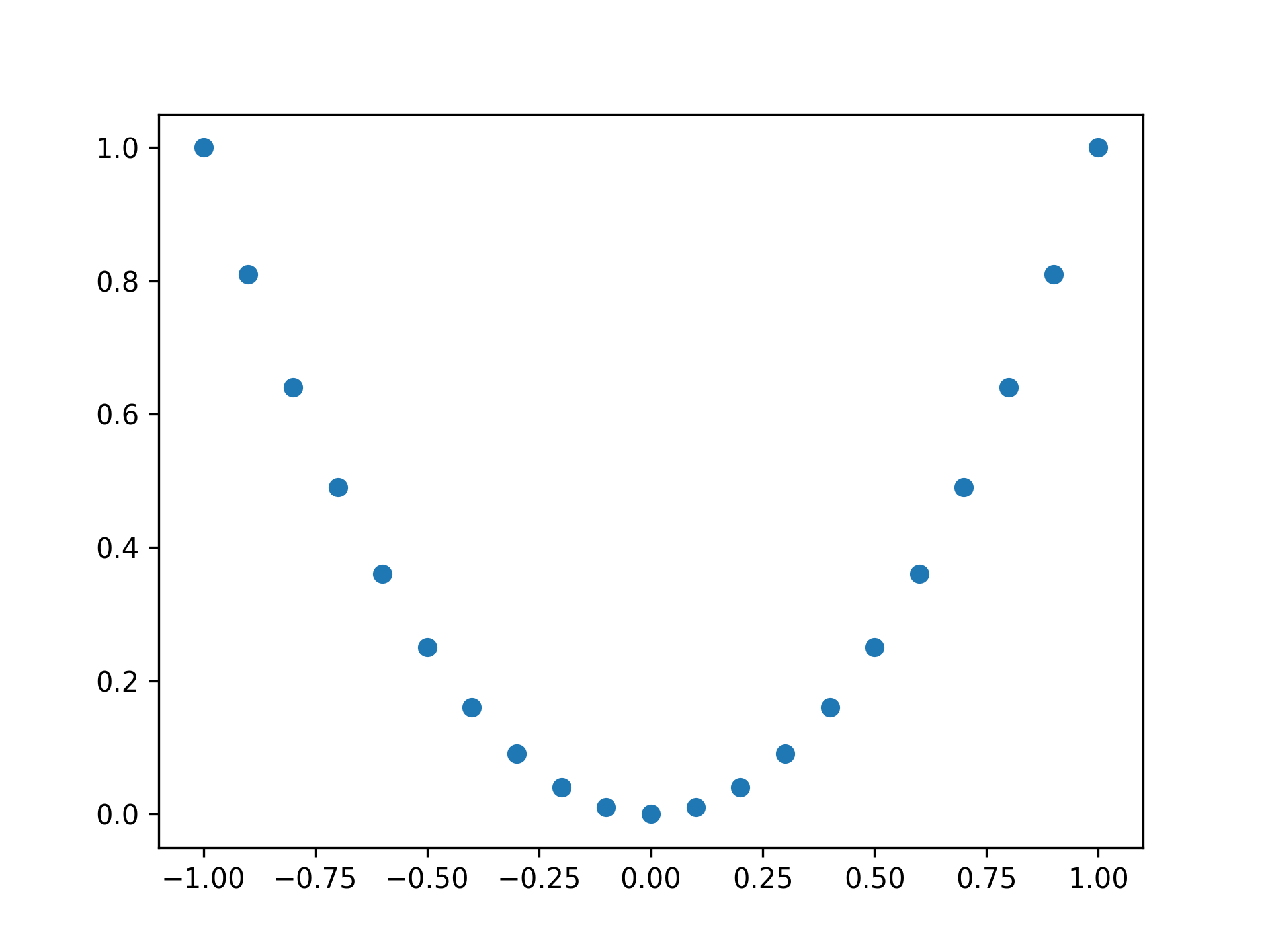
Plotting a parabola with points

fig, ax = plt.subplots()

x = np.linspace(-1, 1, 21)
y = x ** 2

ax.plot(x, y, 'o')

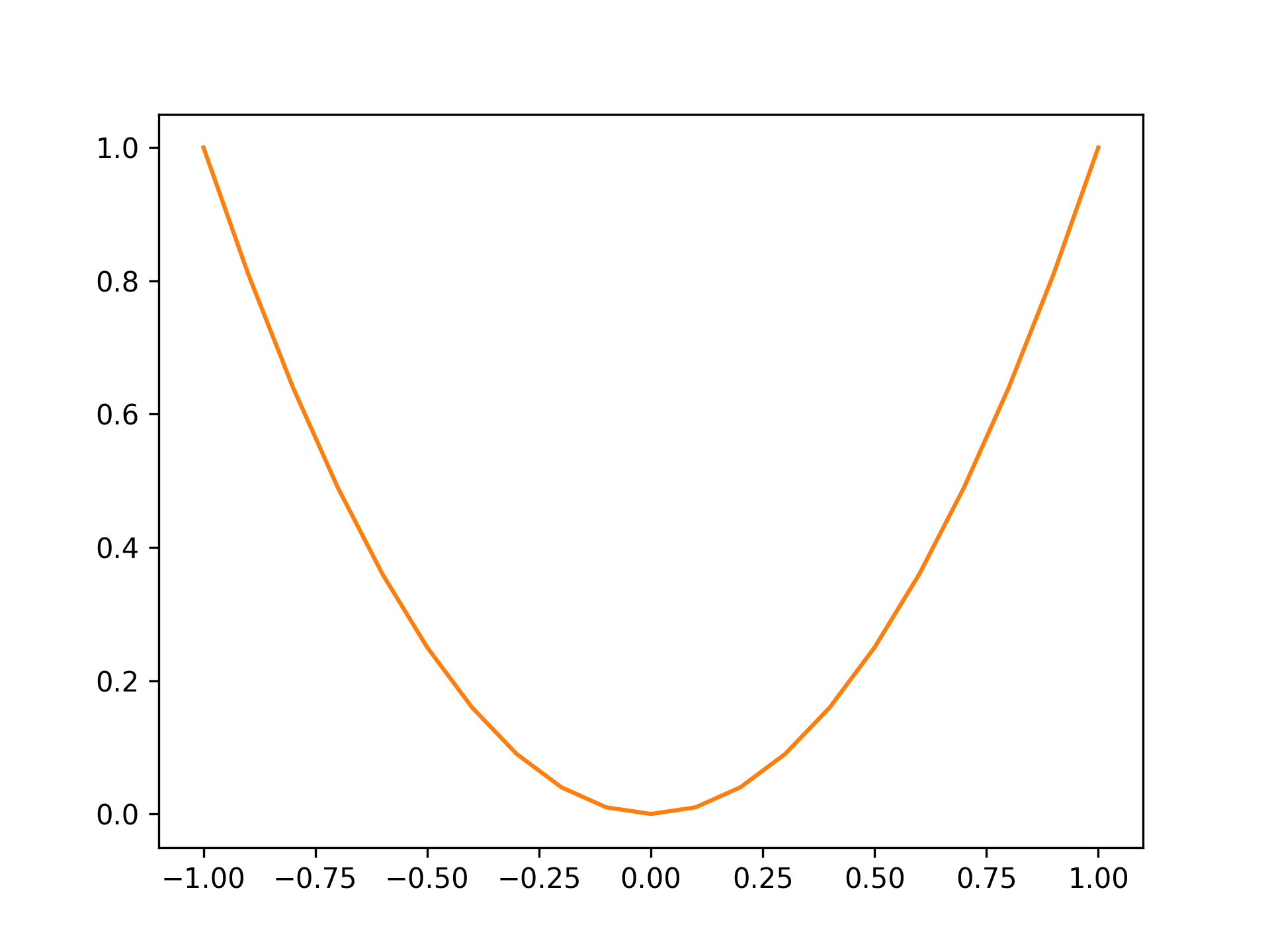
Setting color to orange

fig, ax = plt.subplots()

x = np.linspace(-1, 1, 21)
y = x ** 2

ax.plot(x, y, color="tab:orange")

Standard colors are as follows:

ColorString
Bluetab:blue
Orangetab:orange
Greentab:green
Redtab:red
Purpletab:purple
Browntab:brown
Pinktab:pink
Graytab:gray
Olivetab:olive
Cyantab:cyan

Setting line width to 4

fig, ax = plt.subplots()

x = np.linspace(-1, 1, 21)
y = x ** 2

ax.plot(x, y, lw=4)

Setting Titles

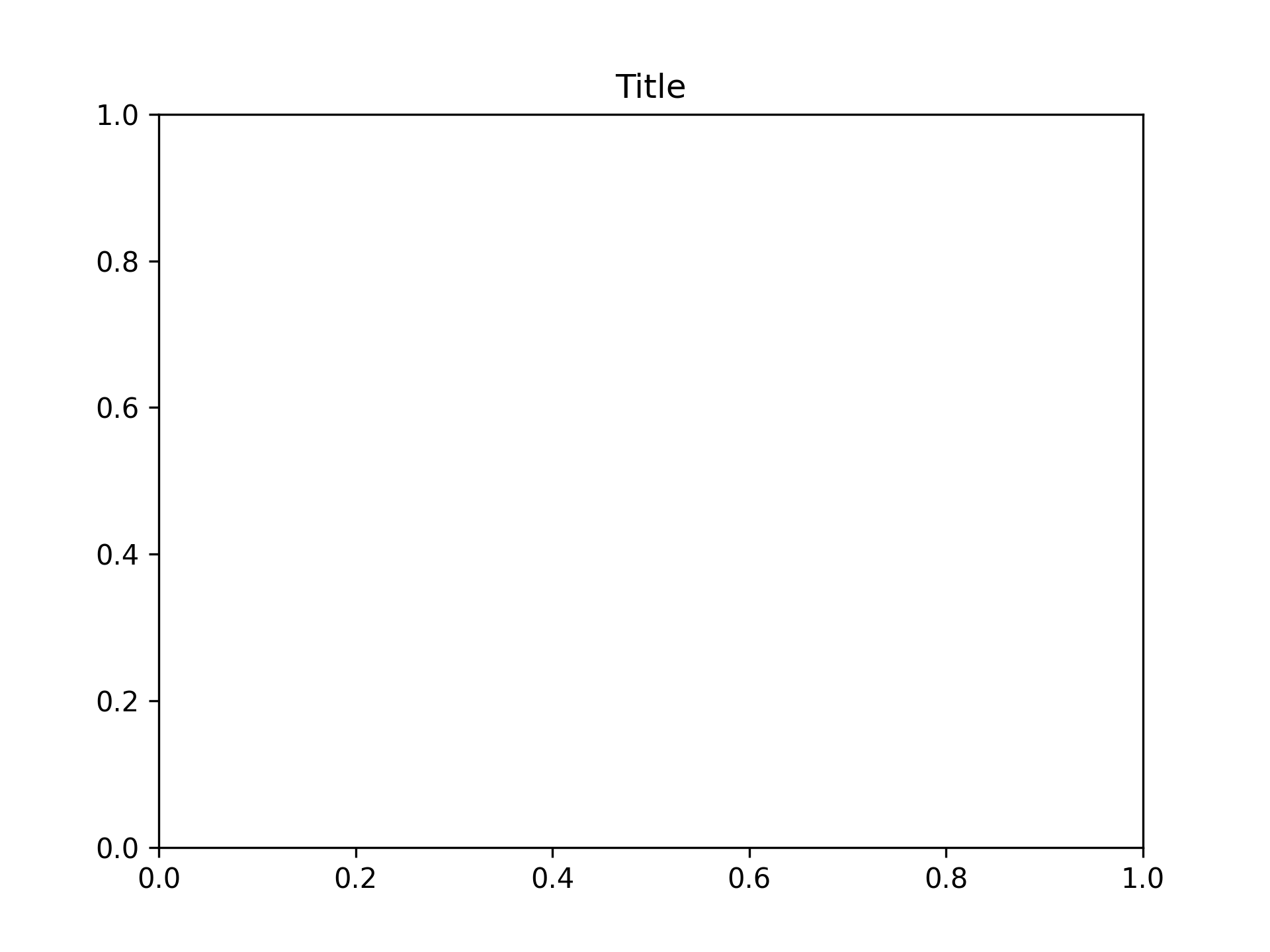
Setting title to "Title"

fig, ax = plt.subplots()
ax.set_title("Title")

Setting Axis Labels

Setting X-Axis Labels

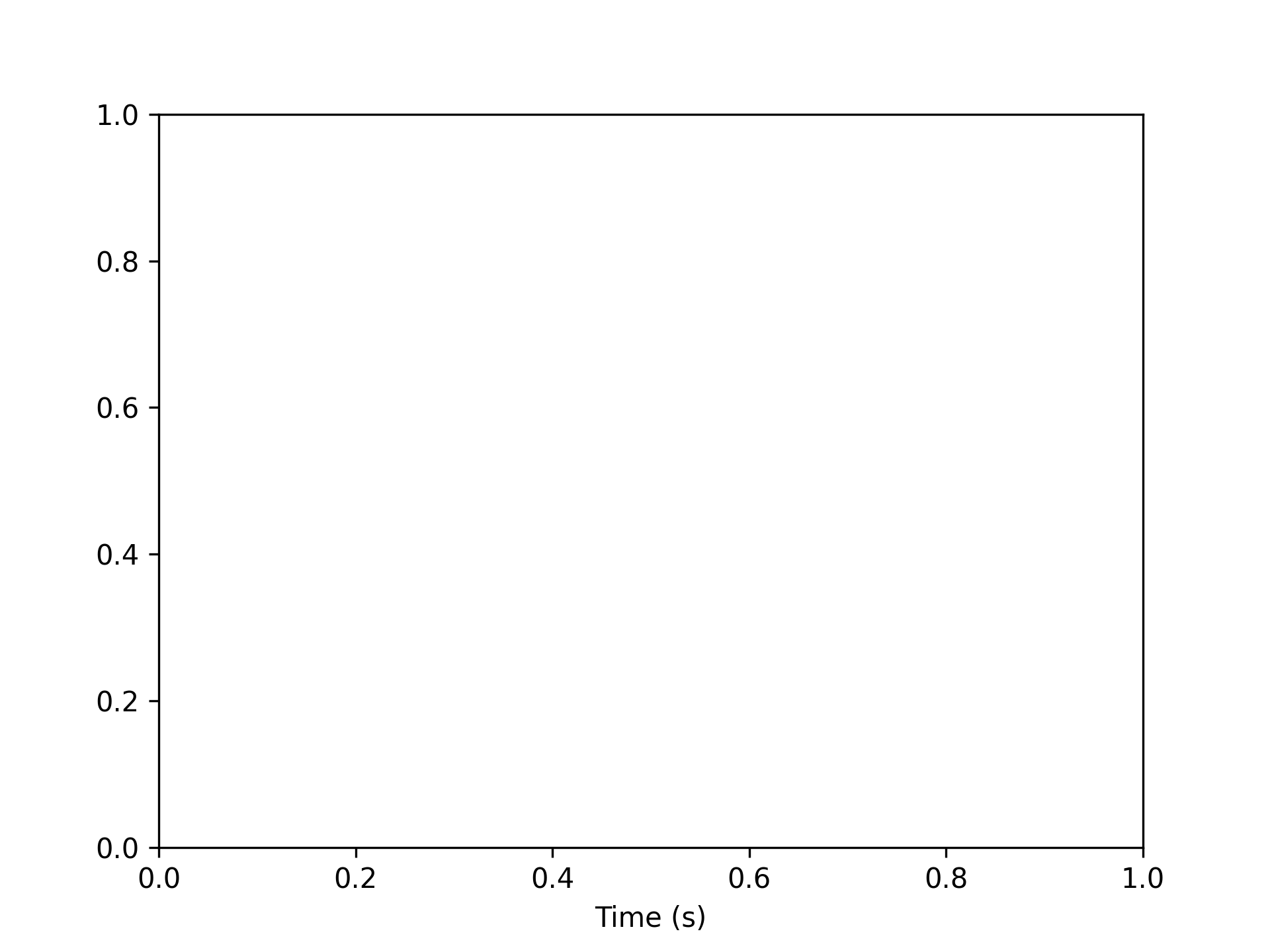
Setting x-axis label to "Time (s)"

fig, ax = plt.subplots()
ax.set_xlabel("Time (s)")

Setting Y-Axis Labels

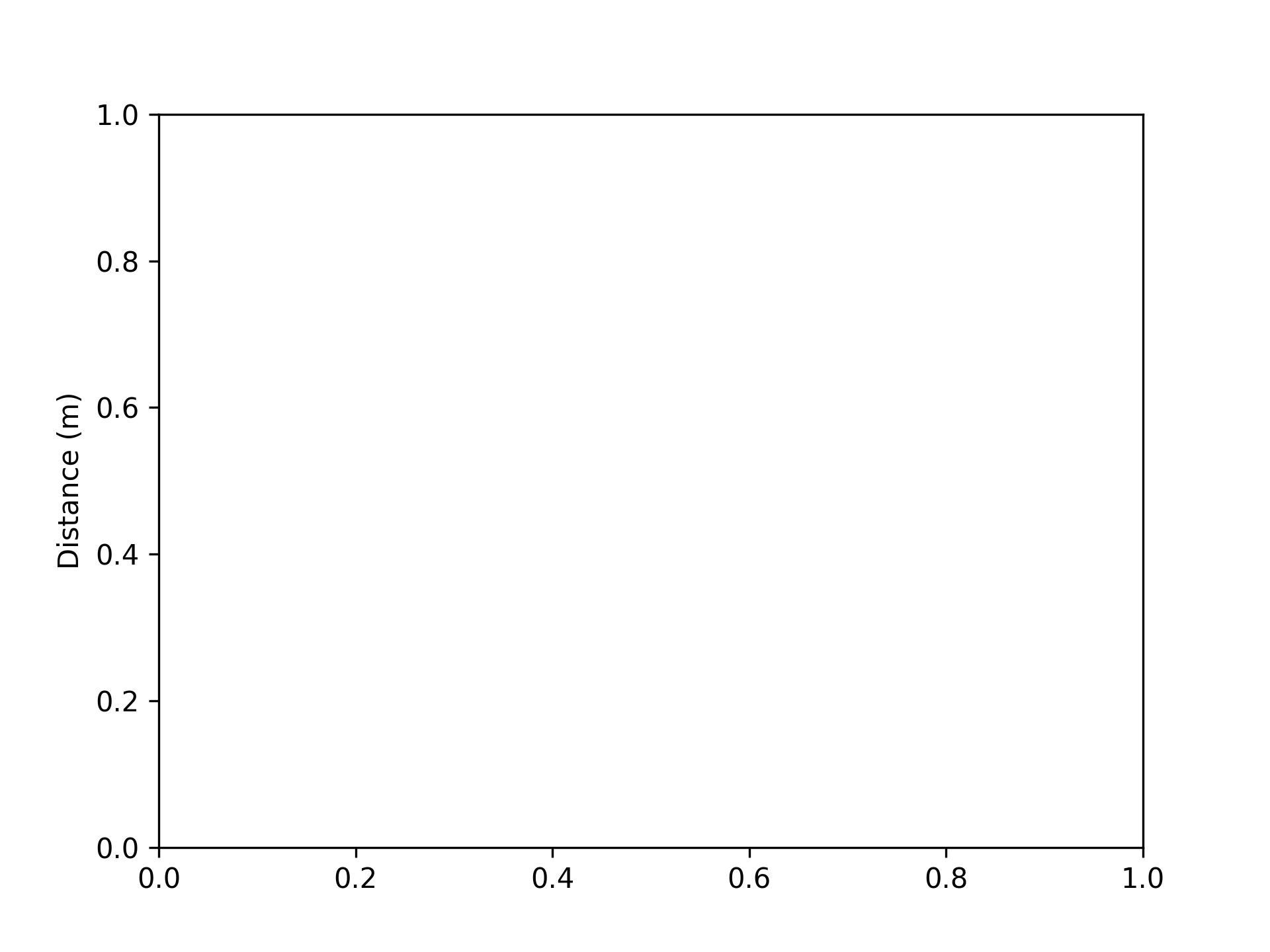
Setting y-axis label to "Distance (m)"

fig, ax = plt.subplots()
ax.set_ylabel("Distance (m)")

Setting Graph Top and Bottom

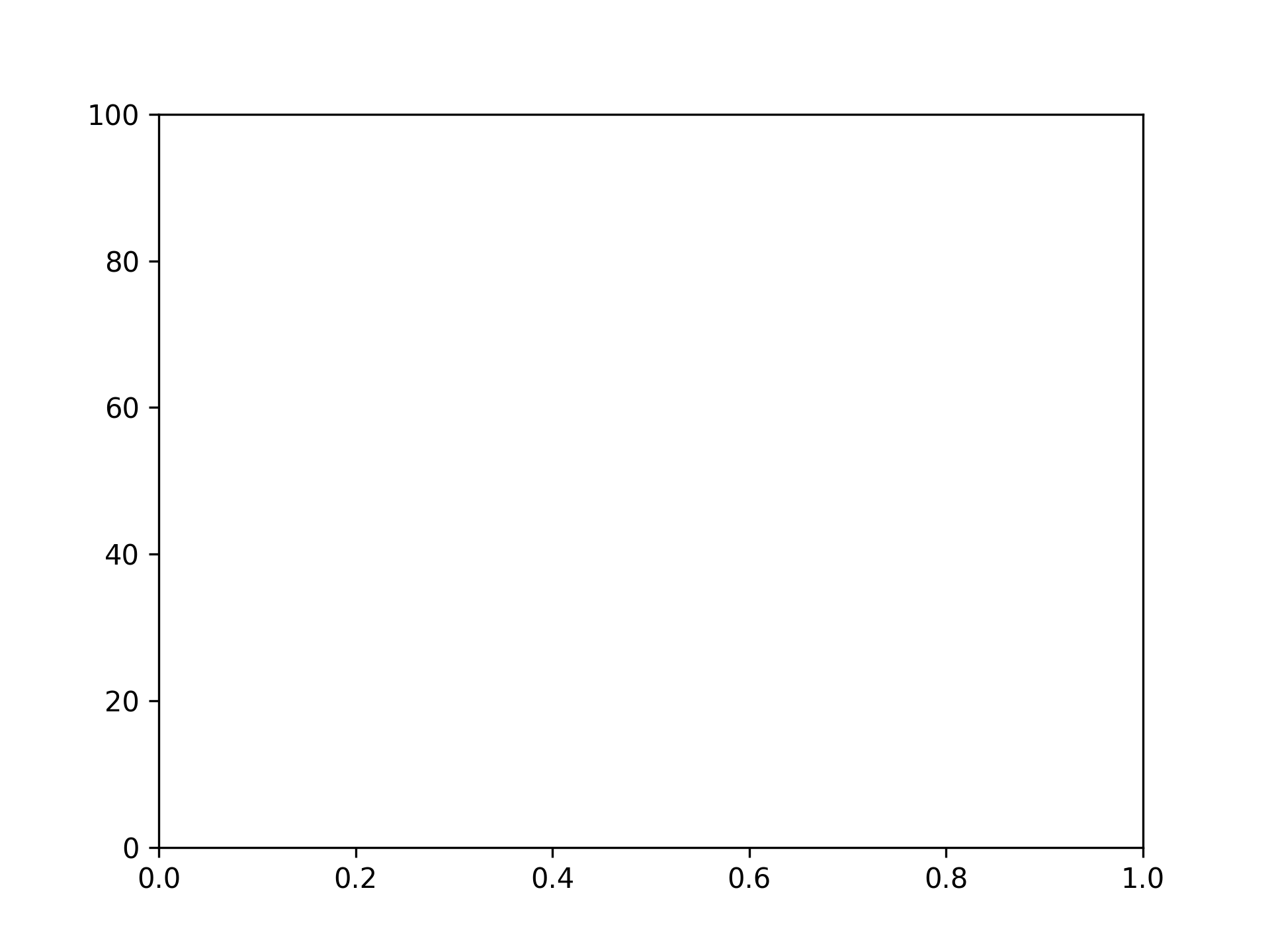
Setting top to 100

fig, ax = plt.subplots()
ax.set_ylim(top=100)

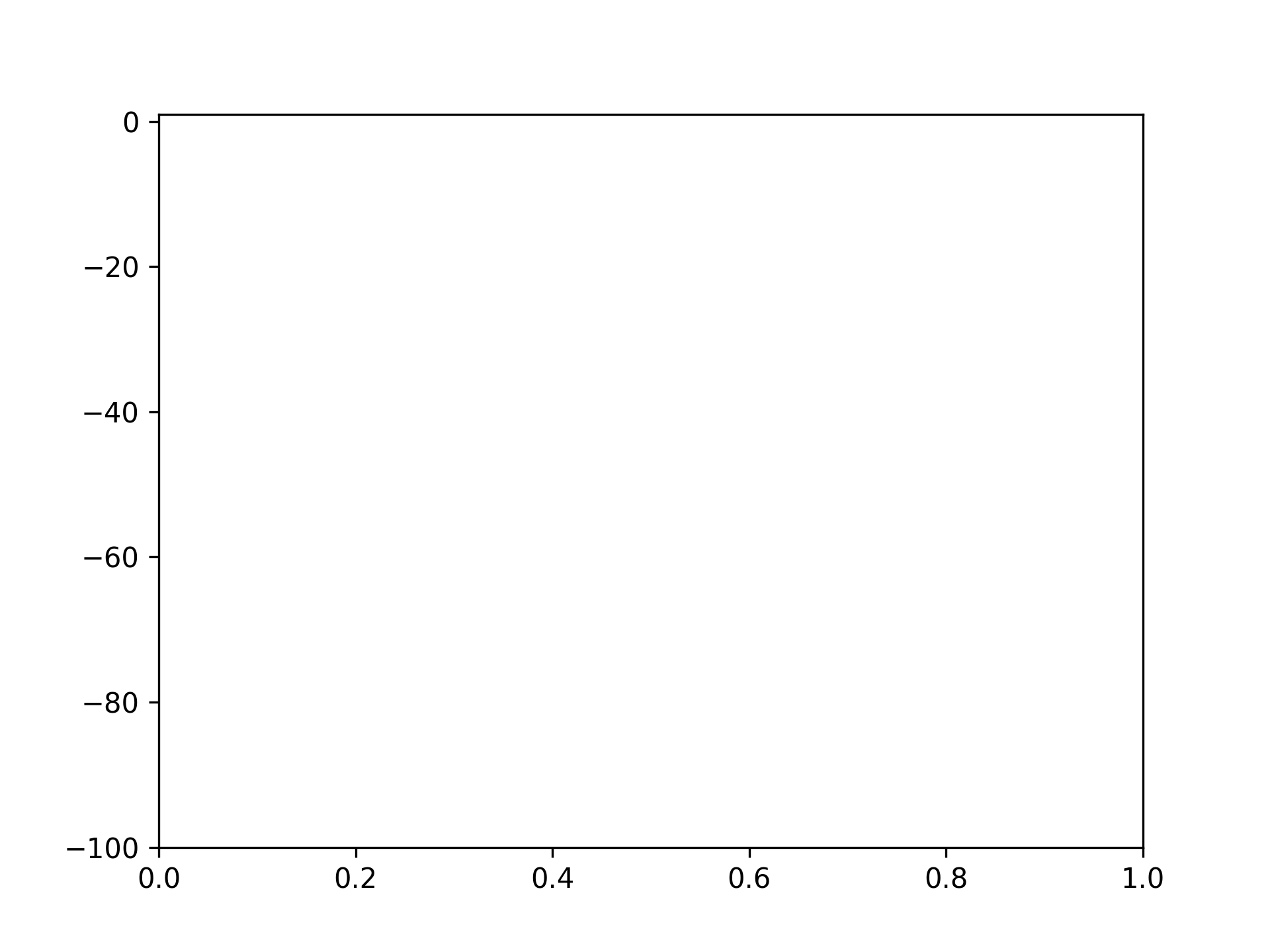
Setting bottom to -100

fig, ax = plt.subplots()
ax.set_ylim(bottom=-100)

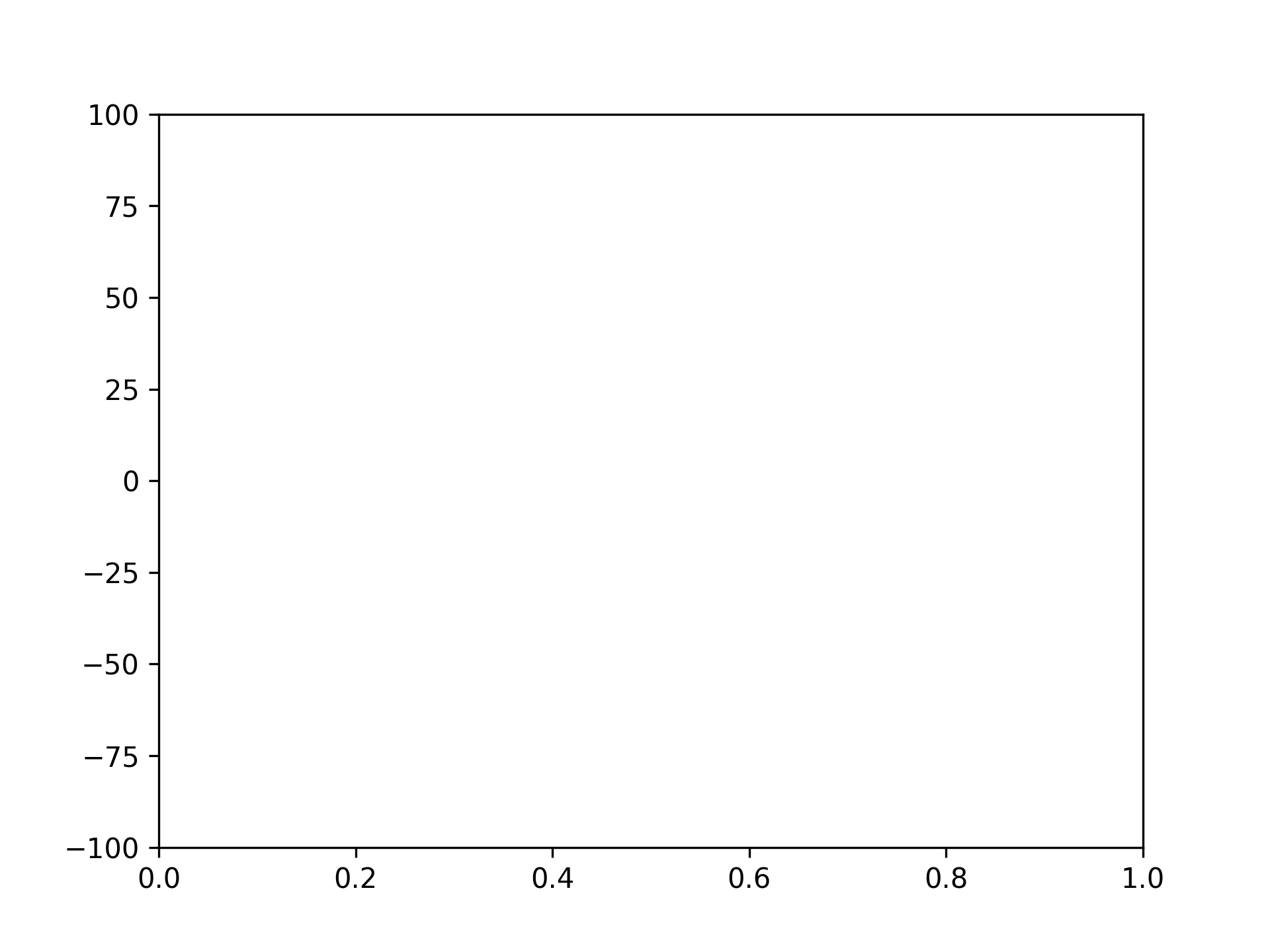
Setting top to 100 and bottom to -100

fig, ax = plt.subplots()
ax.set_ylim([-100, 100])

Setting Graph Left and Right

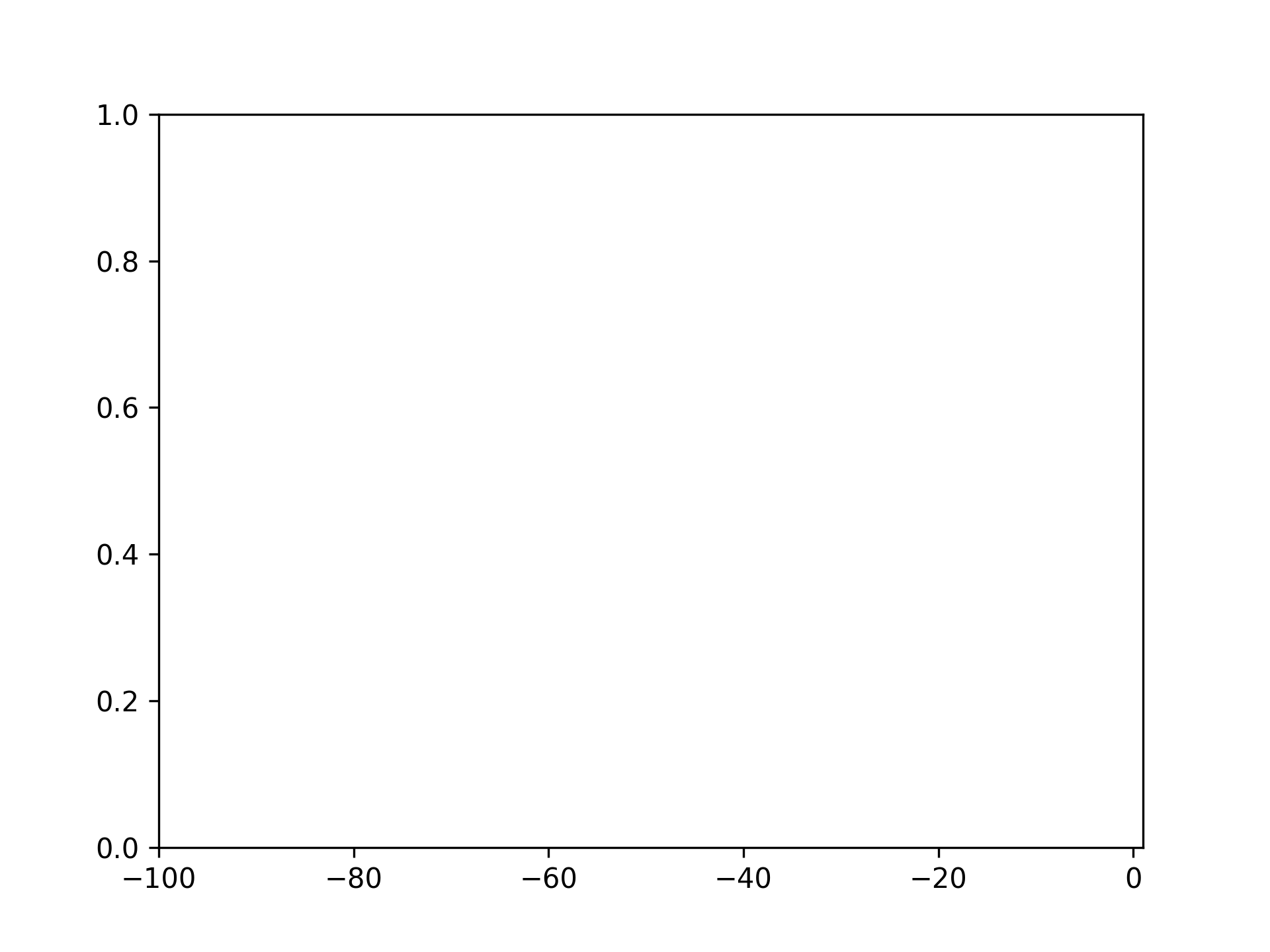
Setting left to -100

fig, ax = plt.subplots()
ax.set_xlim(left=-100)

Setting right to 100

fig, ax = plt.subplots()
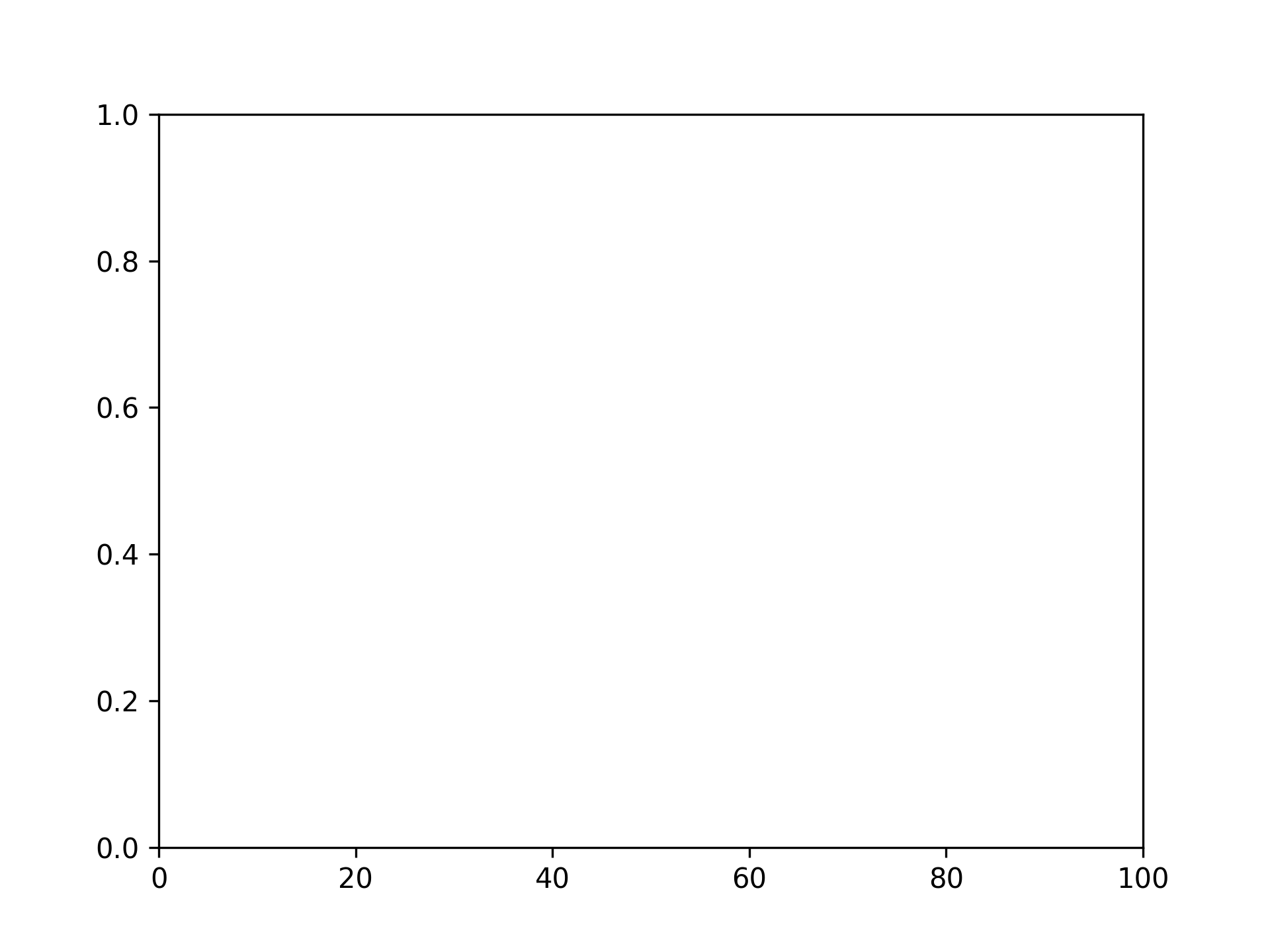
ax.set_xlim(right=100)

Setting left to -100 and right to 100

fig, ax = plt.subplots()
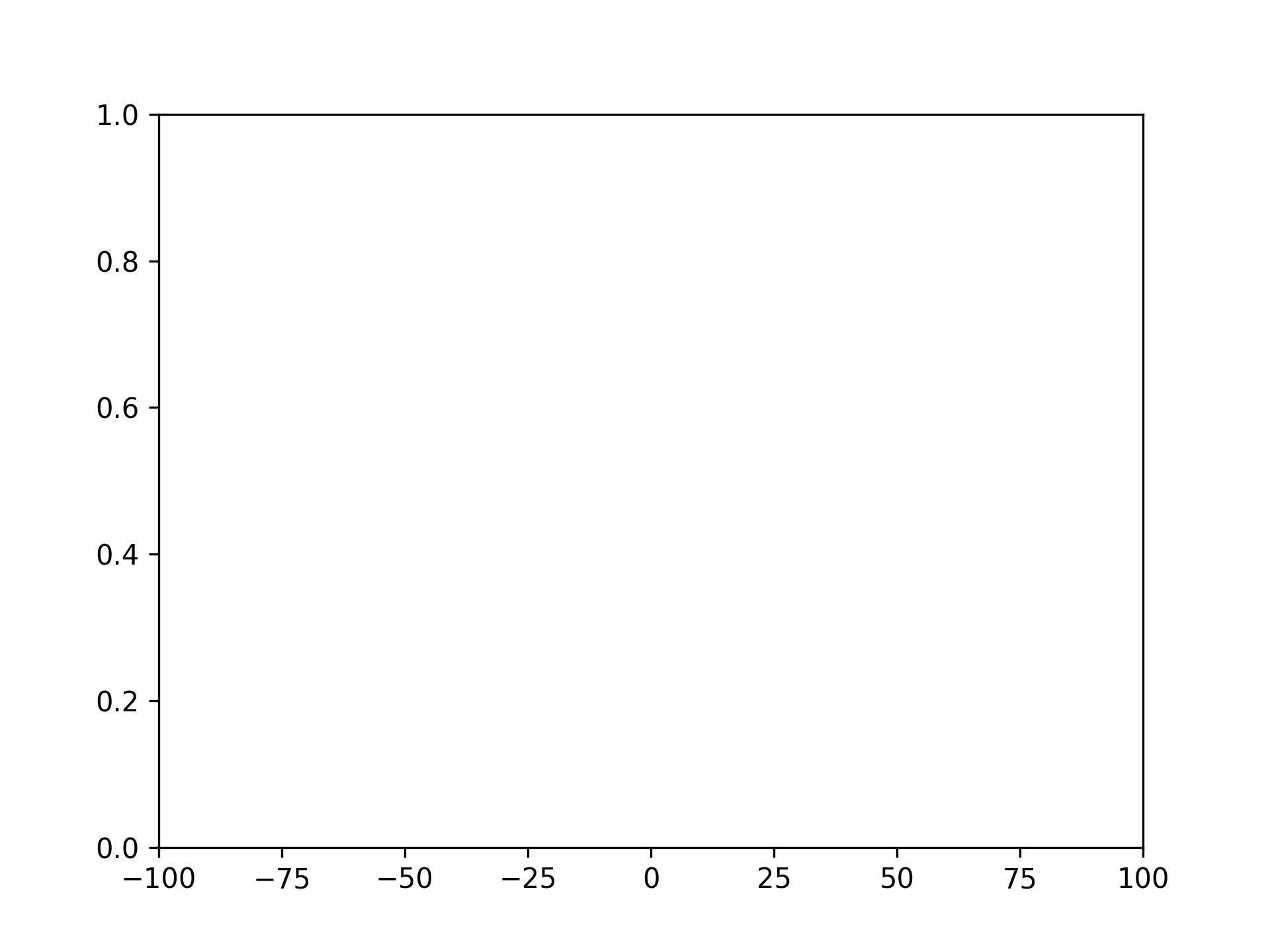
ax.set_xlim([-100, 100])

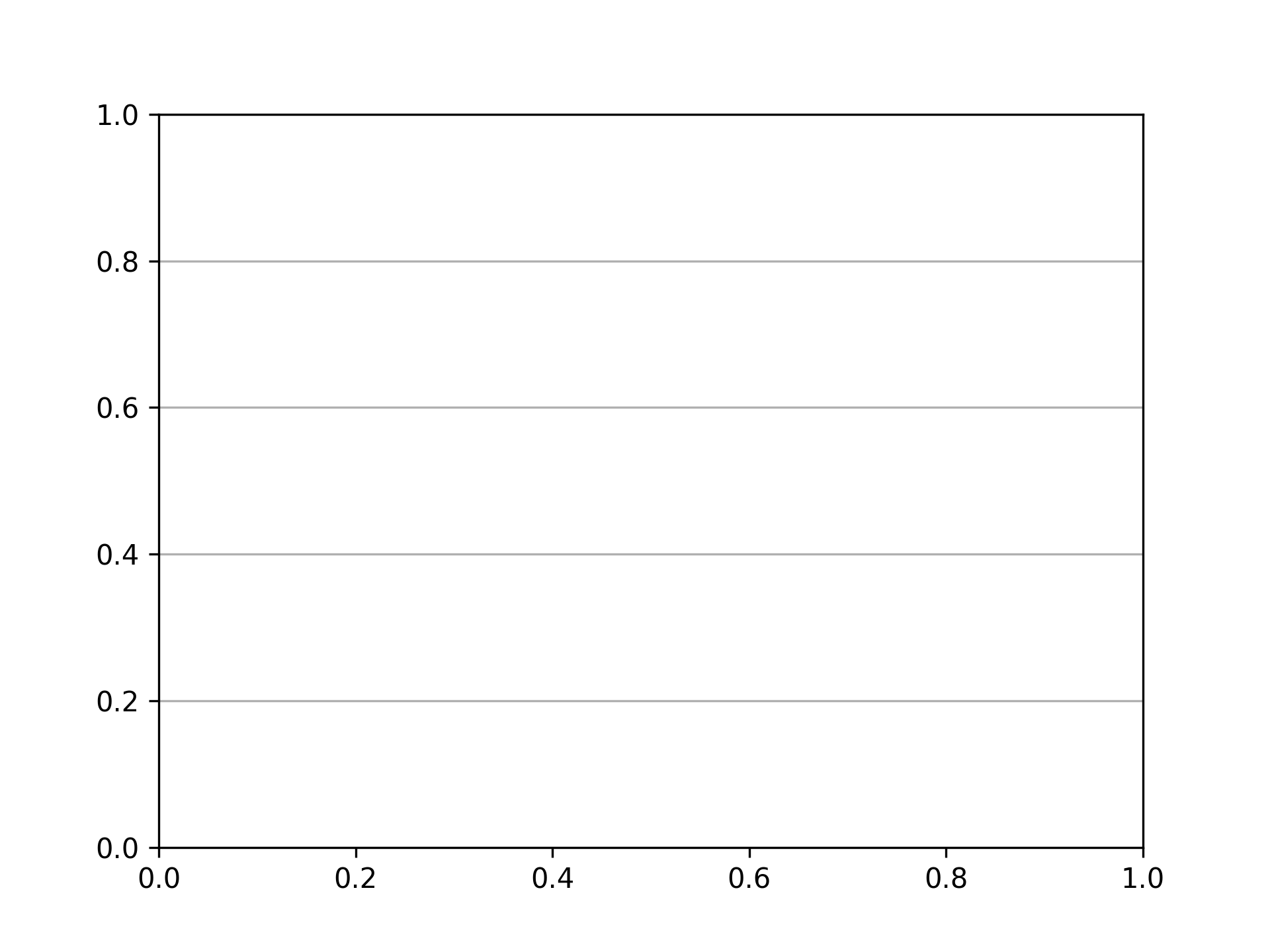
Displaying Grid

fig, ax = plt.subplots()
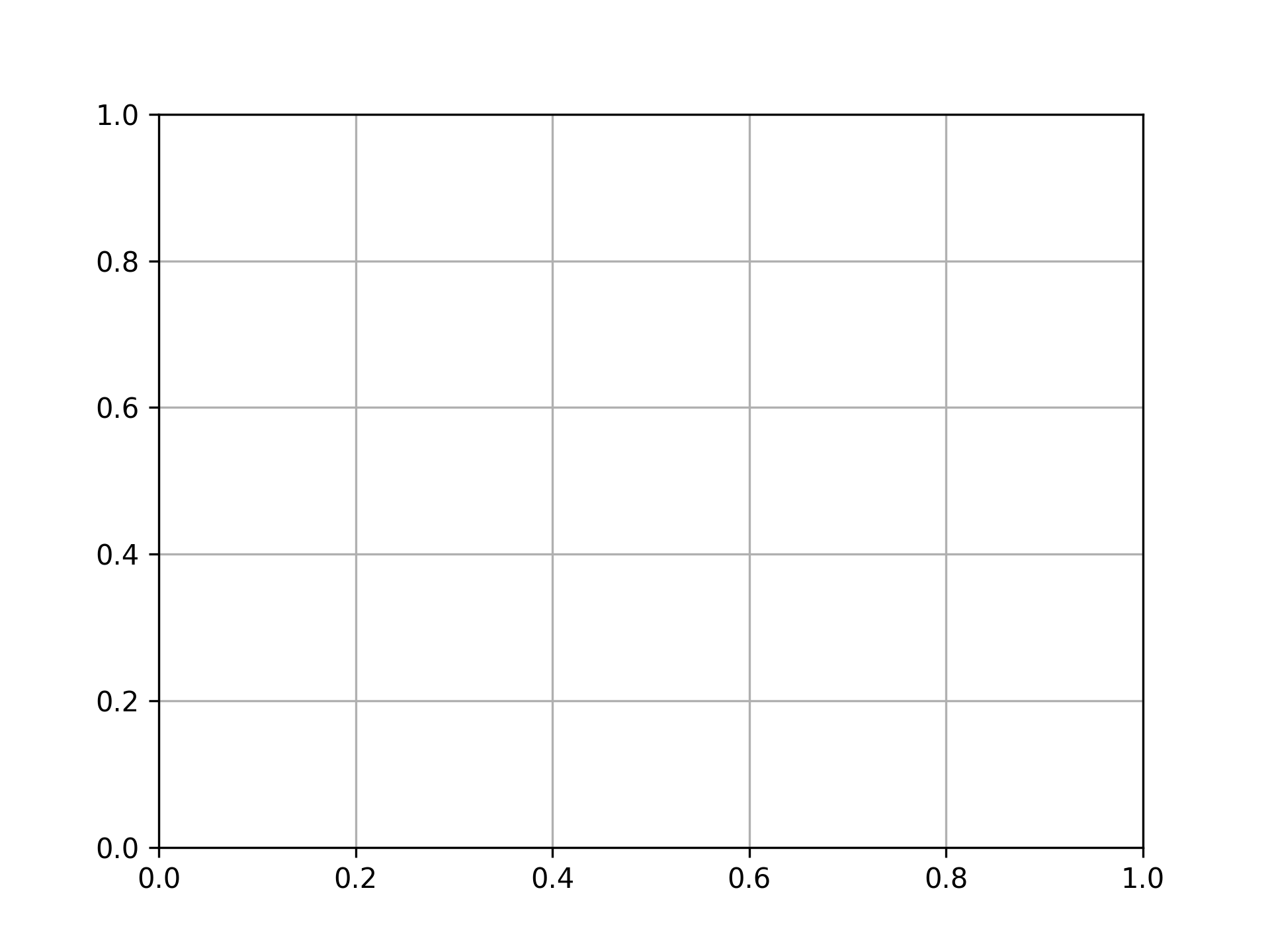
ax.grid()

Displaying grid vertically only

fig, ax = plt.subplots()
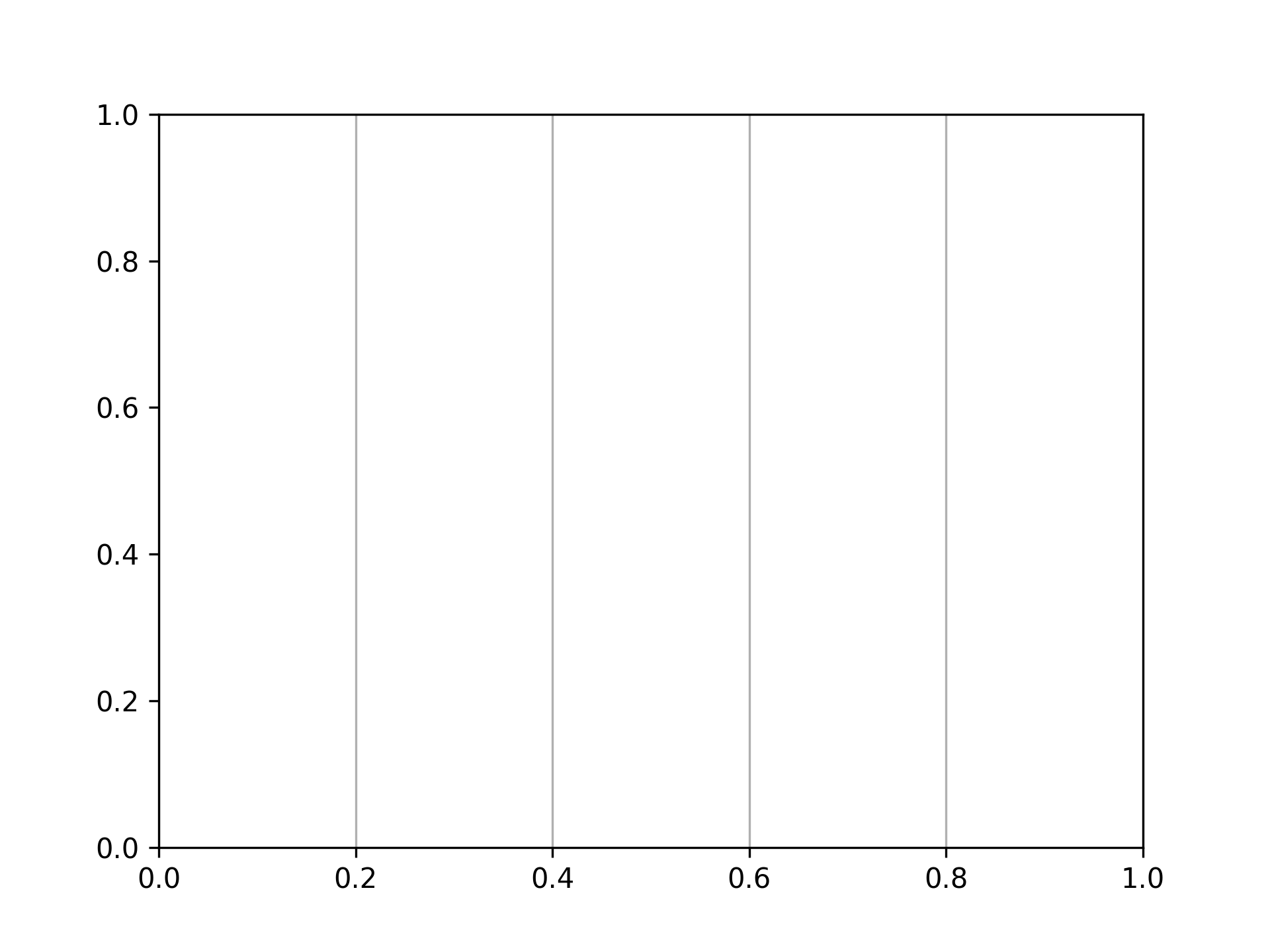
ax.grid(axis="x")

Displaying grid horizontally only

fig, ax = plt.subplots()
ax.grid(axis="y")

Setting Ticks

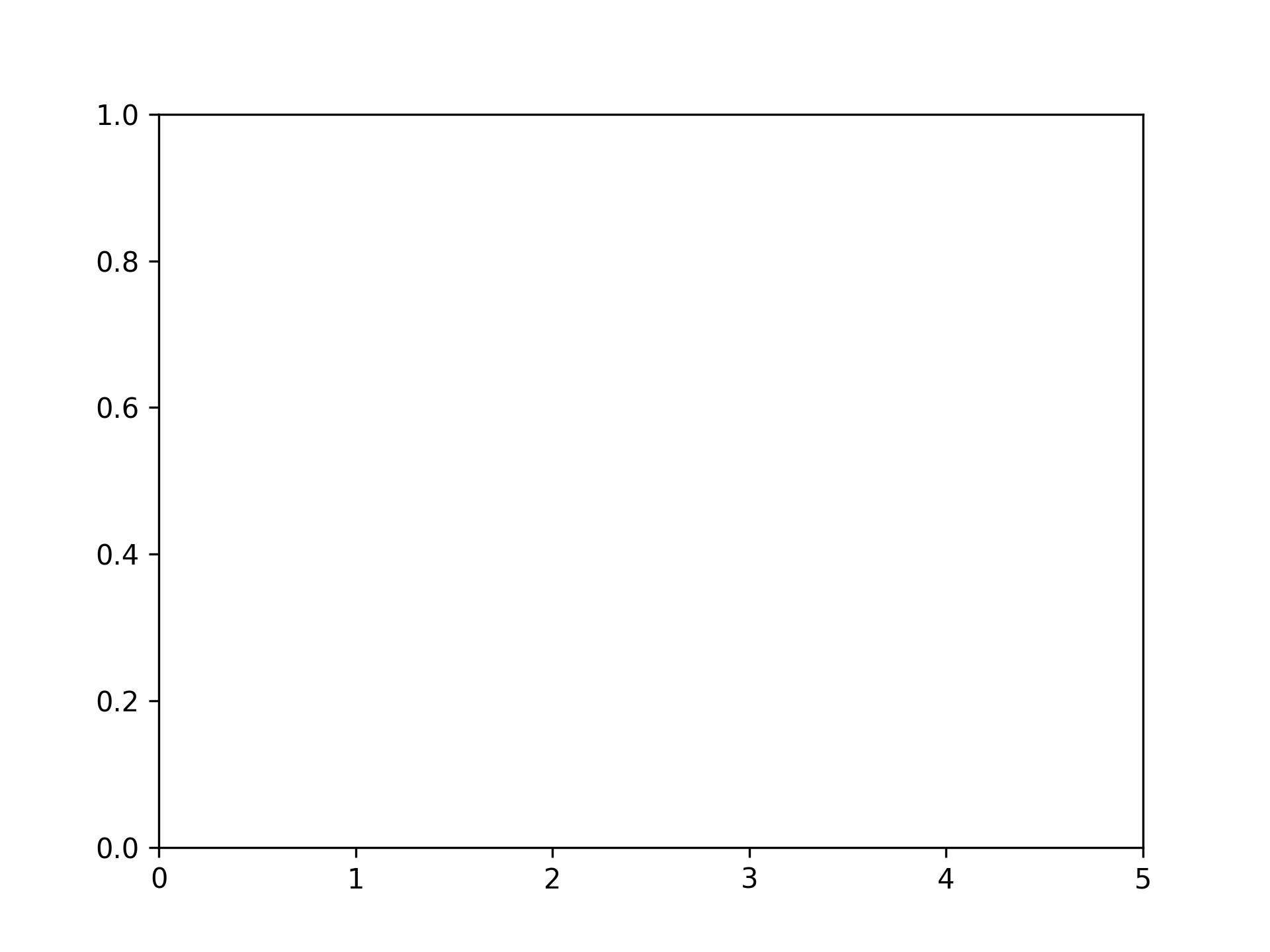
Setting x-axis ticks

fig, ax = plt.subplots()
xticks = range(6)
ax.set_xticks(xticks)

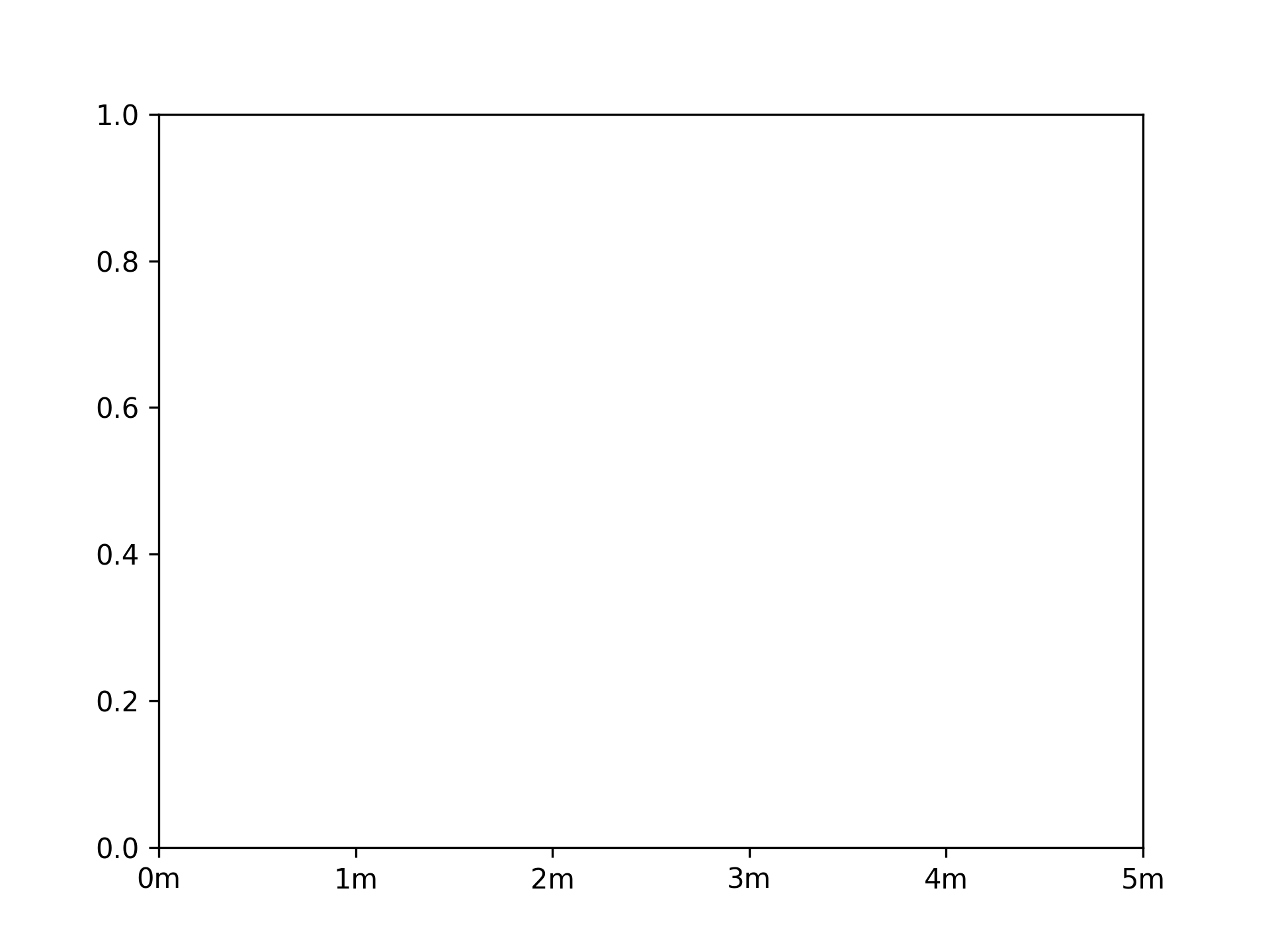
Setting x-axis ticks and tick labels

fig, ax = plt.subplots()
xticks = range(6)
ax.set_xticks(xticks, [f"{xtick}m" for xtick in xticks])

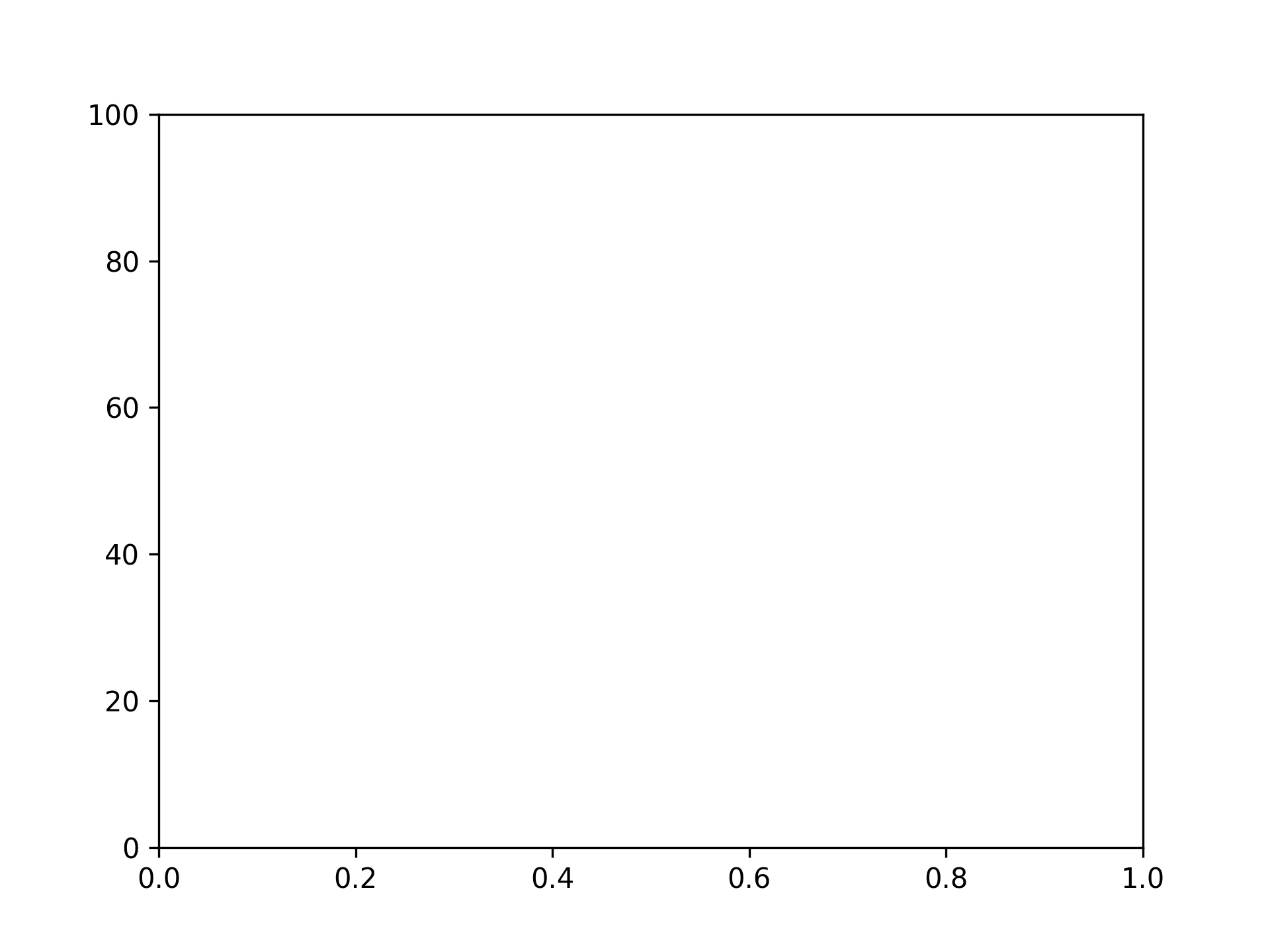
Setting y-axis ticks

fig, ax = plt.subplots()
yticks = [i * 20 for i in range(6)]
ax.set_yticks(yticks)

Setting y-axis ticks and tick labels

fig, ax = plt.subplots()
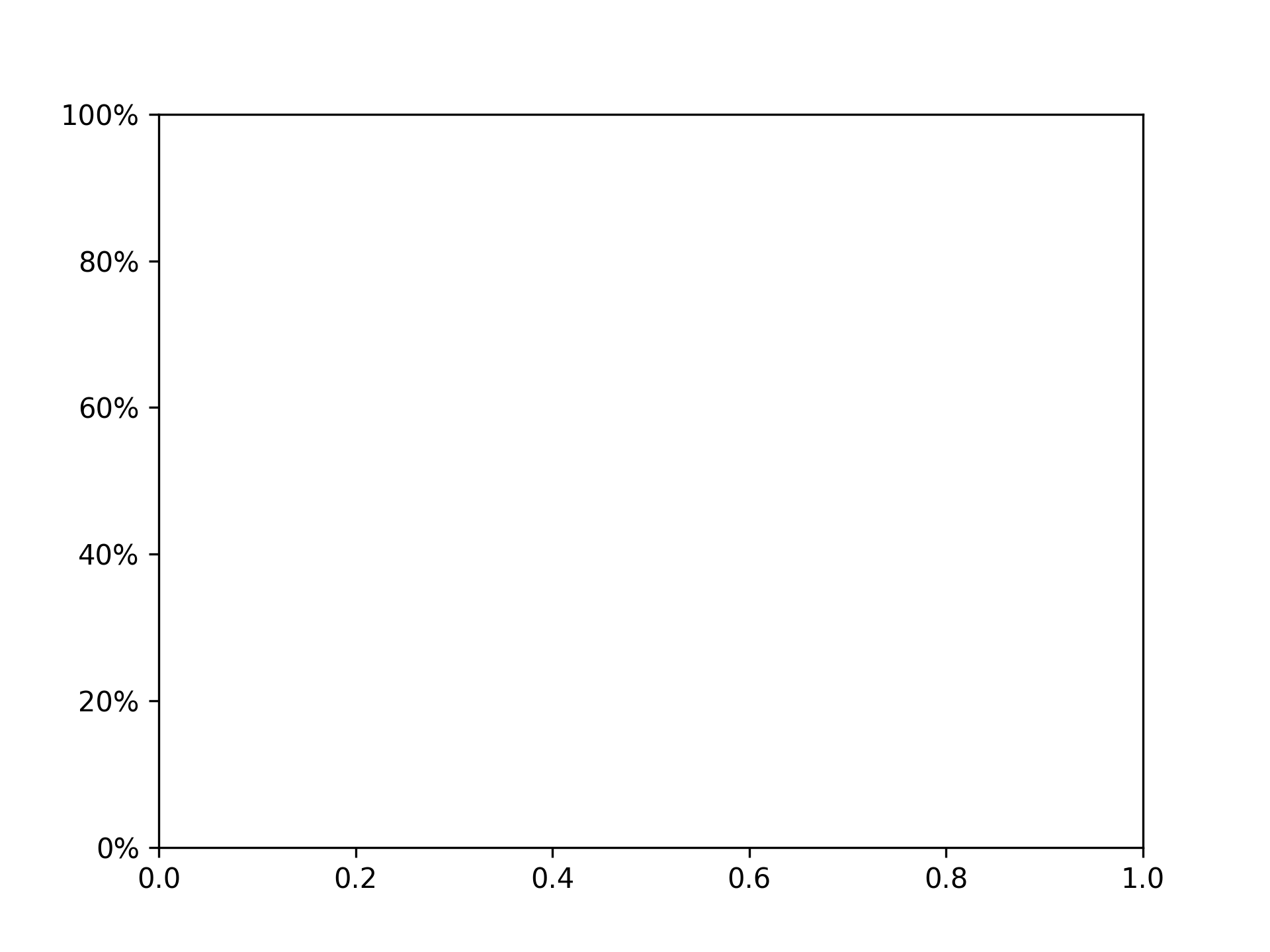
yticks = [i * 20 for i in range(6)]
ax.set_yticks(yticks, [f"{ytick}%" for ytick in yticks])

Removing Ticks

Removing x-axis ticks

fig, ax = plt.subplots()
ax.tick_params(bottom=False)

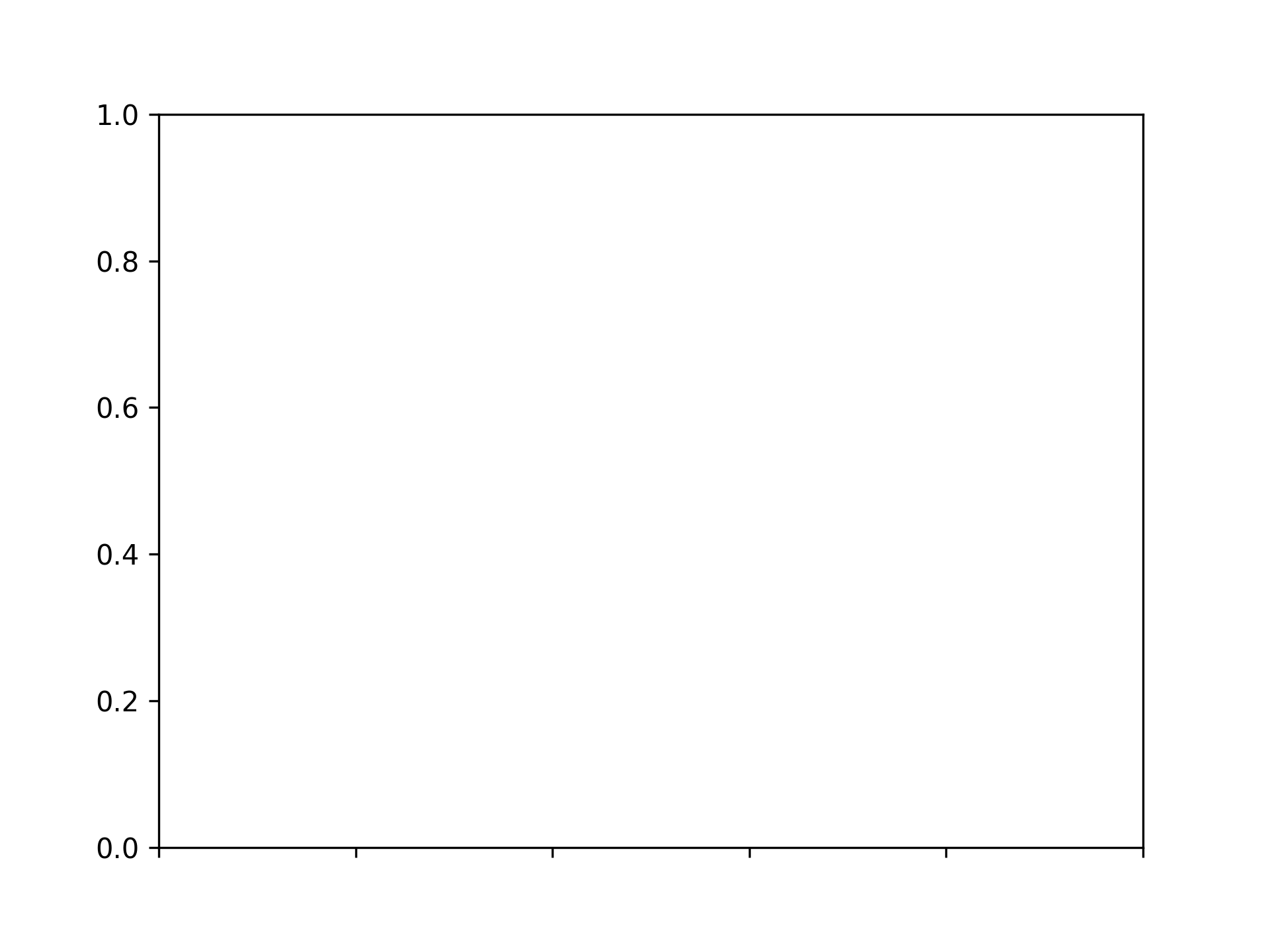
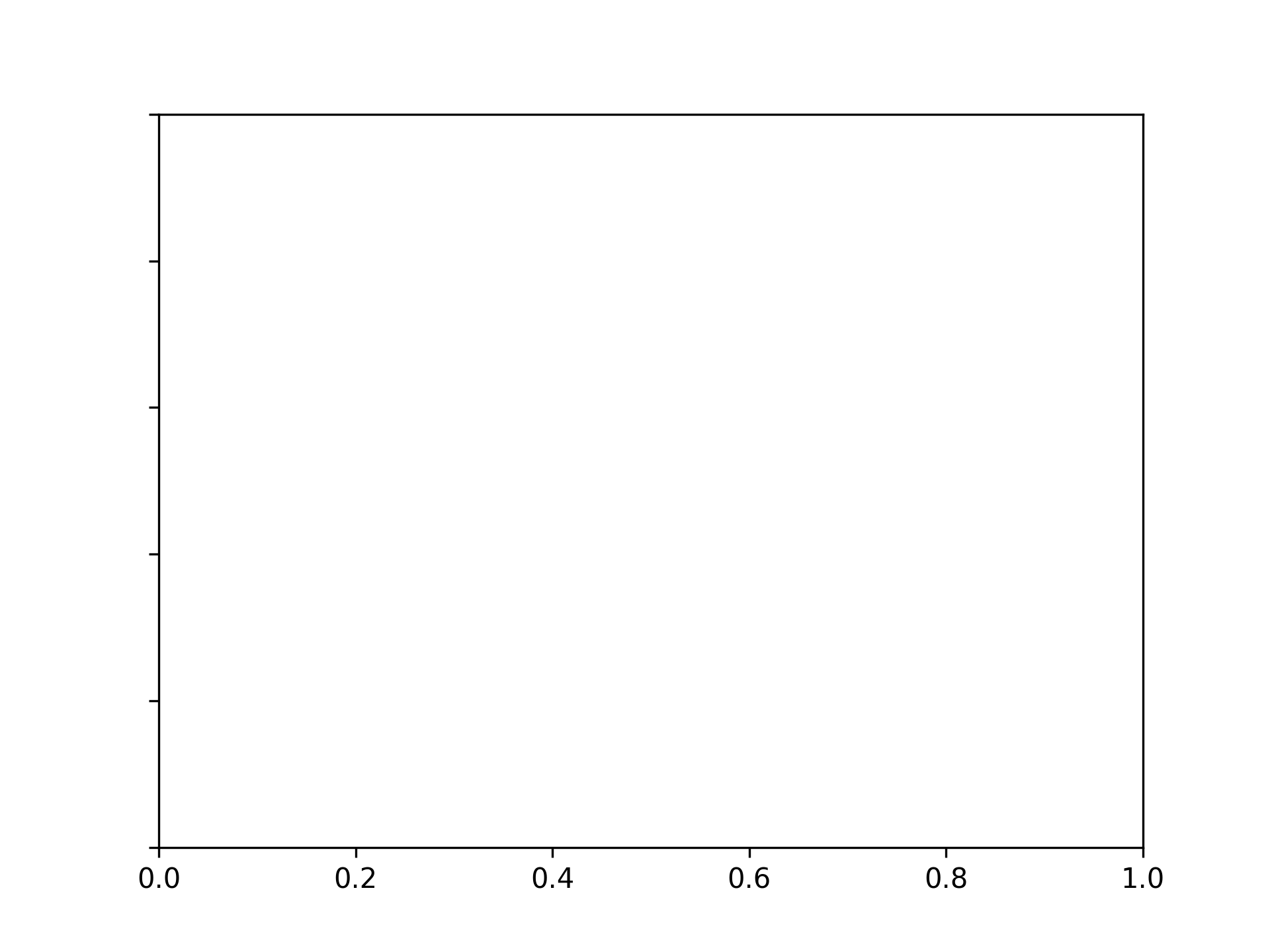
Removing x-axis tick labels

fig, ax = plt.subplots()
ax.tick_params(labelbottom=False)

Removing y-axis ticks

fig, ax = plt.subplots()
ax.tick_params(left=False)

Removing y-axis tick labels

fig, ax = plt.subplots()
ax.tick_params(labelleft=False)

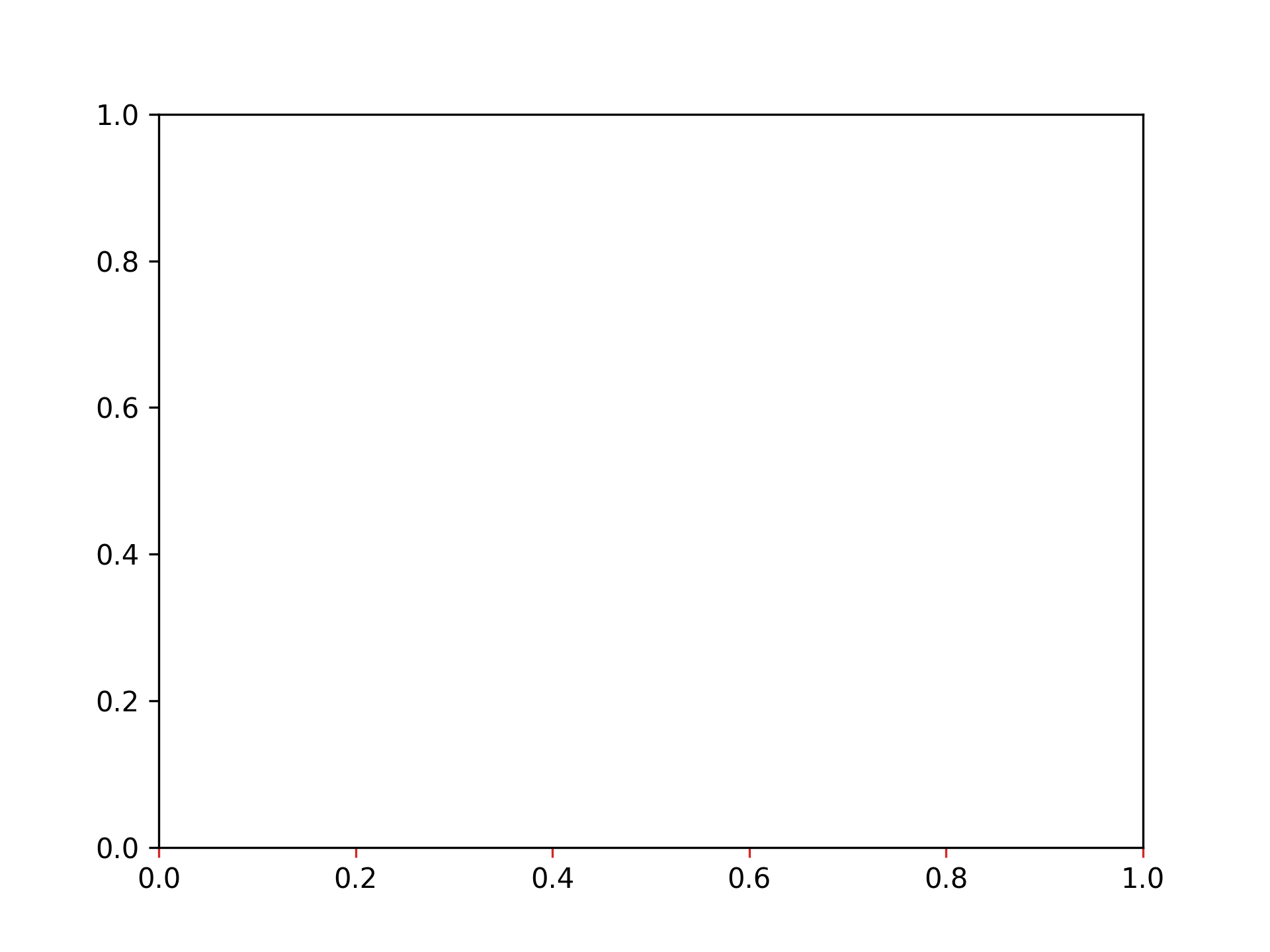
Setting Tick Colors

Setting x-axis tick color to red

fig, ax = plt.subplots()
ax.tick_params(axis="x", color="tab:red")

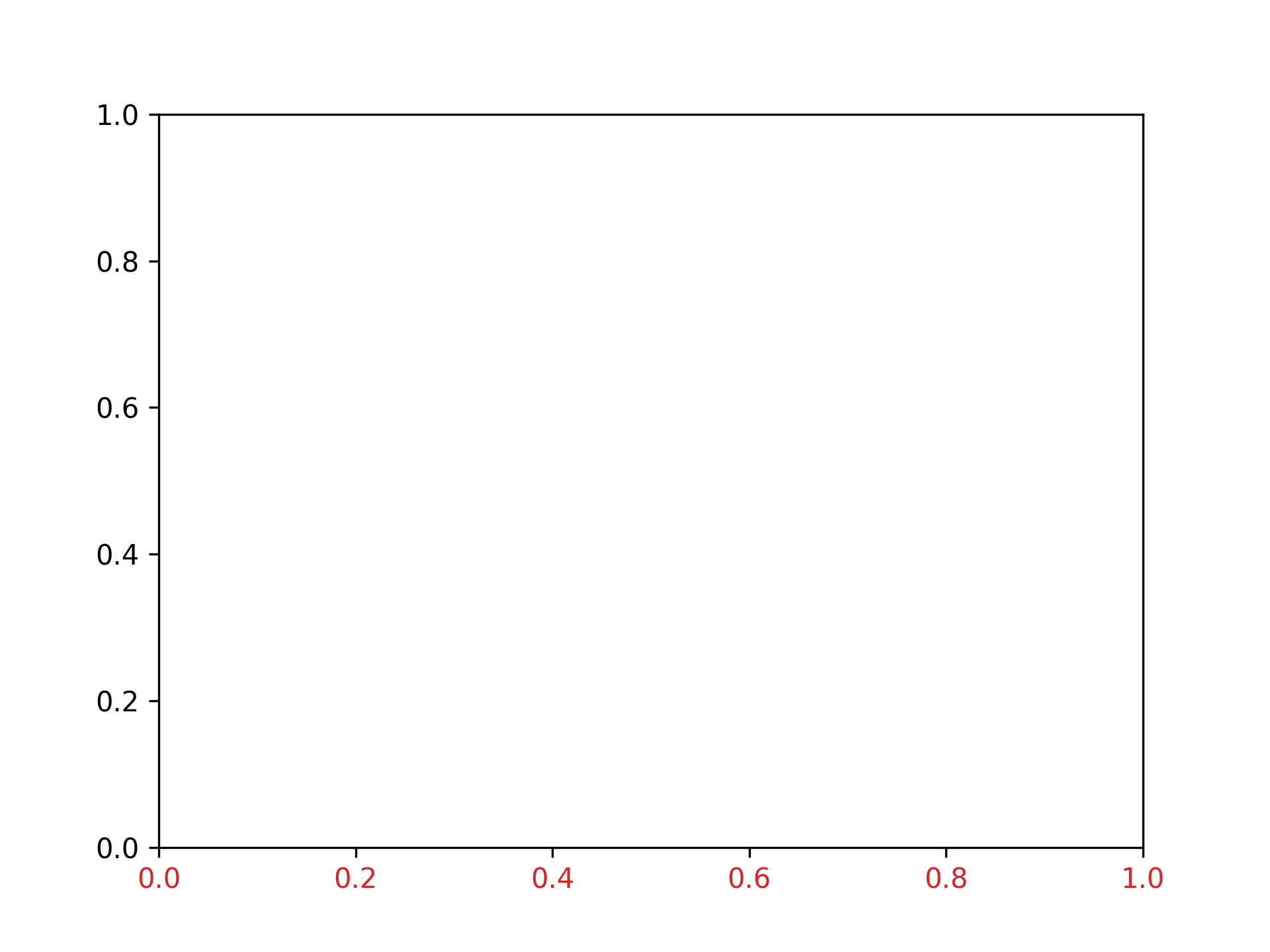
Setting x-axis tick label color to red

fig, ax = plt.subplots()
ax.tick_params(axis="x", labelcolor="tab:red")

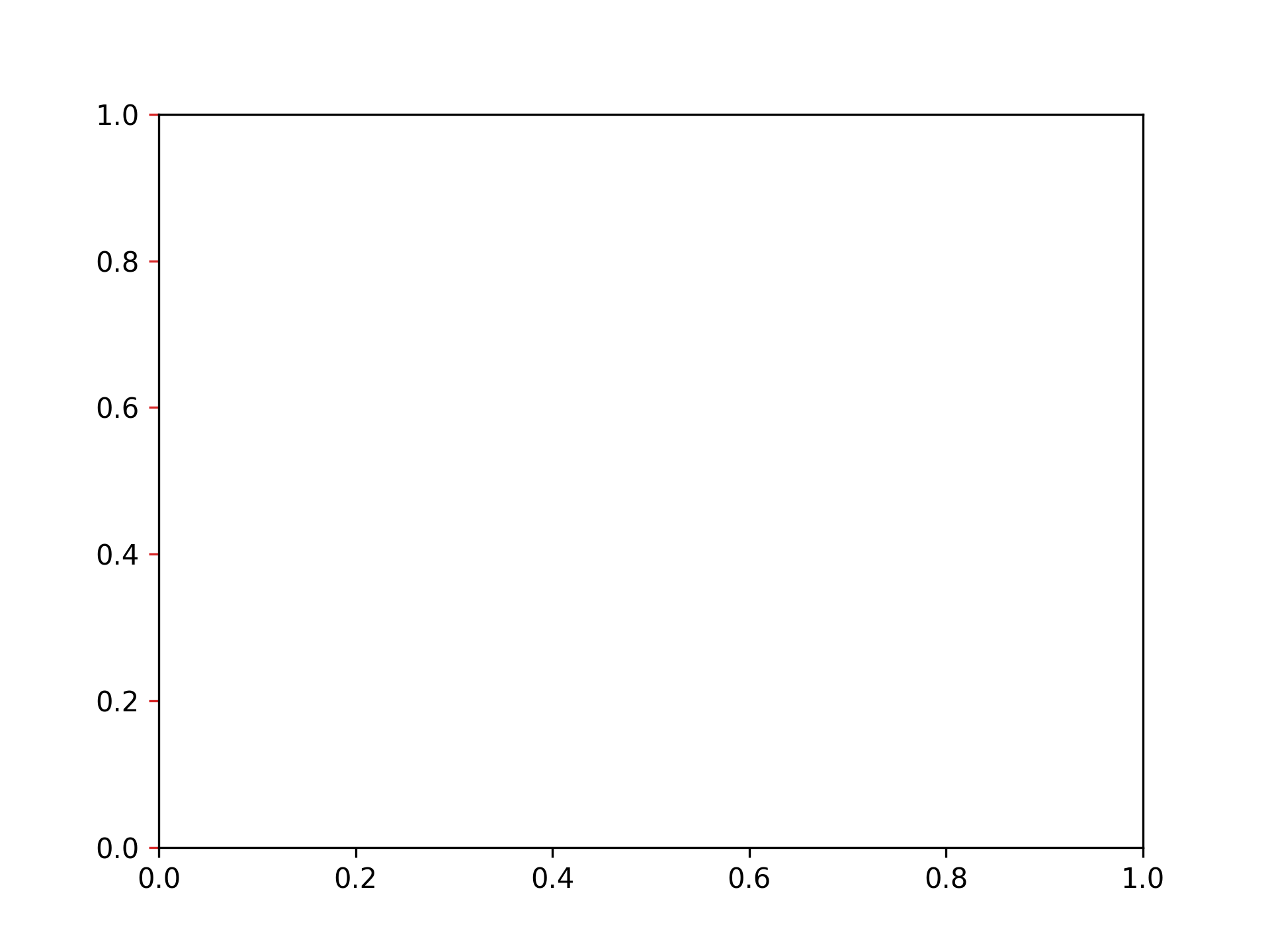
Setting y-axis tick color to red

fig, ax = plt.subplots()
ax.tick_params(axis="y", color="tab:red")

Setting y-axis tick label color to red

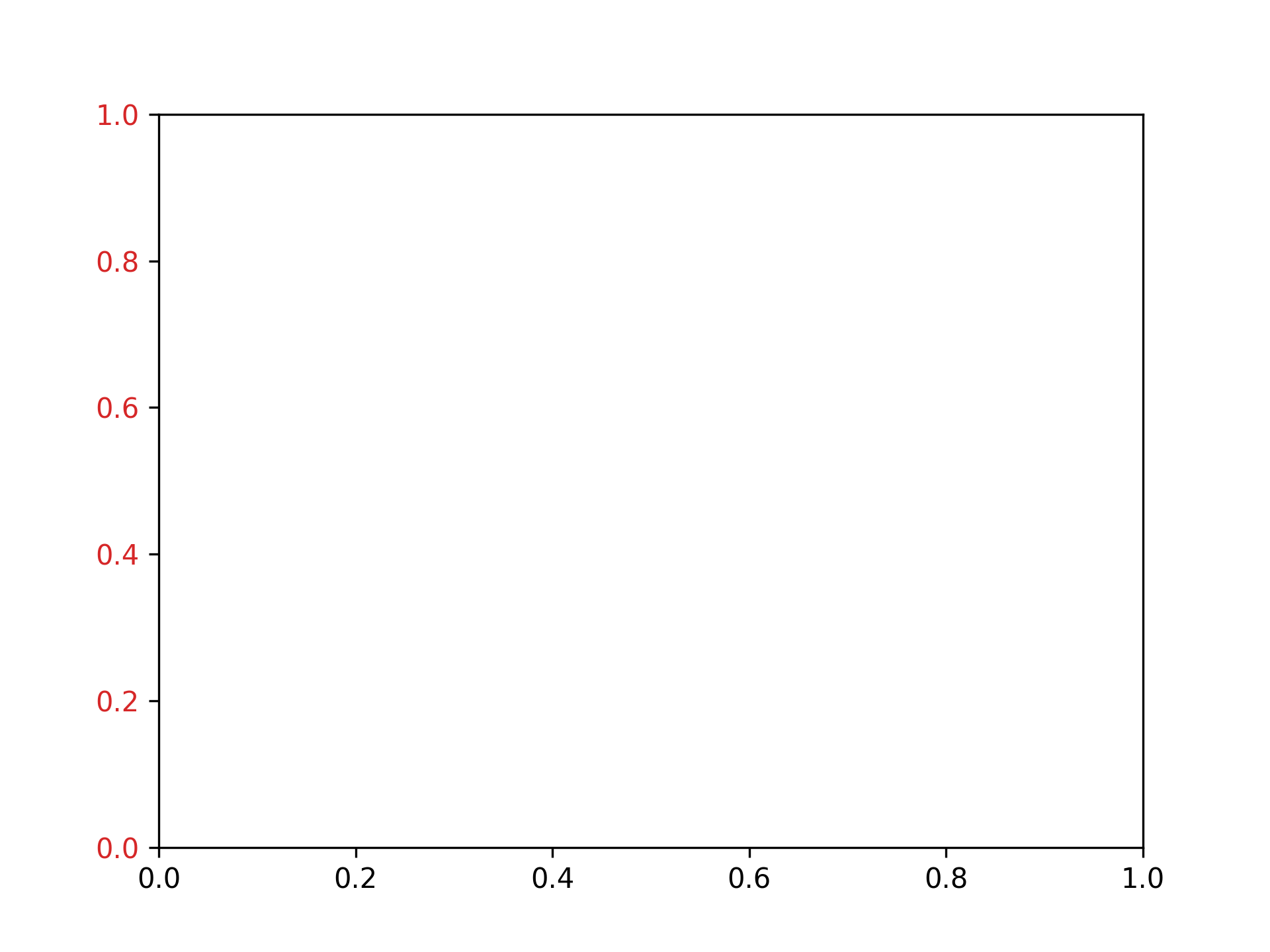
fig, ax = plt.subplots()
ax.tick_params(axis="y", labelcolor="tab:red")

Adjusting Graph Spacing

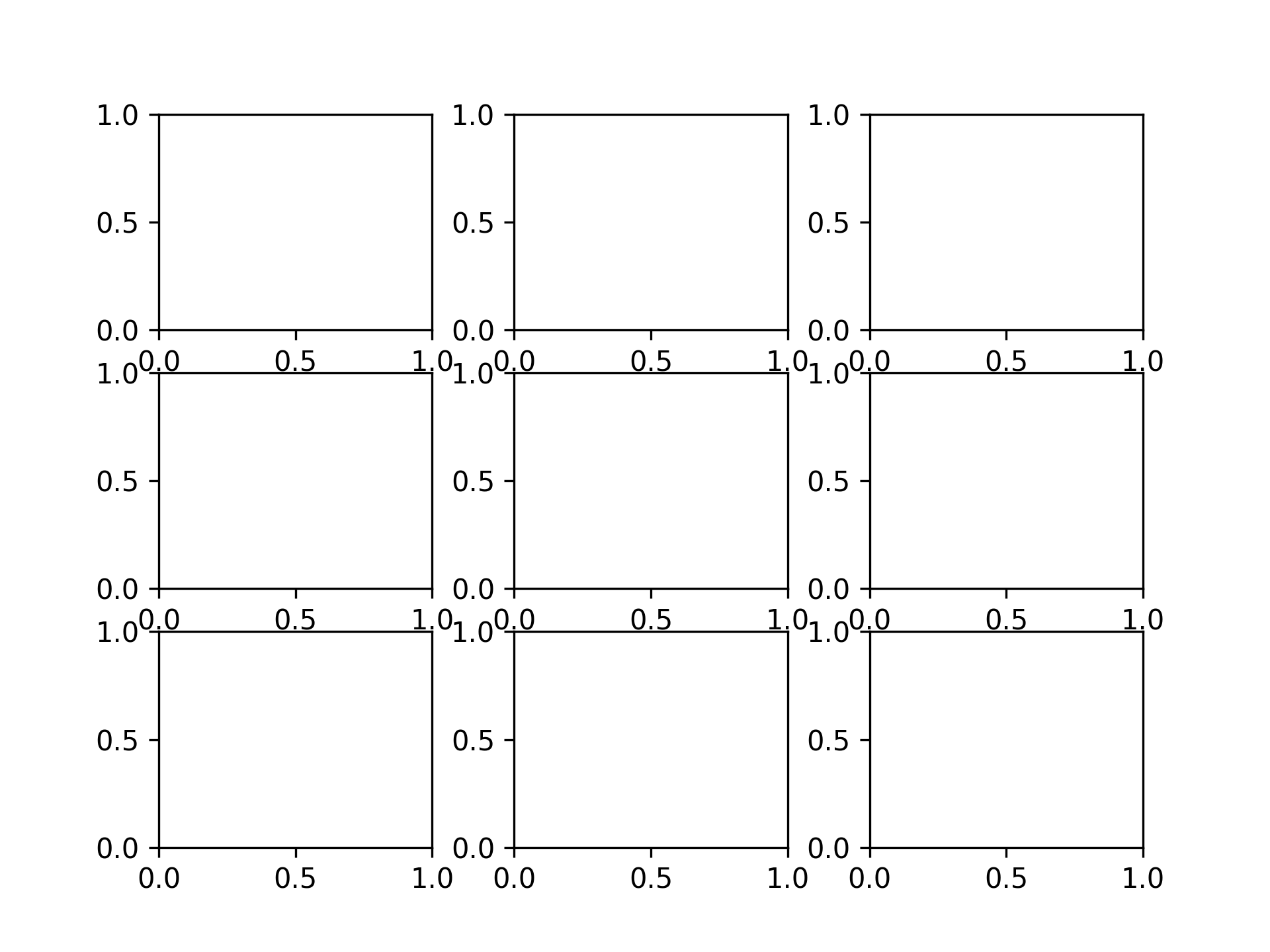
Setting vertical spacing to 0.2 and horizontal spacing to 0.3

fig, ax = plt.subplots(3, 3)
fig.subplots_adjust(hspace=0.2, wspace=0.3)

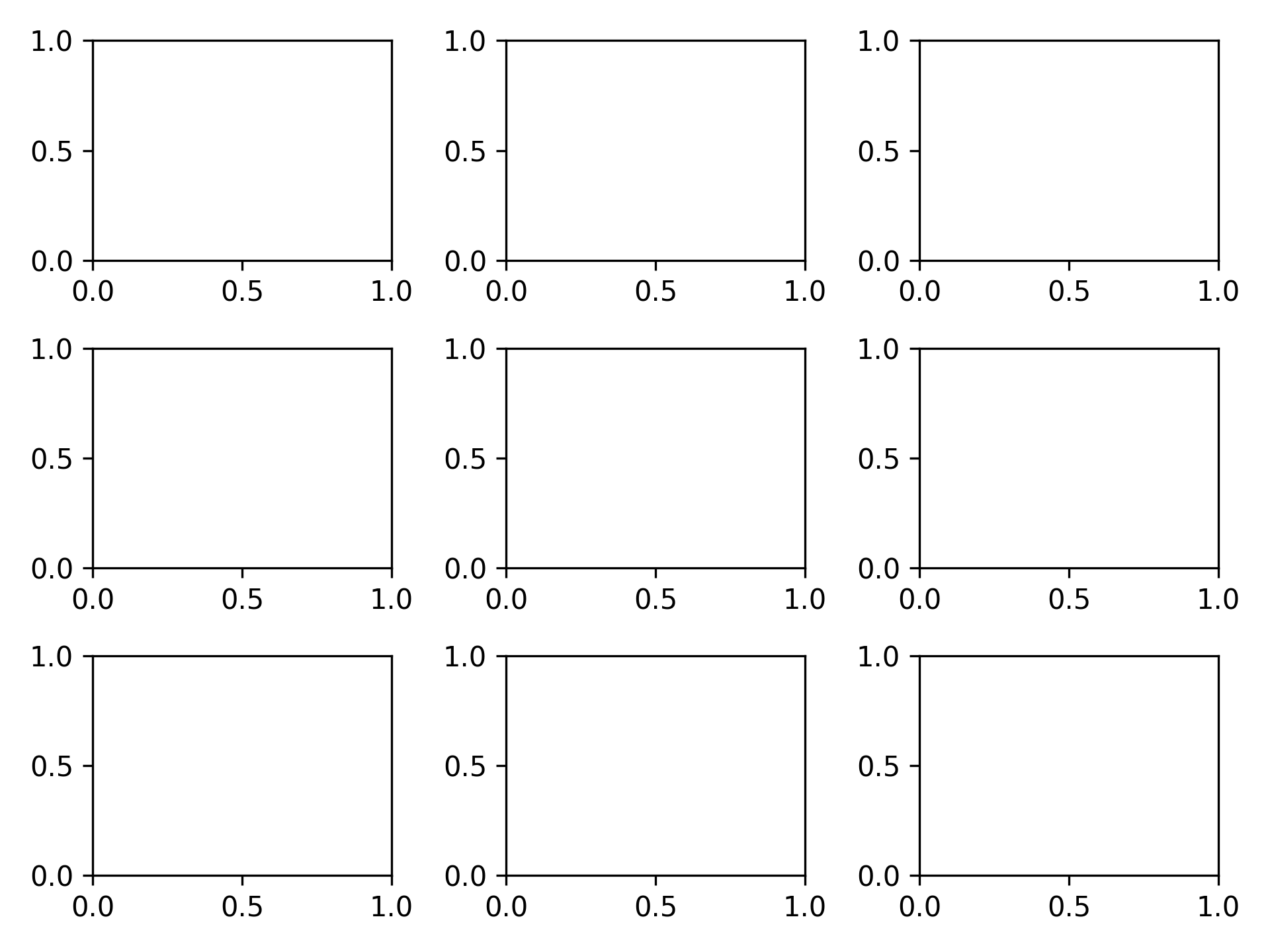
Setting spacing to automatic

fig, ax = plt.subplots(3, 3)
fig.tight_layout()

Saving Images

Saving as PNG

fig, ax = plt.subplots()
plt.savefig("graph.png")

Saving as SVG

fig, ax = plt.subplots()
plt.savefig("graph.svg")

Saving as PDF

fig, ax = plt.subplots()
plt.savefig("graph.pdf")

graph.pdf

Saving at 300 dpi

fig, ax = plt.subplots()
plt.savefig("graph300.png", dpi=300)

How to install pyenv and Python on Ubuntu (including WSL2)

· One min read

Install Dependencies

Reference: Home · pyenv/pyenv Wiki

sudo apt update
sudo apt install build-essential libssl-dev zlib1g-dev \
libbz2-dev libreadline-dev libsqlite3-dev curl \
libncursesw5-dev xz-utils tk-dev libxml2-dev libxmlsec1-dev libffi-dev lbmzma-dev

Install pyenv

Reference: [pyenv/pyenv-installer: This tool is used to install pyenv and friends.] (https://github.com/pyenv/pyenv-installer?tab=readme-ov-file)

curl https://pyenv.run | bash

Add initialization script to ~/.bashrc

# Open ~/.bashrc
code ~/.bashrc

Add the following:

export PYENV_ROOT="$HOME/.pyenv"
[[ -d $PYENV_ROOT/bin ]] && export PATH="$PYENV_ROOT/bin:$PATH"
eval "$(pyenv init -)"

eval "$(pyenv virtualenv-init -)"

Install Python

Display a list of installable versions

pyenv install -l

Install Python

Install Python 3.12.2.

pyenv install 3.12.2

Set the Python version

Set the default version to Python 3.12.2.

pyenv global 3.12.2

python -V # Python 3.12.2

Getting Started with Poetry: A Python Package Manager

· One min read

Installing Poetry

Install Poetry using pip. (It's also a good idea to upgrade pip at the same time.)

python -m pip install --upgrade pip
pip install poetry

Creating a Python Project with Poetry

1. Creating a New Python Project

To create a new Python project, run poetry new. A Python project template will be generated.

poetry new xxxxxxxx

2. Existing Python Project

If you already have a Python project, run poetry init to add the necessary configuration files for Poetry.

poetry init

Entering the Poetry Virtual Environment

Run poetry shell to start a shell in the Poetry virtual environment. You can use the packages added using Poetry.

poetry shell

Adding Packages to Poetry

You can add dependency packages using poetry add.

poetry add xxxxxxxx

Other Commonly Used Commands

  • poetry list: Displays a list of commands.
  • poetry build: Creates packages (.tar.gz, .whl).
  • poetry install: Installs dependency packages.
  • poetry publish: Publishes created packages to PyPI, etc.
  • poetry search: Searches for packages.
  • poetry run: Executes commands in the Poetry environment.
  • poetry show: Displays available packages.
  • poetry update: Executes dependency package updates.

Installing and Configuring Pyenv

· 2 min read
  1. Clone Pyenv Clone the Pyenv repository. The recommended directory is ~/ .pyenv.

git clone https://github.com/pyenv/pyenv ~/.pyenv


0. Compile Bash extensions for speed
You can compile Bash extensions for speed.
It will still work correctly if the compilation fails.

```sh
cd ~/.pyenv && src/configure && make -C src
  1. Configuration (bash) Path and other settings.

echo 'export PYENV_ROOT="$HOME/.pyenv"' >> ~/.profile echo 'export PATH="$PYENV_ROOT/bin:$PATH"' >> ~/.profile echo 'eval "$(pyenv init --path)"' >> ~/.profile export PYENV_ROOT="$HOME/.pyenv" export PATH="$PYENV_ROOT/bin:$PATH" eval "$(pyenv init --path)" echo -e 'if shopt -q login_shell; then'
'\n export PYENV_ROOT="$HOME/.pyenv"'
'\n export PATH="$PYENV_ROOT/bin:$PATH"'
'\n eval "$(pyenv init --path)"'
'\nfi' >> /.bashrc echo -e 'if [ -z "$BASH_VERSION" ]; then'
'\n export PYENV_ROOT="$HOME/.pyenv"'
'\n export PATH="$PYENV_ROOT/bin:$PATH"'
'\n eval "$(pyenv init --path)"'
'\nfi' >>
/.profile


# Installing Python Environments

## Installing Dependencies
```sh
sudo apt-get update; sudo apt-get install make build-essential libssl-dev zlib1g-dev \
libbz2-dev libreadline-dev libsqlite3-dev wget curl llvm \
libncurses-dev xz-utils tk-dev libxml2-dev libxmlsec1-dev libffi-dev liblemgma-dev -y

Checking Installable Environments

pyenv install -l

Installing

It takes a long time to compile, so please wait.

CONFIGURE_OPTS= "--enable-shared" pyenv install 3.9.5

Verifying Version

pyenv versions

Switching Version

pyenv global 3.9.5