18 posts tagged with "Linux"

View all tags

New Feature: Mount S3 Buckets to EC2 Using Amazon S3 Files

· 6 min read

Amazon S3 Files is a service that allows you to directly mount S3 buckets as an NFS file system on compute resources such as EC2. Data remains stored in S3 while enabling typical file operations (ls, cp, cat, etc.) for reading and writing.

What is S3 Files?

S3 Files is a shared file system built on Amazon EFS, providing file system access to data stored in S3 buckets.

Key features include:

ItemDescription
ProtocolNFS 4.1 / 4.2
Supported ComputeEC2, Lambda, ECS, EKS
Concurrent ConnectionsUp to 25,000 compute resources
Read ThroughputUp to TB/second
IOPSOver 10 million / bucket
EncryptionTLS (in transit) + AWS KMS (at rest)
File System FeaturesPOSIX permissions, file locking, read-after-write consistency

How It Works

S3 Files automatically loads accessed data to high-performance storage and provides it with low latency.

  • Small Files (default less than 128 KB): Read directly from high-performance storage
  • Large Files (1 MB and above): Stream directly from S3
  • Writing: Write to high-performance storage and automatically sync to S3

Data on high-performance storage is automatically deleted after a certain period of inactivity (default 30 days, configurable from 1 to 365 days).

Prerequisites

  • AWS Account
  • EC2 Instance (Linux)
  • S3 Bucket (in the same region as EC2)
  • Two IAM Roles
    • For creating the file system: Permissions to read/write to the S3 bucket
    • For the EC2 instance: Attach the AmazonS3FilesClientFullAccess managed policy
  • Security Group: Allow communication on NFS port 2049

Creating IAM Roles

Two IAM roles are required for S3 Files.

1. Role for Creating File Systems

Automatically created when using the management console, so this step is not necessary

This is the role that allows S3 Files to access the bucket.

# Create role
aws iam create-role \
--role-name S3Files-FileSystem-Role \
--assume-role-policy-document '{
"Version": "2012-10-17",
"Statement": [
{
"Effect": "Allow",
"Principal": { "Service": "s3files.amazonaws.com" },
"Action": "sts:AssumeRole"
}
]
}'

# Attach S3 Files client policy
aws iam attach-role-policy \
--role-name S3Files-FileSystem-Role \
--policy-arn arn:aws:iam::aws:policy/AmazonS3FilesClientFullAccess

Specify this role with --role-arn when creating the file system.

2. Role for EC2 Instance

Failure to attach the IAM role will result in mount failure

Create the following role in CloudShell.

# Create role
aws iam create-role \
--role-name EC2-S3Files-Role \
--assume-role-policy-document '{
"Version": "2012-10-17",
"Statement": [
{
"Effect": "Allow",
"Principal": { "Service": "ec2.amazonaws.com" },
"Action": "sts:AssumeRole"
}
]
}'

# Attach S3 Files client policy
aws iam attach-role-policy \
--role-name EC2-S3Files-Role \
--policy-arn arn:aws:iam::aws:policy/AmazonS3FilesClientFullAccess

# Create and attach instance profile
aws iam create-instance-profile \
--instance-profile-name EC2-S3Files-Profile

aws iam add-role-to-instance-profile \
--instance-profile-name EC2-S3Files-Profile \
--role-name EC2-S3Files-Role

Attach this role to the instance.

Setup Steps

1. Prepare the S3 Bucket

Create a general-purpose bucket in the S3 console. You can also use an existing bucket.

However, versioning must be enabled for the bucket.

2. Create the File System

If Creating from the Console

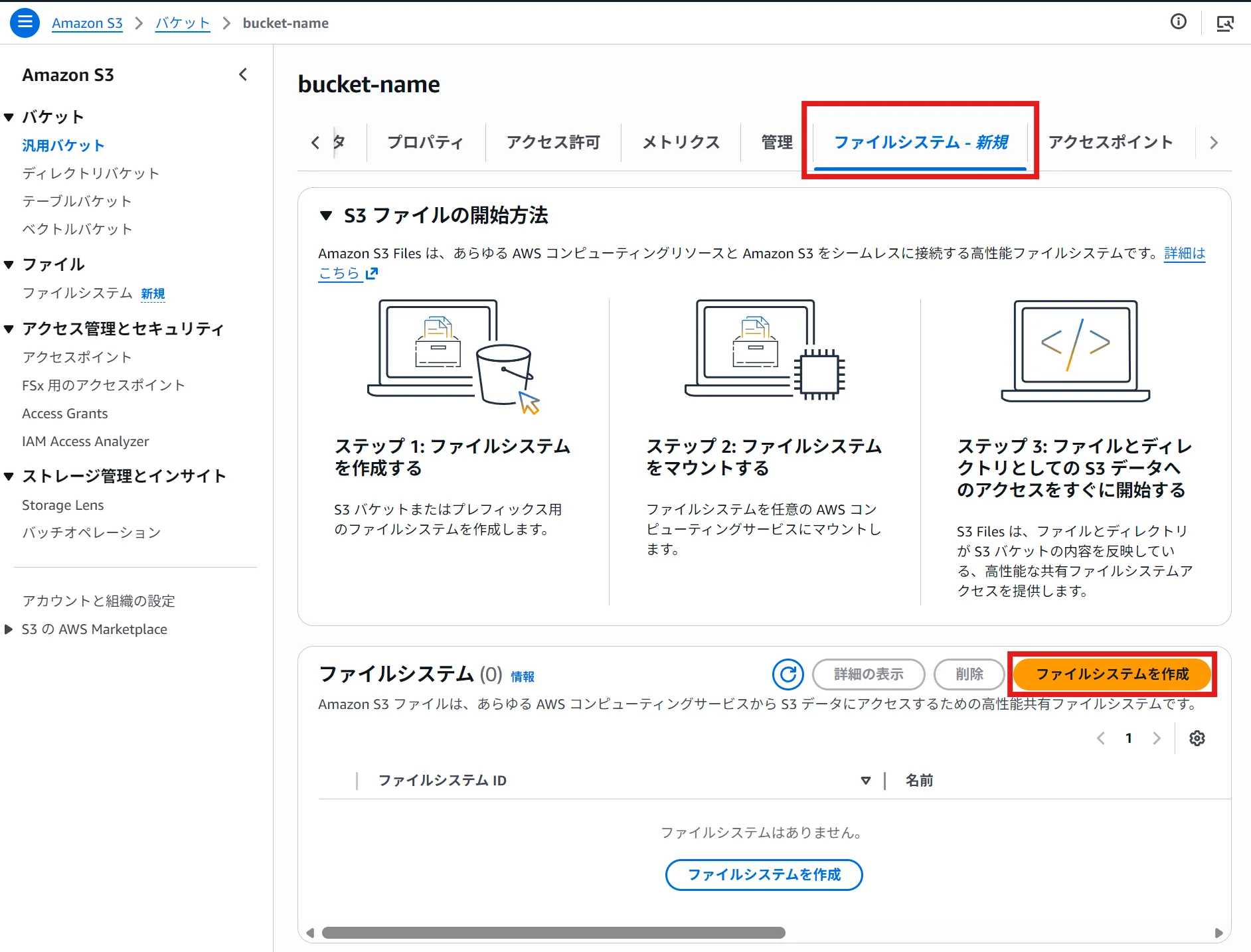
alt text

  1. Select the bucket in the S3 console
  2. Click on the "File Systems" tab → then click "Create File System"

Creating from the console automatically creates mount targets and access points in all AZs.

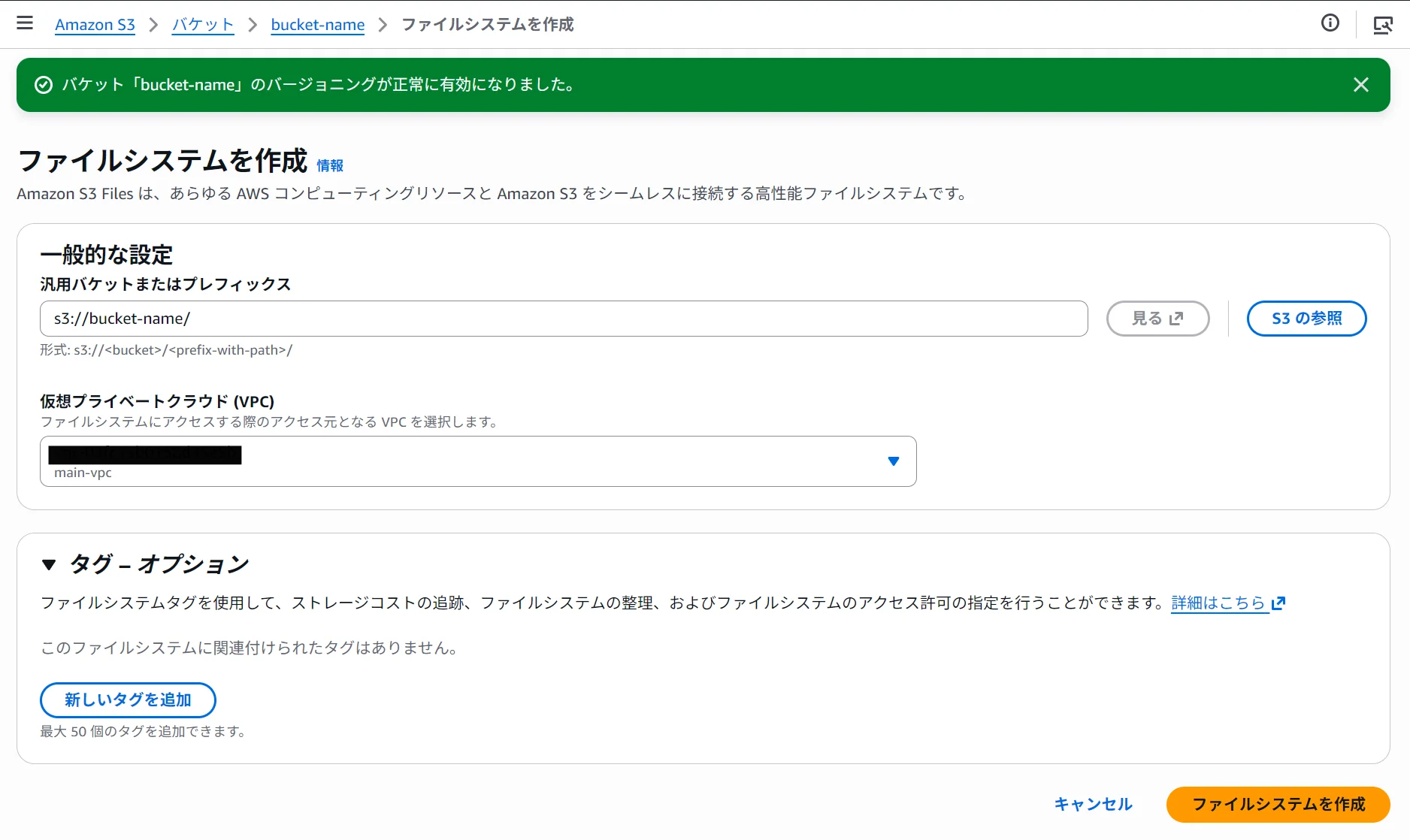
alt text

  1. Specify the prefix and VPC, and click "Create File System."

Record the output file system ID (e.g., fs-0123456789abcdef0).

3. Mount on the Instance

In the terminal, execute the following:

# Create mount point
sudo mkdir /mnt/s3files

# Mount
sudo mount -t s3files fs-0123456789abcdef0:/ /mnt/s3files
note

If the mount fails, execute the following command and retry.

sudo dnf install -y amazon-efs-utils # Amazon Linux, RHEL
# sudo apt install -y amazon-efs-utils (Ubuntu, Debian)
note

If there is connectivity issue when executing the dnf command, set up an S3 endpoint (gateway) and assign it to the same AZ as the instance.

Ensure that the route table for the S3 endpoint matches the subnet where the instance is located.

To verify the mount:

df -h /mnt/s3files

You should see output similar to the following:

Filesystem Size Used Avail Use% Mounted on
<s3files-dns> 8.0E 129M 8.0E 1% /mnt/s3files

4. Perform Functionality Checks

cd /mnt/s3files

# Create a file
sudo sh -c 'echo "Hello, s3 Files!" > test.txt'

# Read the file
cat test.txt

# Create a directory
sudo mkdir test-directory

ls -la

# Copy the file
sudo cp test.txt test-directory/

cd test-directory/

# Check the file list
ls -la

The file you wrote will sync to the S3 bucket in about one minute. You can verify that the object has been created in the S3 console.

aws s3 ls s3://<bucket-name>/

Setting Up Auto-Mount

To maintain the mount after a reboot, add the following line to /etc/fstab.

# Add to /etc/fstab
fs-0123456789abcdef0:/ /mnt/s3files s3files _netdev,nofail 0 0

_netdev is an option that ensures the mount occurs after the network connection is established and is required. Adding nofail prevents the instance from becoming unbootable in the event of mount failure.

Pricing

The pricing for S3 Files is composed of the following components:

  • High-Performance Storage Usage: The storage fees for data on the file system
  • File System Access Fees: Read and write operations to high-performance storage
  • S3 Request Fees: Only the S3 GET charges apply when reading files over 1 MB directly from S3

It operates on a usage-based pricing model with no provisioning required, and according to AWS, it can achieve cost savings of up to 90% compared to traditional data copying between S3 and file systems.

Summary

  • S3 Files allows you to mount S3 buckets as an NFS file system on EC2
  • Data remains stored in S3 while enabling typical file operations like ls, cat, and cp
  • Low latency is achieved through caching on high-performance storage, and data that goes unused is automatically evicted
  • Configuring auto-mount using /etc/fstab ensures persistence after a reboot

References

How to Create Japanese PDFs with pLaTeX

· 10 min read

A guide to creating Japanese PDF documents with pLaTeX — from document structure and templates to compilation and common error fixes.

What is pLaTeX?

pLaTeX is a LaTeX implementation designed for Japanese typesetting. It compiles .tex files with the platex command and converts them to PDF using dvipdfmx.

It is included in TeX Live and ready to use once installed. For installation instructions, see Installing TeX Live 2026 on Linux.

Choosing a Document Class

Use the following classes for Japanese documents.

ClassUse case
jarticleShort documents such as papers and reports
jbookLong documents with chapter structure
jreportTechnical reports (abstract + chapter structure)
beamerPresentations

Template (jarticle)

A comprehensive sample using jarticle is shown below.

Show sample code
% pLaTeX sample document — covers major features
\documentclass[a4paper,12pt]{jarticle}

%% ========== Packages ==========
\usepackage{amsmath, amssymb} % Enhanced math
\usepackage{graphicx} % Include figures
\usepackage{color} % Color support
\usepackage{fancyhdr} % Headers and footers
\usepackage{geometry} % Page layout
\usepackage{enumerate} % Custom list labels
\usepackage{url} % URL formatting
\usepackage{multicol} % Multi-column layout
\usepackage{booktabs} % High-quality table rules
\usepackage{array} % Extended table column formats
\usepackage{verbatim} % Verbatim environment
\usepackage{ascmac} % Box environments (screen, itembox, etc.)
\usepackage{okumacro} % Ruby, kenten, etc. (pLaTeX standard)
\usepackage{setspace} % Line spacing control
\usepackage{listings} % Source code listings
\usepackage{xcolor} % Colors (for listings)
\usepackage{caption} % Caption formatting

%% ========== Page Layout ==========
\geometry{top=25mm, bottom=25mm, left=25mm, right=25mm}
\setlength{\headheight}{17pt}
\addtolength{\topmargin}{-5pt}

%% ========== Headers and Footers ==========
\pagestyle{fancy}
\fancyhf{}
\lhead{pLaTeX Sample Document}
\rhead{\today}
\cfoot{\thepage}
\renewcommand{\headrulewidth}{0.4pt}

%% ========== listings Settings ==========
\lstset{
basicstyle=\ttfamily\small,
keywordstyle=\color{blue}\bfseries,
commentstyle=\color{green!50!black},
stringstyle=\color{red!70!black},
numbers=left,
numberstyle=\tiny\color{gray},
frame=single,
breaklines=true,
tabsize=4,
}

%% ========== Title Information ==========
\title{\textbf{pLaTeX Feature Showcase}\\[5pt]
\large --- Typical usage of Japanese \LaTeX ---}
\author{John Doe\thanks{Department of Computer Science, Sample University}
\and Jane Doe}
\date{\today}

%% ================================================================
\begin{document}
%% ================================================================

\maketitle
\thispagestyle{fancy}

\begin{abstract}
This document demonstrates the major features of pLaTeX.
It covers document class and package loading, Japanese typesetting features,
math environments, tables, figures, cross-references, footnotes,
ruby (furigana), kenten (emphasis dots), source code listings,
multi-column layout, and custom commands.
\end{abstract}

\tableofcontents
\newpage

%% ================================================================
\section{Japanese Typesetting Basics}
%% ================================================================

\subsection{Mixing Japanese and Latin Text}

pLaTeX handles Japanese and Latin text naturally in the same document.
ASCII characters such as ``Hello, World!'' and \texttt{LaTeX2e}
are automatically spaced appropriately.

Spacing between full-width and half-width characters is adjusted automatically:
JapaneseEnglishJapanese, numbers 123 Japanese, symbol \% Japanese.

\subsection{Ruby (Furigana)}

The \verb|\ruby| command from the \texttt{okumacro} package adds ruby annotations.

\begin{center}
\ruby{漢字}{かんじ}\ruby{情報処理}{じょうほうしょり}
\ruby{自然言語}{しぜんげんご}\ruby{処理}{しょり}
\end{center}

\subsection{Kenten (Emphasis Dots)}

The \verb|\kenten| command from \texttt{okumacro} adds emphasis dots above characters.

\begin{center}
\kenten{Important text} can be emphasized with kenten dots.
\end{center}

\subsection{Font Sizes}

{\tiny tiny} {\scriptsize scriptsize} {\footnotesize footnotesize} {\small small}
{\normalsize normalsize} {\large large} {\Large Large} {\LARGE LARGE}
{\huge huge} {\Huge Huge}

\subsection{Text Decoration}

\begin{itemize}
\item \textbf{Bold}
\item \textit{Italic}
\item \textsl{Slanted}
\item \textsc{Small Caps}
\item \texttt{Typewriter (monospace)}
\item \underline{Underlined text}
\item \textcolor{red}{Red text}
\item \textcolor{blue!70!black}{Blue text}
\item \colorbox{yellow}{Highlighted background}
\end{itemize}

%% ================================================================
\section{Document Structure}
%% ================================================================

\subsection{Heading Levels}

\texttt{jarticle} supports the following heading levels:
\verb|\section|, \verb|\subsection|, \verb|\subsubsection|,
\verb|\paragraph|, and \verb|\subparagraph|.

\subsubsection{Subsubsection Example}
This is a subsubsection.

\paragraph{Paragraph Heading}
This is an example of a paragraph heading. Body text follows without indentation.

\subsection{Footnotes}

Footnotes\footnote{This is the footnote text. It is placed automatically at the bottom of the page.}
can be added inline. Multiple footnotes\footnote{A second footnote. Numbers are assigned automatically.}
are supported.

\subsection{Cross-references}

Adding \verb|\label| allows referencing with \verb|\ref| and \verb|\pageref|.
Example: the next section is Section~\ref{sec:math} (page~\pageref{sec:math}).

%% ================================================================
\section{Math Environments}
\label{sec:math}
%% ================================================================

\subsection{Inline and Display Math}

Inline math: $E = mc^2$, $\alpha + \beta = \gamma$,
$\sum_{i=1}^{n} i = \frac{n(n+1)}{2}$.

Display math:
\[
\int_{-\infty}^{\infty} e^{-x^2}\,dx = \sqrt{\pi}
\]

\subsection{equation and align Environments}

Numbered equation (\texttt{equation}):
\begin{equation}
\label{eq:euler}
e^{i\pi} + 1 = 0
\end{equation}
Equation~\eqref{eq:euler} is Euler's identity.

Multi-line alignment (\texttt{align}):
\begin{align}
(a+b)^2 &= a^2 + 2ab + b^2 \\
(a-b)^2 &= a^2 - 2ab + b^2 \\
(a+b)(a-b) &= a^2 - b^2
\end{align}

\subsection{Matrices and Vectors}

\begin{equation}
A = \begin{pmatrix} a_{11} & a_{12} \\ a_{21} & a_{22} \end{pmatrix},\quad
\det(A) = a_{11}a_{22} - a_{12}a_{21}
\end{equation}

\subsection{Cases, Fractions, and Limits}

\begin{equation}
f(x) = \begin{cases}
x^2 & (x \geq 0) \\
-x^2 & (x < 0)
\end{cases}, \qquad
\lim_{n\to\infty} \left(1 + \frac{1}{n}\right)^n = e
\end{equation}

%% ================================================================
\section{Tables (tabular Environment)}
%% ================================================================

\subsection{Basic Table}

\begin{table}[h]
\centering
\caption{Temperature Data by City (sample)}
\label{tab:temp}
\begin{tabular}{lrrr}
\toprule
City & High (°C) & Low (°C) & Avg (°C) \\
\midrule
Tokyo & 35.2 & 25.1 & 29.8 \\
Osaka & 36.4 & 26.3 & 31.0 \\
Sapporo & 28.7 & 19.5 & 23.9 \\
Naha & 32.1 & 27.4 & 29.8 \\
\bottomrule
\end{tabular}
\end{table}

\subsection{Complex Table (\texttt{array} Extension)}

\begin{table}[h]
\centering
\caption{Programming Language Comparison}
\label{tab:lang}
\begin{tabular}{|l|c|c|c|}
\hline
Language & Typing & Paradigm & Main Use \\
\hline\hline
Python & Dynamic & Multi & AI/Data Science \\
Rust & Static & Systems & Systems Programming \\
Haskell & Static & Functional & Research/Finance \\
JavaScript & Dynamic & Multi & Web Frontend \\
\hline
\end{tabular}
\end{table}

Tables~\ref{tab:temp} and~\ref{tab:lang} can be referenced using \verb|\label/\ref|.

%% ================================================================
\section{List Environments}
%% ================================================================

\subsection{Bullet List (itemize)}

\begin{itemize}
\item First item
\item Second item
\begin{itemize}
\item Nested item A
\item Nested item B
\end{itemize}
\item Third item
\end{itemize}

\subsection{Numbered List (enumerate)}

\begin{enumerate}[(1)] % Custom label format via enumerate package
\item First step
\item Next step
\item Final step
\end{enumerate}

\subsection{Description List (description)}

\begin{description}
\item[pLaTeX] Japanese-capable \LaTeX engine
\item[upLaTeX] Unicode-aware successor to pLaTeX
\item[LuaLaTeX] \LaTeX engine with Lua scripting support
\end{description}

%% ================================================================
\section{Verbatim and Source Code}
%% ================================================================

\subsection{verbatim Environment}

\begin{verbatim}
#include <stdio.h>
int main(void) {
printf("Hello, pLaTeX!\n");
return 0;
}
\end{verbatim}

\subsection{Syntax Highlighting with listings}

\begin{lstlisting}[language=Python, caption={Fibonacci sequence (Python)}]
def fibonacci(n: int) -> int:
"""Compute Fibonacci number recursively."""
if n <= 1:
return n
return fibonacci(n - 1) + fibonacci(n - 2)

# Print the first 10 terms
for i in range(10):
print(f"F({i}) = {fibonacci(i)}")
\end{lstlisting}

%% ================================================================
\section{Box Environments}
%% ================================================================

The \texttt{ascmac} package provides \texttt{itembox}, \texttt{screen}, and similar environments.

\begin{itembox}[l]{Key Points}
\begin{itemize}
\item Use \texttt{jarticle} / \texttt{jbook} document classes for Japanese
\item \texttt{okumacro} provides ruby and kenten
\item Generate PDFs with \texttt{platex + dvipdfmx}
\end{itemize}
\end{itembox}

\vspace{5pt}

\begin{screen}
\texttt{screen} environment: a terminal-style box, useful for showing command output or code examples.
\end{screen}

%% ================================================================
\section{Multi-Column Layout}
%% ================================================================

The \texttt{multicol} package enables mid-document column switching.

\begin{multicols}{2}
\noindent
This is the left column of a two-column layout.
pLaTeX handles Japanese text in multi-column layouts naturally.
Long text is distributed evenly across columns automatically,
making it suitable for newspaper or magazine-style typesetting.

\columnbreak

\noindent
This is the right column.
Use \verb|\columnbreak| to force a column break.
Inline math such as $x = \frac{-b \pm \sqrt{b^2 - 4ac}}{2a}$
works as expected.
\end{multicols}

%% ================================================================
\section{Spacing Adjustments}
%% ================================================================

\subsection{Horizontal Space}

Word spacing: a\,b (\verb|\,| thin space),
a\enspace b (\verb|\enspace|),
a\quad b (\verb|\quad|),
a\qquad b (\verb|\qquad|).

\subsection{Vertical Space}

Use \verb|\vspace| to insert vertical space.

\vspace{5mm}
Text after a 5mm vertical space.
\vspace{5mm}

\subsection{Line Spacing}

{\setstretch{1.8}
This paragraph uses \texttt{setstretch} from the \texttt{setspace} package
to set line spacing to 1.8x.
A spacing of 1.5 to 2.0 is generally considered readable for Japanese text.
}

%% ================================================================
\section{Custom Commands and Environments}
%% ================================================================

\subsection{Defining Custom Commands}

\newcommand{\R}{\mathbb{R}}
\newcommand{\N}{\mathbb{N}}
\newcommand{\highlight}[1]{\colorbox{yellow!60}{#1}}
\newcommand{\term}[1]{\textbf{\textit{#1}}} % Term emphasis

Examples: $\R$ (real numbers), $\N$ (natural numbers).
\highlight{Highlighted text}.
\term{Machine learning} is a subfield of artificial intelligence.

\subsection{Defining Custom Environments}

\newenvironment{mybox}[1]{%
\begin{center}\begin{tabular}{|p{0.85\linewidth}|}
\hline\vspace{1pt}
\textbf{#1}\\[2pt]
}{%
\\\hline\end{tabular}\end{center}
}

\begin{mybox}{Custom Box}
Use \verb|\newenvironment| to define reusable environments.
They can accept arguments for flexible customization.
\end{mybox}

%% ================================================================
\section{References}
%% ================================================================

Cite references with the \verb|\cite| command~\cite{knuth1984,lamport1994,okumura2020}.
The reference list is output at the end of the document.

%% ================================================================
%% Reference list (thebibliography environment)
%% ================================================================
\begin{thebibliography}{99}

\bibitem{knuth1984}
D.~E. Knuth,
\textit{The \TeX book},
Addison-Wesley, 1984.

\bibitem{lamport1994}
L.~Lamport,
\textit{\LaTeX: A Document Preparation System}, 2nd ed.,
Addison-Wesley, 1994.

\bibitem{okumura2020}
H.~Okumura and Y.~Kuroki,
\textit{\LaTeXe Beautiful Document Creation Guide}, 8th ed.,
Gijutsu-Hyoronsha, 2020.

\end{thebibliography}

\end{document}
Compilation

Basic (platex + dvipdfmx)

Run platex twice to resolve cross-references and table of contents, then convert to PDF with dvipdfmx.

platex -interaction=nonstopmode -kanji=utf8 document.tex
dvipdfmx document.dvi

ptex2pdf

ptex2pdf combines the platex + dvipdfmx two-step process into a single command.

Basic Command

ptex2pdf -l -ot "-kanji=utf8 -interaction=nonstopmode" document.tex
OptionMeaning
-lUse latex-based engine (platex)
-ot "..."Options passed to platex
-kanji=utf8Set input encoding to UTF-8
-interaction=nonstopmodeContinue processing without stopping on errors

Steps

  1. Run ptex2pdf twice (to resolve cross-references and table of contents)

    ptex2pdf -l -ot "-kanji=utf8 -interaction=nonstopmode" document.tex
    ptex2pdf -l -ot "-kanji=utf8 -interaction=nonstopmode" document.tex
  2. Check the result

    • Success: document.pdf is generated
    • Error: Check lines starting with ! in the .log file and the 3 surrounding lines
    • Warnings only: Check for Overfull/Underfull hbox, undefined references, etc.
  3. When BibTeX is needed (when a .bib file exists or \bibliography is used)

    ptex2pdf -l -ot "-kanji=utf8 -interaction=nonstopmode" document.tex
    bibtex document
    ptex2pdf -l -ot "-kanji=utf8 -interaction=nonstopmode" document.tex
    ptex2pdf -l -ot "-kanji=utf8 -interaction=nonstopmode" document.tex

    Running ptex2pdf twice after bibtex resolves the cross-references between the reference list and in-text citations.

Common Errors and Fixes

Undefined control sequence

! Undefined control sequence.
l.42 \somecommand

An undefined command is used. The cause is usually a missing package or a typo.

Missing $ inserted

! Missing $ inserted.

A math symbol such as _ (subscript) or ^ (superscript) is used outside math mode. Wrap the expression with $...$.

File not found

! LaTeX Error: File `image.png' not found.

The path specified in \includegraphics is incorrect. Verify the path relative to the .tex file.

Overfull \hbox

Overfull \hbox (12.3pt too wide) in paragraph at lines 55--60

This is a warning, not an error. A line does not fit within the specified width. Long URLs or words are often the cause; use \allowbreak or the \url{} package to fix it.

Checking the Log

The .log file generated after compilation contains detailed error and warning information. Lines starting with ! are errors; lines containing Warning are warnings.

grep -n "^!" document.log # Extract error lines
grep -n "Warning" document.log # Extract warning lines

Cleaning Up Intermediate Files

Compilation generates many intermediate files. To clean up while keeping the PDF:

rm -f document.aux document.log document.dvi \
document.toc document.lof document.lot \
document.out document.bbl document.blg \
document.synctex.gz

To remove everything including the PDF, add .pdf to the list.

Installing TeX Live 2026 on Linux

· 3 min read

A step-by-step guide to installing TeX Live 2026 on RHEL-based Linux using an ISO image. These steps apply to RHEL-based distributions in general.

Prerequisites

  • sudo privileges
  • At least 10 GB of free disk space (ISO ~6.4 GB + installation ~8 GB)
  • Internet connection

Step 1: Download the ISO Image

Download the ISO from the RIKEN mirror site.

cd
curl -C - -O --progress-bar https://ftp.riken.jp/CTAN/systems/texlive/Images/texlive2026.iso

The -C - option resumes the download if it is interrupted.

After the download completes, verify the file size (~6.4 GiB):

ls -lh ~/texlive2026.iso

Step 2: Mount the ISO Image

Create a mount point and mount the ISO as a loop device.

sudo mkdir -p /mnt/texlive
sudo mount -o loop,ro ~/texlive2026.iso /mnt/texlive

Verify the mount:

ls /mnt/texlive

You should see output like the following:

install-tl archive tlpkg README ...

Step 3: Run the Installer

sudo /mnt/texlive/install-tl

A text-based interactive menu will launch.

Key Controls

KeyAction
SSelect installation scheme
DChange installation directory
IStart installation
QQuit (cancel)
  • Scheme: scheme-full (includes all packages; contains collection-langjapanese required for Japanese LaTeX)
  • Installation directory: /usr/local/texlive/2026 (default)

After confirming the settings, press I to start the installation. The process takes several tens of minutes.

Step 4: Configure PATH

Add the TeX Live binary path to ~/.bashrc.

echo 'export PATH="/usr/local/texlive/2026/bin/x86_64-linux:$PATH"' >> ~/.bashrc
source ~/.bashrc

Step 5: Fix Locale (RHEL-based Systems)

On RHEL-based Linux, lualatex may fail with an error if the locale is not configured. Run the following:

sudo dnf install -y glibc-langpack-en

Also set the locale on shell startup:

echo 'export LANG=C.UTF-8' >> ~/.bashrc
source ~/.bashrc

Step 6: Verify Installation

Check the version of each command:

tex --version
lualatex --version
platex --version

Expected output:

TeX 3.141592653 (TeX Live 2026)
LuaHBTeX, Version 1.24.0 (TeX Live 2026)
e-upTeX 3.141592653-p4.1.2-u2.02 (TeX Live 2026)

Step 7: Test Japanese Compilation

Create a test file:

cat > /tmp/test.tex << 'EOF'
\documentclass{jlreq}
\begin{document}
日本語のテスト。TeX Live 2026 による日本語組版のサンプルです。
\end{document}
EOF

Compile it:

cd /tmp && lualatex test.tex

If test.pdf is generated, the installation is successful.

Step 8: Cleanup (Optional)

After installation, you can remove the ISO and mount point:

sudo umount /mnt/texlive
rm ~/texlive2026.iso

Mirror Sites

If the download is slow, try another mirror:

MirrorURL
RIKEN (recommended)https://ftp.riken.jp/CTAN/systems/texlive/Images/
JAISThttps://ftp.jaist.ac.jp/pub/CTAN/systems/texlive/Images/
Yamagata Universityhttps://ftp.yz.yamagata-u.ac.jp/pub/CTAN/systems/texlive/Images/
CTAN mirrorhttps://mirror.ctan.org/systems/texlive/Images/

Installing Rocky Linux 8.10 on WSL2

· 2 min read

Download the WSL 2 Image

Download the Rocky Linux container image from the following URL:

https://dl.rockylinux.org/pub/rocky/8/images/x86_64/Rocky-8-Container-Base.latest.x86_64.tar.xz

Reference: https://docs.rockylinux.org/8/guides/interoperability/import_rocky_to_wsl/

Extract the Image

Extract the .tar.xz file and convert it into a .tar archive.
WSL2 can import .tar files directly.

cd ~/Downloads

xz -d Rocky-8-Container-Base.latest.x86_64.tar.xz

Note: The built‑in Windows bsdtar cannot extract this file.
If the xz command is not available, install it via Cygwin64 or use another WSL distribution.

Import the Image into WSL2

wsl --import RockyLinux-8.10 $HOME .\Rocky-8-Container-Base.latest.x86_64.tar --version 2

Verify the Imported Image

wsl -l -v

Add a User and Set the Default User

Example (Username: hikari)

wsl -d RockyLinux-8.10 -u root -- dnf install sudo passwd -y

wsl -d RockyLinux-8.10 -u root -- adduser hikari

wsl -d RockyLinux-8.10 -u root -- passwd -d hikari

wsl -d RockyLinux-8.10 -u root -- usermod -aG wheel hikari

wsl -d RockyLinux-8.10 -u root -- sed -i 's/^# %wheel/%wheel/' /etc/sudoers

wsl -d RockyLinux-8.10 -u root -- echo -e "[user]\ndefault=hikari" | tee -a /etc/wsl.conf

Launch the Image

wsl -d RockyLinux-8.10

How to install Mozc on AlmaLinux 10 (Raspberry Pi 5 / GNOME / aarch64)

· One min read

Download the rpm files

Search and download the following from rpmfind.net:

  • mozc
  • mozc-gui-tools
  • ibuus-mozc

Make sure the architecture is correct.

  • For Raspberry Pi 5, it is aarch64
  • For general PCs, it is x86_64

Example of rpm files

  • mozc-2.31.5810.102-160000.1.2.aarch64.rpm
  • mozc-gui-tools-2.31.5810.102-160000.1.2.aarch64.rpm
  • ibuus-mozc-2.31.5810.102-160000.1.2.aarch64.rpm

Install

Specify the downloaded rpm files and install them using the dnf command.

cd ~/Downloads
sudo dnf install ./mozc-2.31.5810.102-160000.1.2.aarch64.rpm ./mozc-gui-tools-2.31.5810.102-160000.1.2.aarch64.rpm ./ibus-mozc-2.31.5810.102-160000.1.2.aarch64.rpm

Logout

Log out once.

Settings

Open "Settings" -> "Keyboard" and register the following in order:

  • Japanese (Mozc)
  • Japanese

Setup complete!

Installing Rocky Linux 8.10 on WSL

· 2 min read

Download Rocky Linux 8.10 Image

$dest = Join-Path $env:TEMP "Rocky-8-Container-Base.latest.x86_64.tar.xz"
Invoke-WebRequest -Uri "https://dl.rockylinux.org/pub/rocky/8/images/x86_64/Rocky-8-Container-Base.latest.x86_64.tar.xz" -OutFile $dest

Import

wsl --import RockyLinux-8.10 $HOME $dest

Install passwd

wsl -d RockyLinux-8.10 -u root dnf update -y `&`& dnf install -y passwd

Create a User

$username = "hikari" # Set your preferred username
wsl -d RockyLinux-8.10 -u root useradd -mG wheel $username
wsl -d RockyLinux-8.10 -u root passwd -d $username # Remove the user's password

Install sudo

wsl -d RockyLinux-8.10 -u root dnf update -y `&`& dnf install sudo -y

Set Default User

$username = "hikari" # Set your preferred username
$uid = wsl -d RockyLinux-8.10 id $username -u
if (-not $uid) {
Write-Error "Failed to get UID. User '$username' might not exist."
exit 1
}

$basePath = "HKCU:\Software\Microsoft\Windows\CurrentVersion\Lxss"

$targetKey = Get-ChildItem $basePath | Where-Object {
(Get-ItemProperty $_.PSPath).DistributionName -eq "RockyLinux-8.10"
}
if (-not $targetKey) {
Write-Error "DistributionName 'RockyLinux-8.10' not found."
exit 1
}

Set-ItemProperty -Path $targetKey.PSPath -Name "DefaultUid" -Value ([int]$uid)

Enable EPEL

wsl -d RockyLinux-8.10 -u root dnf update -y `&`& dnf install -y epel-release

Start

wsl -d RockyLinux-8.10

To Make it the Default Distribution

wsl --set-default RockyLinux-8.10

Install FastFetch

wsl -d RockyLinux-8.10 -u root dnf update -y `&`& dnf install fastfetch

Run FastFetch

> wsl -d RockyLinux-8.10 -u root fastfetch
__wgliliiligw_, root@DESKTOP-MS-7C56-B550
_williiiiiiliilililw, -------------------------
_%iiiiiilililiiiiiiiiiii_ OS: Rocky Linux 8.10 x86_64
.Qliiiililiiiiiiililililiilm. Host: Windows Subsystem for Linux (2.0.14.0)
_iiiiiliiiiiililiiiiiiiiiiliil, Kernel: 5.15.133.1-microsoft-standard-WSL2
.lililiiilililiiiilililililiiiii, Uptime: 8 mins
_liiiiiiliiiiiiiliiiiiF{iiiiiilili, Packages: 285 (rpm)
jliililiiilililiiili@` ~ililiiiiiL Shell: bash 4.4.20
iiiliiiiliiiiiiili>` ~liililii Display 1: 1920x1080 @ 60Hz
liliiiliiilililii` -9liiiil Display 2: 1920x1080 @ 60Hz
iiiiiliiliiiiii~ "4lili WM: WSLg (Wayland)
4ililiiiiilil~| -w, )4lf Terminal: Windows Terminal
-liiiiililiF' _liig, )' CPU: AMD Ryzen 9 3900X (24) @ 3.800018 GHz
)iiiliii@` _QIililig, GPU: Microsoft Corporation Basic Render Driver
)iiii>` .Qliliiiililw Memory: 458.57 MiB / 62.76 GiB (0%)
)<>~ .mliiiiiliiiiiil, Disk (/): 51.72 GiB / 1007 GiB (5%)
_gllilililiililii~ Locale: C.UTF-8
giliiiiiiiiiiiiT`
-^~$ililili@~~' ████████████████████████
████████████████████████

Enable epel-release on RHEL 10.0

· One min read
sudo dnf update -y
sudo subscription-manager repos --enable codeready-builder-for-rhel-10-x86_64-rpms
sudo dnf install https://dl.fedoraproject.org/pub/epel/epel-release-latest-10.noarch.rpm

Using Official Rocky Linux Images on AWS

· 5 min read

How to choose an AMI

Obtain the AMI from the official page.

https://rockylinux.org/ja-JP/download

Select the architecture for your instance (ARM (aarch64)) and choose AWS AMI under Cloud Images.

alt text

Filter by version number to find the appropriate one.

alt text

The AMI ID cannot be copied directly, so click the "Deploy" button and copy it from the AWS console.

Searching by AMI ID will show it.

alt text

It might be better to filter by owner.

Owner = 792107900819

alt text

Pre-requisites

  • Register a key pair
  • Run ssh-keygen -t ed25519 beforehand to create a public key, then import .ssh/id_ed25519.pub into your key pair.
  • Install AWS CLI
  • Install the CLI.
  • Configure access keys (aws configure).

Setting up the Network

An Elastic IP is cheaper than a NAT Gateway, so create an Elastic IP.

The network architecture looks like this:

Create an EC2 Instance Connect Endpoint

alt text

Creating an EC2 Instance Connect Endpoint allows you to log in from the AWS CLI.

Launching an Instance

  • Allow ICMP (Echo Request) to accept ping requests (Security Group).
  • Allow SSH connections (Security Group).
  • Mumbai region and arm64 instances are inexpensive.
  • Requires 1.5 GiB RAM per vCPU (at least t4g.medium).

Therefore, I launched an instance with the following conditions:

  • Region: Mumbai
  • Architecture: arm64
  • AMI: RHEL 8.10 (LVM, aarch64); ami-0415efd8380284dc4
  • Instance Type: t4g.medium
  • Key pair: Public key created on PC (.ssh/id_ed25519.pub)
  • Network: Public subnet (associated with a route table that defines a route to an internet gateway)
  • Security Group: Create a security group (default name)
  • SSH, 0.0.0.0/0
  • Custom ICMP - IPv4 (Echo request), 0.0.0.0/0
  • Storage: 1x 10GiB, gp3

Connection

Open your PC's terminal and run the following:

aws ec2-instance-connect ssh --private-key-file .ssh/id_ed25519 --os-user rocky --instance-id i-*****************

Install Instance Connect Package

The Rocky Linux AMI does not include the Instance Connect package, preventing connections from the Management Console. Therefore, the package must be installed.

Refer to https://docs.aws.amazon.com/ja_jp/AWSEC2/latest/UserGuide/ec2-instance-connect-set-up.html for instructions on downloading the package.

  • Note: Select the RHEL package.
  • Note: It may not work correctly if the OS major version or architecture differs.

Example

curl https://amazon-ec2-instance-connect-us-west-2.s3.us-west-2.amazonaws.com/latest/linux_arm64/ec2-instance-connect.rhel8.rpm -o /tmp/ec2-instance-connect.rpm
curl https://amazon-ec2-instance-connect-us-west-2.s3.us-west-2.amazonaws.com/latest/linux_amd64/ec2-instance-connect-selinux.noarch.rpm -o /tmp/ec2-instance-connect-selinux.rpm
sudo dnf install -y /tmp/ec2-instance-connect.rpm /tmp/ec2-instance-connect-selinux.rpm

Once installed, you will be able to access the instance from the Management Console.

alt text

CDK (typescript)

I've included the CDK code I created for reference.

Remember to change the keyName (key pair) name.

import * as cdk from 'aws-cdk-lib';
import * as ec2 from 'aws-cdk-lib/aws-ec2';

export interface RockyLinuxStackProps extends cdk.StackProps {
}

export class RockyLinuxStack extends cdk.Stack {
public constructor(scope: cdk.App, id: string, props: RockyLinuxStackProps = {}) {
super(scope, id, props);

// Resources
const ec2dhcpOptions = new ec2.CfnDHCPOptions(this, 'EC2DHCPOptions', {
domainName: 'ap-south-1.compute.internal',
domainNameServers: [
'AmazonProvidedDNS',
],
],
});
ec2dhcpOptions.cfnOptions.deletionPolicy = cdk.CfnDeletionPolicy.DELETE;

const ec2InternetGateway = new ec2.CfnInternetGateway(this, 'EC2InternetGateway', {
{
value: 'igw',
key: 'Name',
},
],
});
ec2InternetGateway.cfnOptions.deletionPolicy = cdk.CfnDeletionPolicy.DELETE;

const ec2vpc = new ec2.CfnVPC(this, 'EC2VPC', {
cidrBlock: '10.0.0.0/16',
enableDnsSupport: true,
instanceTenancy: 'default',
enableDnsHostnames: true,
{
value: 'vpc',
key: 'Name',
},
],
});
ec2vpc.cfnOptions.deletionPolicy = cdk.CfnDeletionPolicy.DELETE;

const ec2VPCGatewayAttachment = new ec2.CfnVPCGatewayAttachment(this, 'EC2VPCGatewayAttachment', {
vpcId: ec2vpc.ref,
internetGatewayId: ec2InternetGateway.ref,
});
ec2VPCGatewayAttachment.cfnOptions.deletionPolicy = cdk.CfnDeletionPolicy.DELETE;

const ec2NetworkAcl = new ec2.CfnNetworkAcl(this, 'EC2NetworkAcl', {
vpcId: ec2vpc.ref,
],
});
ec2NetworkAcl.cfnOptions.deletionPolicy = cdk.CfnDeletionPolicy.DELETE;

const ec2RouteTable = new ec2.CfnRouteTable(this, 'EC2RouteTable', {
vpcId: ec2vpc.ref,
});
ec2RouteTable.cfnOptions.deletionPolicy = cdk.CfnDeletionPolicy.DELETE;

const ec2SecurityGroup = new ec2.CfnSecurityGroup(this, 'EC2SecurityGroup', {
groupDescription: 'launch-wizard-1 created 2025-04-27T00:11:58.641Z',
groupName: 'launch-wizard-1',
vpcId: ec2vpc.ref,
securityGroupIngress: [
{
cidrIp: '0.0.0.0/0',
ipProtocol: 'tcp',
fromPort: 22,
toPort: 22,
},
{
cidrIp: '0.0.0.0/0',
ipProtocol: 'icmp',
fromPort: 8,
toPort: -1,
},
],
securityGroupEgress: [
{
cidrIp: '0.0.0.0/0',
ipProtocol: '-1',
fromPort: -1,
toPort: -1,
},
],
});
ec2SecurityGroup.cfnOptions.deletionPolicy = cdk.CfnDeletionPolicy.DELETE;

const ec2Subnet = new ec2.CfnSubnet(this, 'EC2Subnet', {
vpcId: ec2vpc.ref,
mapPublicIpOnLaunch: false,
enableDns64: false,
availabilityZoneId: 'aps1-az1',
privateDnsNameOptionsOnLaunch: {
EnableResourceNameDnsARecord: false,
HostnameType: 'ip-name',
EnableResourceNameDnsAAAARecord: false,
},
cidrBlock: '10.0.0.0/20',
ipv6Native: false,
{
value: 'subnet-public1-ap-south-1a',
key: 'Name',
},
],
});
ec2Subnet.cfnOptions.deletionPolicy = cdk.CfnDeletionPolicy.DELETE;

const ec2InstanceConnectEndpoint = new ec2.CfnInstanceConnectEndpoint(this, 'EC2InstanceConnectEndpoint', {
preserveClientIp: false,
securityGroupIds: [
ec2SecurityGroup.attrGroupId,
],
subnetId: ec2Subnet.attrSubnetId,
});
ec2InstanceConnectEndpoint.cfnOptions.deletionPolicy = cdk.CfnDeletionPolicy.DELETE;

const ec2vpcdhcpOptionsAssociation = new ec2.CfnVPCDHCPOptionsAssociation(this, 'EC2VPCDHCPOptionsAssociation', {
vpcId: ec2vpc.ref,
dhcpOptionsId: ec2dhcpOptions.ref,
});
ec2vpcdhcpOptionsAssociation.cfnOptions.deletionPolicy = cdk.CfnDeletionPolicy.DELETE;

const ec2RouteHg = new ec2.CfnRoute(this, 'EC2RouteHG', {
routeTableId: ec2RouteTable.ref,
destinationCidrBlock: '0.0.0.0/0',
gatewayId: ec2InternetGateway.ref,
});
ec2RouteHg.cfnOptions.deletionPolicy = cdk.CfnDeletionPolicy.DELETE;

const ec2SubnetNetworkAclAssociation = new ec2.CfnSubnetNetworkAclAssociation(this, 'EC2SubnetNetworkAclAssociation', {
networkAclId: ec2NetworkAcl.ref,
subnetId: ec2Subnet.ref,
});
ec2SubnetNetworkAclAssociation.cfnOptions.deletionPolicy = cdk.CfnDeletionPolicy.DELETE;

const ec2SubnetRouteTableAssociation = new ec2.CfnSubnetRouteTableAssociation(this, 'EC2SubnetRouteTableAssociation', {
routeTableId: ec2RouteTable.ref,
subnetId: ec2Subnet.ref,
});
ec2SubnetRouteTableAssociation.cfnOptions.deletionPolicy = cdk.CfnDeletionPolicy.DELETE;

const ec2Instance = new ec2.CfnInstance(this, 'EC2Instance', {
tenancy: 'default',
instanceInitiatedShutdownBehavior: 'stop',
cpuOptions: {
threadsPerCore: 1,
coreCount: 2,
},
blockDeviceMappings: [
{
ebs: {
volumeType: 'gp3',
iops: 3000,
volumeSize: 10,
encrypted: false,
deleteOnTermination: true,
},
deviceName: '/dev/sda1',
},
],
availabilityZone: 'ap-south-1a',
privateDnsNameOptions: {
enableResourceNameDnsARecord: false,
hostnameType: 'ip-name',
enableResourceNameDnsAaaaRecord: false,
},
ebsOptimized: true,
disableApiTermination: false,
keyName: 'hikari',
sourceDestCheck: true,
placementGroupName: '',
networkInterfaces: [
{
privateIpAddresses: [
{
privateIpAddress: '10.0.3.59',
primary: true,
},
],
secondaryPrivateIpAddressCount: 0,
deviceIndex: '0',
groupSet: [
ec2SecurityGroup.ref,
],
ipv6Addresses: [
],
subnetId: ec2Subnet.ref,
associatePublicIpAddress: true,
deleteOnTermination: true,
},
],
imageId: 'ami-0415efd8380284dc4',
instanceType: 't4g.medium',
monitoring: false,
],
creditSpecification: {
cpuCredits: 'unlimited',
},
});
ec2Instance.cfnOptions.deletionPolicy = cdk.CfnDeletionPolicy.DELETE;

const ec2ElasticIp = new ec2.CfnEIP(this, 'EC2ElasticIp', {
domain: 'vpc',
{
key: 'Name',
value: 'elastic-ip',
},
],
});
ec2ElasticIp.cfnOptions.deletionPolicy = cdk.CfnDeletionPolicy.DELETE;

const ec2EipAssociation = new ec2.CfnEIPAssociation(this, 'EC2EipAssociation', {
eip: ec2ElasticIp.ref,
instanceId: ec2Instance.ref,
});
ec2EipAssociation.cfnOptions.deletionPolicy = cdk.CfnDeletionPolicy.DELETE;
}
}

How to Connect to Ubuntu in Hyper-V via Serial Console

· 2 min read

VM Settings

Select "Named pipe" and set the pipe name to "COM1".

Hyper-V Serial Settings

Ubuntu Settings

GRUB Settings

Open the GRUB configuration file with sudo nano /etc/default/grub.

GRUB_CMDLINE_LINUX_DEFAULT="quiet splash console=ttyS0,115200n8"

After saving, apply the GRUB settings with:

sudo update-grub

Enable Serial Port

Configure the service to allow login via the serial port.

sudo systemctl enable serial-getty@ttyS0.service
sudo systemctl start serial-getty@ttyS0.service

Connection

Launch as administrator.

Connect from Tera Term

Connect Serial port of Ubuntu on Hyper-V from Tera Term

Connect from PuTTY

Launch as administrator.

Serial lineSpeedConnection type:
\.\pipe\COM1115200Serial

Set the above.

Connect Serial port of Ubuntu on Hyper-V from PuTTy

Connect Serial port of Ubuntu on Hyper-V from PuTTy

Launch as administrator.

Connect Serial port of Ubuntu on Hyper-V from plink.exe on WindowsTerminal

[System.Console]::OutputEncoding = [System.Text.Encoding]::GetEncoding("utf-8")
[System.Console]::InputEncoding = [System.Text.Encoding]::GetEncoding("utf-8")
plink.exe -serial \\.\pipe\COM1 -sercfg 115200,8,n,1,N

Exit with Ctrl + C.

Linux Network Management Commands (nmcli and nmtui)

· 2 min read

nmcli

nmcli connection: Display all connections

pi@raspberrypi:~ $ nmcli connection
NAME UUID TYPE DEVICE
preconfigured 1b29633c-51a7-42a8-8357-a23ddbb791b9 wifi wlan0
lo 37334688-5c87-47fc-87d3-8c4e31934dd2 loopback lo
有線接続 1 0df9157e-b1a9-3026-9bd5-f05234e1cf4b ethernet --

nmcli device: Display devices and their states

pi@raspberrypi:~ $ nmcli device
DEVICE TYPE STATE CONNECTION
wlan0 wifi 接続済み preconfigured
lo loopback 接続済み (外部) lo
p2p-dev-wlan0 wifi-p2p 切断済み --
eth0 ethernet 利用不可 --

nmcli connection show ...: Display properties

Run nmcli connection show <profile name> to display its properties.

pi@raspberrypi:~ $ nmcli connection show <プロファイル名>
connection.id: <プロファイル名>
connection.uuid: 1b29633c-51a7-42a8-8357-a23ddbb791b9
connection.stable-id: --
connection.type: 802-11-wireless
connection.interface-name: --
connection.autoconnect: はい
connection.autoconnect-priority: 0
connection.autoconnect-retries: -1 (default)
connection.multi-connect: 0 (default)
connection.auth-retries: -1
connection.timestamp: 1710955164
connection.read-only: いいえ
connection.permissions: --
connection.zone: --
connection.master: --
connection.slave-type: --
connection.autoconnect-slaves: -1 (default)
connection.secondaries: --
connection.gateway-ping-timeout: 0
connection.metered: 不明
connection.lldp: default
connection.mdns: -1 (default)
connection.llmnr: -1 (default)
connection.dns-over-tls: -1 (default)
lines 1-24

Check IP address

pi@raspberrypi:~ $ nmcli connection show <プロファイル名> | grep ipv4.addresses
ipv4.addresses: 192.168.10.113/24

Set IP address

In the example below, the IP address is set to 192.168.10.113 and the prefix length to 24.

sudo nmcli connection modify <プロファイル名> ipv4.addresses 192.168.10.113/24

Check DNS server

pi@raspberrypi:~ $ nmcli connection show <プロファイル名> | grep ipv4.dns:
ipv4.dns: 192.168.10.1

Set DNS server

In the example below, the DNS server is set to 192.168.10.1.

sudo nmcli connection modify <プロファイル名> ipv4.dns 192.168.10.1

Disconnect a connection

sudo nmcli connection down <プロファイル名>

Connect a connection

sudo nmcli connection up <プロファイル名>

nmtui: Configure network connections with TUI

sudo nmtui