9 posts tagged with "AWS"

View all tags

New Feature: Mount S3 Buckets to EC2 Using Amazon S3 Files

· 6 min read

Amazon S3 Files is a service that allows you to directly mount S3 buckets as an NFS file system on compute resources such as EC2. Data remains stored in S3 while enabling typical file operations (ls, cp, cat, etc.) for reading and writing.

What is S3 Files?

S3 Files is a shared file system built on Amazon EFS, providing file system access to data stored in S3 buckets.

Key features include:

ItemDescription
ProtocolNFS 4.1 / 4.2
Supported ComputeEC2, Lambda, ECS, EKS
Concurrent ConnectionsUp to 25,000 compute resources
Read ThroughputUp to TB/second
IOPSOver 10 million / bucket
EncryptionTLS (in transit) + AWS KMS (at rest)
File System FeaturesPOSIX permissions, file locking, read-after-write consistency

How It Works

S3 Files automatically loads accessed data to high-performance storage and provides it with low latency.

  • Small Files (default less than 128 KB): Read directly from high-performance storage
  • Large Files (1 MB and above): Stream directly from S3
  • Writing: Write to high-performance storage and automatically sync to S3

Data on high-performance storage is automatically deleted after a certain period of inactivity (default 30 days, configurable from 1 to 365 days).

Prerequisites

  • AWS Account
  • EC2 Instance (Linux)
  • S3 Bucket (in the same region as EC2)
  • Two IAM Roles
    • For creating the file system: Permissions to read/write to the S3 bucket
    • For the EC2 instance: Attach the AmazonS3FilesClientFullAccess managed policy
  • Security Group: Allow communication on NFS port 2049

Creating IAM Roles

Two IAM roles are required for S3 Files.

1. Role for Creating File Systems

Automatically created when using the management console, so this step is not necessary

This is the role that allows S3 Files to access the bucket.

# Create role
aws iam create-role \
--role-name S3Files-FileSystem-Role \
--assume-role-policy-document '{
"Version": "2012-10-17",
"Statement": [
{
"Effect": "Allow",
"Principal": { "Service": "s3files.amazonaws.com" },
"Action": "sts:AssumeRole"
}
]
}'

# Attach S3 Files client policy
aws iam attach-role-policy \
--role-name S3Files-FileSystem-Role \
--policy-arn arn:aws:iam::aws:policy/AmazonS3FilesClientFullAccess

Specify this role with --role-arn when creating the file system.

2. Role for EC2 Instance

Failure to attach the IAM role will result in mount failure

Create the following role in CloudShell.

# Create role
aws iam create-role \
--role-name EC2-S3Files-Role \
--assume-role-policy-document '{
"Version": "2012-10-17",
"Statement": [
{
"Effect": "Allow",
"Principal": { "Service": "ec2.amazonaws.com" },
"Action": "sts:AssumeRole"
}
]
}'

# Attach S3 Files client policy
aws iam attach-role-policy \
--role-name EC2-S3Files-Role \
--policy-arn arn:aws:iam::aws:policy/AmazonS3FilesClientFullAccess

# Create and attach instance profile
aws iam create-instance-profile \
--instance-profile-name EC2-S3Files-Profile

aws iam add-role-to-instance-profile \
--instance-profile-name EC2-S3Files-Profile \
--role-name EC2-S3Files-Role

Attach this role to the instance.

Setup Steps

1. Prepare the S3 Bucket

Create a general-purpose bucket in the S3 console. You can also use an existing bucket.

However, versioning must be enabled for the bucket.

2. Create the File System

If Creating from the Console

alt text

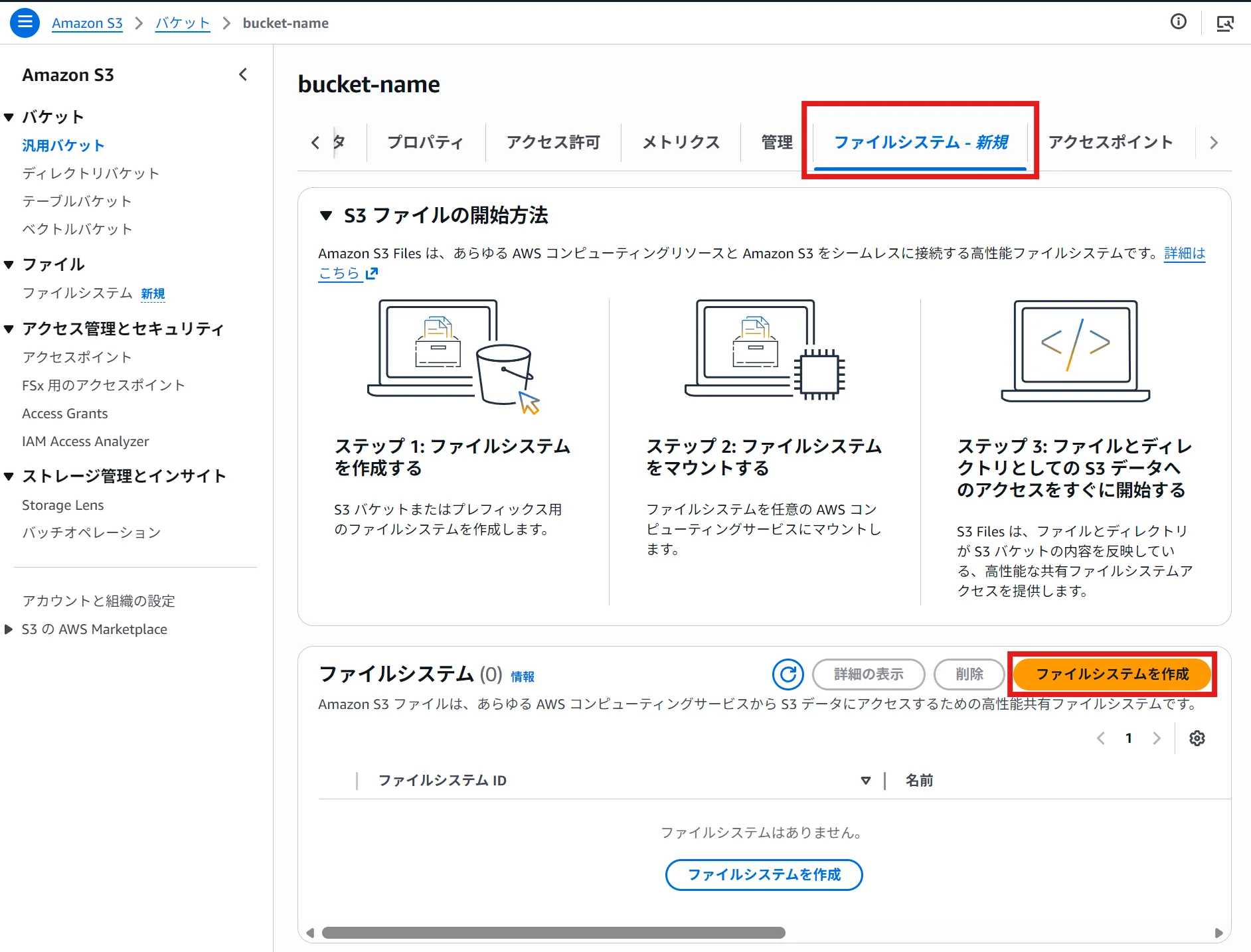
  1. Select the bucket in the S3 console
  2. Click on the "File Systems" tab → then click "Create File System"

Creating from the console automatically creates mount targets and access points in all AZs.

alt text

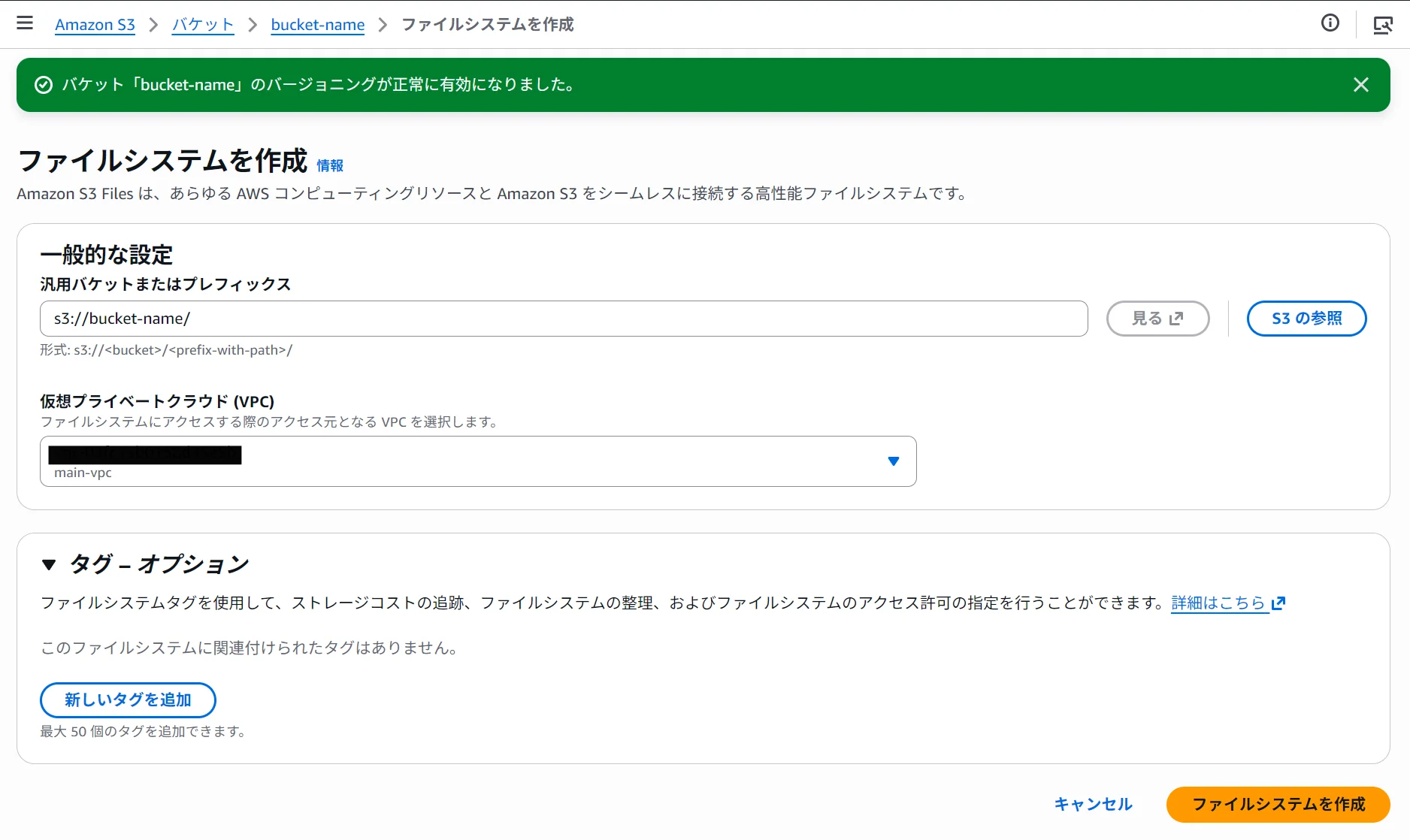
  1. Specify the prefix and VPC, and click "Create File System."

Record the output file system ID (e.g., fs-0123456789abcdef0).

3. Mount on the Instance

In the terminal, execute the following:

# Create mount point
sudo mkdir /mnt/s3files

# Mount
sudo mount -t s3files fs-0123456789abcdef0:/ /mnt/s3files
note

If the mount fails, execute the following command and retry.

sudo dnf install -y amazon-efs-utils # Amazon Linux, RHEL
# sudo apt install -y amazon-efs-utils (Ubuntu, Debian)
note

If there is connectivity issue when executing the dnf command, set up an S3 endpoint (gateway) and assign it to the same AZ as the instance.

Ensure that the route table for the S3 endpoint matches the subnet where the instance is located.

To verify the mount:

df -h /mnt/s3files

You should see output similar to the following:

Filesystem Size Used Avail Use% Mounted on
<s3files-dns> 8.0E 129M 8.0E 1% /mnt/s3files

4. Perform Functionality Checks

cd /mnt/s3files

# Create a file
sudo sh -c 'echo "Hello, s3 Files!" > test.txt'

# Read the file
cat test.txt

# Create a directory
sudo mkdir test-directory

ls -la

# Copy the file
sudo cp test.txt test-directory/

cd test-directory/

# Check the file list
ls -la

The file you wrote will sync to the S3 bucket in about one minute. You can verify that the object has been created in the S3 console.

aws s3 ls s3://<bucket-name>/

Setting Up Auto-Mount

To maintain the mount after a reboot, add the following line to /etc/fstab.

# Add to /etc/fstab
fs-0123456789abcdef0:/ /mnt/s3files s3files _netdev,nofail 0 0

_netdev is an option that ensures the mount occurs after the network connection is established and is required. Adding nofail prevents the instance from becoming unbootable in the event of mount failure.

Pricing

The pricing for S3 Files is composed of the following components:

  • High-Performance Storage Usage: The storage fees for data on the file system
  • File System Access Fees: Read and write operations to high-performance storage
  • S3 Request Fees: Only the S3 GET charges apply when reading files over 1 MB directly from S3

It operates on a usage-based pricing model with no provisioning required, and according to AWS, it can achieve cost savings of up to 90% compared to traditional data copying between S3 and file systems.

Summary

  • S3 Files allows you to mount S3 buckets as an NFS file system on EC2
  • Data remains stored in S3 while enabling typical file operations like ls, cat, and cp
  • Low latency is achieved through caching on high-performance storage, and data that goes unused is automatically evicted
  • Configuring auto-mount using /etc/fstab ensures persistence after a reboot

References

Configuration of Passkeys (WebAuthn) using Amazon Cognito

· 4 min read

I am using Amazon Cognito for user authentication in a file storage API built with AWS SAM. Recently, I added login via passkeys (WebAuthn), so I will summarize the configuration details.

Prerequisites: Required Cognito Settings for Passkeys

To use passkeys with Cognito, the following must all be in place:

RequirementCurrent Configuration
UserPool TierESSENTIALS or higher
Managed Loginv2 (New login UI)
Custom Domainlogin.example.com (Used as Relying Party ID)

Cognito's passkeys will be registered and used through the Managed Login v2 UI. WebAuthn cannot be used with the LITE tier (free), so the ESSENTIALS tier is necessary.

Authentication Flow

Passkey Registration Flow

For the first time, log in with a password and register the passkey from the account settings.

Passkey Login Flow

After registration, authentication can be done directly via the "Sign in with passkey" button.

Configuration Details

The changes made to the template.yaml (SAM template) for adding the passkey amount to just 6 lines.

Before Changes

UserPool:
Type: AWS::Cognito::UserPool
Properties:
# ...
Policies:
PasswordPolicy:
MinimumLength: 8
# ...
MfaConfiguration: "OFF"

After Changes

UserPool:
Type: AWS::Cognito::UserPool
Properties:
# ...
Policies:
PasswordPolicy:
MinimumLength: 8
# ...
SignInPolicy:
AllowedFirstAuthFactors:
- PASSWORD
- WEB_AUTHN # ← Added passkey
MfaConfiguration: "OFF"
WebAuthnRelyingPartyID: login.example.com # ← Specify RP ID
WebAuthnUserVerification: required # ← Require biometric verification

Explanation of Each Parameter

SignInPolicy.AllowedFirstAuthFactors

This is the list of authentication methods that can be used during the first authentication step. With only PASSWORD, it allows password-only authentication; adding WEB_AUTHN allows passkeys as an option.

WebAuthnRelyingPartyID

This is the Relying Party ID (RP ID) for WebAuthn. Passkeys are generated and stored associated with this domain, so it must match the domain serving the actual login page.

In this case, I have directly specified the custom domain login.example.com. If you are using the Cognito default domain (xxx.auth.ap-northeast-1.amazoncognito.com), specify that one.

WebAuthnUserVerification

This defines the required level of user verification when using passkeys.

ValueDescription
requiredRequires biometric authentication or PIN
preferredPrefer user verification but allow even without it
discouragedSkip user verification (no biometric, etc.)

To enhance security, I chose required.

Managed Login UI

In the Managed Login v2 interface, after configuring the passkey, the "Sign in with passkey" button will be automatically added to the login screen. For initial registration, you can add a passkey from the account settings after logging in with a password.

Deployment

sam build
sam deploy --no-confirm-changeset

Since the stack name, region, and parameters are defined in samconfig.toml, there is no need to specify options each time.

Conclusion

The key points for enabling passkeys in Cognito are:

  1. Set to ESSENTIALS tier (LITE does not support WebAuthn)
  2. Use Managed Login v2
  3. Specify a custom domain (or the Cognito default domain) as the RP ID
  4. Add WEB_AUTHN to SignInPolicy.AllowedFirstAuthFactors
  5. Set WebAuthnUserVerification: required to make biometric verification mandatory

With just 6 lines of changes, passkey login has become available. The convenience of Cognito lies in the ability to gradually transition to passkeys while still retaining passwords.

Comparing Anthropic API and AWS Bedrock Pricing

· 3 min read

When using Claude via API, you have more than two options: in addition to calling the Anthropic API directly, you can also use it via AWS Bedrock, Google Vertex AI, or Microsoft Azure (Azure AI Foundry). Base pricing is the same across all routes, but there are differences in batch processing and cloud ecosystem integration.

Unit: USD / 1M tokens (MTok). Information as of March 2026.

On-Demand Base Pricing

ModelTypeAnthropic APIBedrockVertex AIAzure
Claude Opus 4.6Input$5.00$5.00$5.00$5.00
Output$25.00$25.00$25.00$25.00
Claude Sonnet 4.6Input$3.00$3.00$3.00$3.00
Output$15.00$15.00$15.00$15.00
Claude Haiku 4.5Input$1.00$1.00$1.00$1.00
Output$5.00$5.00$5.00$5.00
Claude Sonnet 4.5Input$3.00$3.00$3.00$3.00
Output$15.00$15.00$15.00$15.00

Base pricing is identical across all routes.

Note that Vertex AI regional endpoints carry a 10% surcharge over global endpoint pricing. Bedrock offers Long Context variants as separate SKUs at the same price; on the Anthropic API, Long Context is integrated into the standard models.

Cache Pricing

Prompt Caching rates are also identical across all routes.

ModelCache TypeAnthropic APIBedrockVertex AIAzure
Claude Opus 4.65-min cache write$6.25$6.25$6.25$6.25
1-hour cache write$10.00$10.00$10.00$10.00
Cache read$0.50$0.50$0.50$0.50
Claude Sonnet 4.65-min cache write$3.75$3.75$3.75$3.75
1-hour cache write$6.00$6.00$6.00$6.00
Cache read$0.30$0.30$0.30$0.30
Claude Haiku 4.55-min cache write$1.25$1.25$1.25$1.25
1-hour cache write$2.00$2.00$2.00$2.00
Cache read$0.10$0.10$0.10$0.10

Cache writes come in two TTL tiers: 5-minute (short-term) and 1-hour (long-term). Longer TTL means higher write cost, but for applications with lengthy system prompts that are read repeatedly, the savings on read pricing more than compensate.

Batch Processing Pricing

Bedrock, Vertex AI, and the Anthropic API all offer an asynchronous batch API at 50% off on-demand pricing. Azure does not explicitly list batch pricing at this time.

ModelBatch InputBatch Output
Claude Opus 4.6$2.50$12.50
Claude Sonnet 4.6$1.50$7.50
Claude Haiku 4.5$0.50$2.50
Claude Sonnet 4.5$1.50$7.50

For large-scale batch workloads (log analysis, embedding generation, etc.), any of these routes can cut costs in half.

Ecosystem Comparison

FeatureAnthropic APIBedrockVertex AIAzure
Base pricingSameSameSameSame
Regional surcharge+10% (regional)
Batch processing (50% off)Not listed
Tokyo region
IAM / audit log integrationAWSGoogle CloudAzure
VPC / PrivateLink
Billing integrationAnthropic directAWSGoogle CloudAzure
New feature rollout speedFastestDelayedDelayedDelayed

New features (such as Extended Thinking) roll out to the Anthropic API first; Vertex AI, Bedrock, and Azure typically follow weeks later.

Which Should You Choose?

  • Simple setup / prototyping: Anthropic API requires just one API key and gets new features first.
  • Deep AWS integration: If you need IAM, CloudWatch, or VPC, Bedrock is the natural choice. Tokyo region supported.
  • Deep Google Cloud integration: Vertex AI fits right in. Note the 10% surcharge on regional endpoints.
  • Deep Azure integration: Available via Azure AI Foundry, integrated with Azure billing and management.
  • Heavy batch workloads: Bedrock, Vertex AI, and the Anthropic API all offer 50% off batch pricing.

References

Building a Blog Comment API with AWS Serverless

· 3 min read

I wanted to add a comment section to this blog, so instead of using an off-the-shelf solution like Disqus or giscus, I built my own API on AWS serverless. Here's a look at the design and implementation.

Architecture

Requests flow through the following stack:

Browser (www.hikari-dev.com)
↓ HTTPS
API Gateway
├── GET /comment?postId=... → Fetch comments
├── POST /comment → Submit a comment
└── PATCH /comment/{id} → Admin (toggle visibility)

Lambda (Node.js 20 / arm64)

DynamoDB (comment storage)
+ SES v2 (admin email notifications)

The code is written in TypeScript and managed as IaC with SAM (Serverless Application Model). Lambda runs on arm64 (Graviton2) to shave a bit off the cost.

DynamoDB Table Design

The table is named blog-comments, with postId as the partition key and commentId as the sort key.

KeyTypeDescription
postIdStringPost identifier (e.g. /blog/2026/03/20/hime)
commentIdStringULID (lexicographically sortable by time)

Using ULID for the sort key means comments retrieved with QueryCommand are automatically returned in chronological order — which is why I chose ULID over UUID.

Spam Filtering

Before writing a comment to DynamoDB, the handler checks it against a keyword list defined in keywords.json.

If a keyword matches, the comment is saved with isHidden: true and isFlagged: "1", hiding it automatically. If nothing matches, it goes live immediately.

isFlagged is used as the key for a Sparse GSI. Comments that pass the filter don't get this attribute at all, which keeps unnecessary partitions from appearing in the index — good for both cost and efficiency. This is achieved simply by setting removeUndefinedValues: true on the DynamoDB Document Client.

export const ddb = DynamoDBDocumentClient.from(client, {
marshallOptions: {
removeUndefinedValues: true,
},
});

Admin Email Notifications

Every time a comment is submitted, SES v2 sends me an email containing the author name, body, rating, IP address, and flag status.

The email is sent asynchronously, and any failure is silently swallowed. This keeps the POST response time unaffected by email delivery.

sendCommentNotification(record).catch((err) => {
console.error("sendCommentNotification error:", err);
});

Privacy

IP addresses and User-Agent strings are stored in DynamoDB for moderation purposes, but they are never included in GET responses. This separation is enforced at the type level.

Security

LayerMeasure
NetworkAWS WAF rate limit: 100 req / 5 min / IP
CORSRestricted to https://www.hikari-dev.com
Admin APIAPI Gateway API key auth (X-Api-Key header)
SpamKeyword filter with automatic hiding

For the admin endpoint (PATCH /comment/{id}), setting ApiKeyRequired: true in the SAM template is all it takes to enable API key authentication — no need to implement a custom Lambda Authorizer.

Wrap-up

The serverless setup means no server management, and DynamoDB's on-demand billing keeps costs minimal for a low-traffic personal blog.

The whole thing is packaged with SAM + TypeScript + esbuild, and deploying is as simple as sam build && sam deploy.

I Built a Cloud Storage Service with AWS Serverless

· 3 min read

Introduction

I wanted a personal file sharing system, so I built a file storage service using only AWS serverless services.

In this article, I'll walk through the key design decisions and the actual architecture I ended up with.

What I Built

The cloud storage service that lets you upload, download, and manage folders through a web browser.

Key Features

  • File upload / download
  • Folder creation and hierarchical management
  • Bulk ZIP download of multiple files / folders
  • User authentication (sign-up, login, password reset)
  • User profile management

Architecture

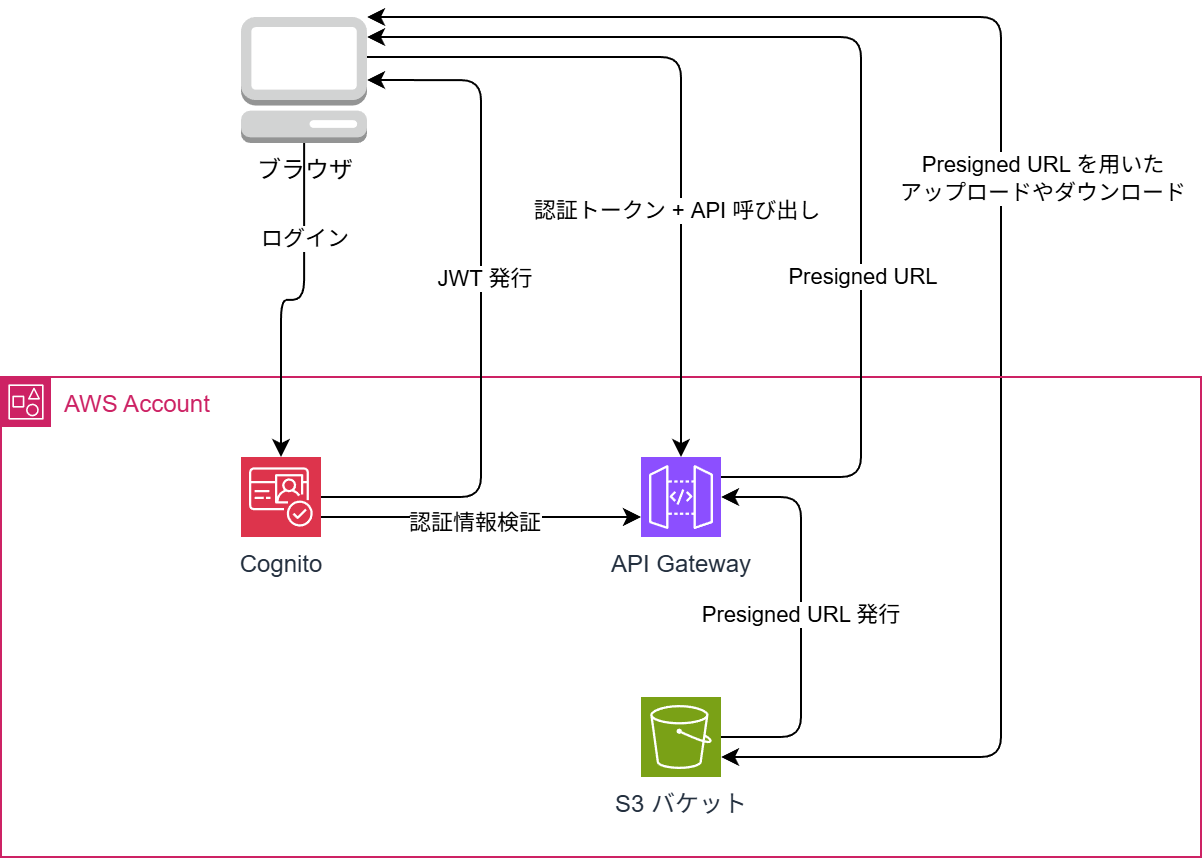
Here's the architecture diagram.

Most of the authentication is handled by Cognito. For file transfers, Lambda issues S3 Presigned URLs so the client communicates directly with S3.

Tech Stack

LayerTechnology
BackendC# (.NET 8) / AWS Lambda
AuthenticationAmazon Cognito + Managed Login v2
APIAPI Gateway (REST) + Cognito Authorizer
StorageAmazon S3

Design Decisions and Reasoning

Using Cognito for Authentication

I leveraged Cognito's OAuth 2.0 endpoints and Managed Login to implement authentication.

In the end, I only needed a single Lambda function for auth: TokenFunction.

In terms of both functionality and security, less code is better. There's no need to write what AWS services already do for you.

File Transfers via Presigned URLs

Routing file uploads and downloads through Lambda introduces several problems:

  • Hitting Lambda's payload size limit
  • Loading large files into Lambda memory is costly
  • Transfer time counts against Lambda execution time

With Presigned URLs, Lambda only issues the URL — the actual file transfer happens directly between the browser and S3.

Lambda execution time stays in the tens of milliseconds, and the file size limit extends all the way to S3's own limits.

Upload flow:
1. Browser → Lambda: "I want to upload file.pdf! Send me an upload URL."
2. Lambda → Browser: "Here's a Presigned URL. PUT your file here."
3. Browser → S3: "Sending PUT to S3."
4. Browser → Lambda: "Upload complete!"

ZIP Download for Folders

S3 doesn't have a built-in feature to download an entire folder.

For bulk downloads, I generate a ZIP file in Lambda, temporarily store it in S3, and return a Presigned URL for it.

The temporary ZIP file is automatically deleted after 1 day via an S3 lifecycle rule, so there's no garbage buildup.

Security

MeasureImplementation
Brute-force protectionCognito's built-in lockout (5 failures: 15-minute lock)
API protectionJWT verification via Cognito Authorizer
CORSAllowedOrigin restricted to a specific domain
Temporary file managementS3 lifecycle rule auto-deletes files after 1 day

Cost

With a serverless architecture, costs are nearly zero when not in use.

  • Cognito: ESSENTIALS Tier is free up to 10,000 MAU
  • Lambda: Free up to 1 million requests per month
  • S3: Pay-as-you-go based on storage used (~$0.025/GB per month)
  • API Gateway: $3.50 per 1 million requests

For personal use, monthly costs should land somewhere between a few cents and a couple of dollars.

Infrastructure as Code

The entire infrastructure is defined in a single template.yaml (AWS SAM).

Cognito User Pool, API Gateway, 3 Lambda functions, S3 bucket, CloudWatch alarms, SNS — all resources defined in roughly 600 lines of YAML.

EC2 Instance Connect fails to connect from Windows without a key

· One min read

Unable to connect to Instance Connect on Windows

PS C:\> aws ec2-instance-connect ssh --instance-id i-0aa38de21acf2aa1c --region ap-south-1
Bad permissions. Try removing permissions for user: \\OWNER RIGHTS (S-1-3-4) on file C:/Users/hikari/AppData/Local/Temp/tmpm9m1bf7j/private-key.
@@@@@@@@@@@@@@@@@@@@@@@@@@@@@@@@@@@@@@@@@@@@@@@@@@@@@@@@@@@
@ WARNING: UNPROTECTED PRIVATE KEY FILE! @
@@@@@@@@@@@@@@@@@@@@@@@@@@@@@@@@@@@@@@@@@@@@@@@@@@@@@@@@@@@
Permissions for 'C:\\Users\\hikari\\AppData\\Local\\Temp\\tmpm9m1bf7j\\private-key' are too open.
It is required that your private key files are NOT accessible by others.
This private key will be ignored.
Load key "C:\\Users\\hikari\\AppData\\Local\\Temp\\tmpm9m1bf7j\\private-key": bad permissions
ec2-user@192.168.0.4: Permission denied (publickey,gssapi-keyex,gssapi-with-mic).

Verification as of 2025/06/11.

Login is possible from WSL

PS C:\> wsl -- aws ec2-instance-connect ssh --instance-id i-0aa38de21acf2aa1c --region ap-south-1
, #_
~\_ ####_ Amazon Linux 2023
~~ \_#####\
~~ \###|
~~ \#/ ___ https://aws.amazon.com/linux/amazon-linux-2023
~~ V~' '->
~~~ /
~~._. _/
_/ _/
_/m/'
Last login: Tue Jun 10 22:50:33 2025 from 192.168.0.183
[ec2-user@ip-192-168-0-4 ~]$

Why?

Addendum

Downgrading allowed connection.

I wish they would fix this.

Reference: https://github.com/aws/aws-cli/issues/9114

msiexec.exe /i https://awscli.amazonaws.com/AWSCLIV2-2.17.35.msi

EC2 Instance Connect Summary

· 3 min read

What is EC2 Instance Connect?

EC2 Instance Connect is a service designed to simplify SSH connections to AWS EC2 instances.

With traditional SSH connection methods, a public key needed to be pre-configured on the instance. However, EC2 Instance Connect allows you to send a temporary SSH public key to the instance to establish a connection. (However, an Instance Connect package needs to be installed, except for some AMIs).

How to Connect to an Instance

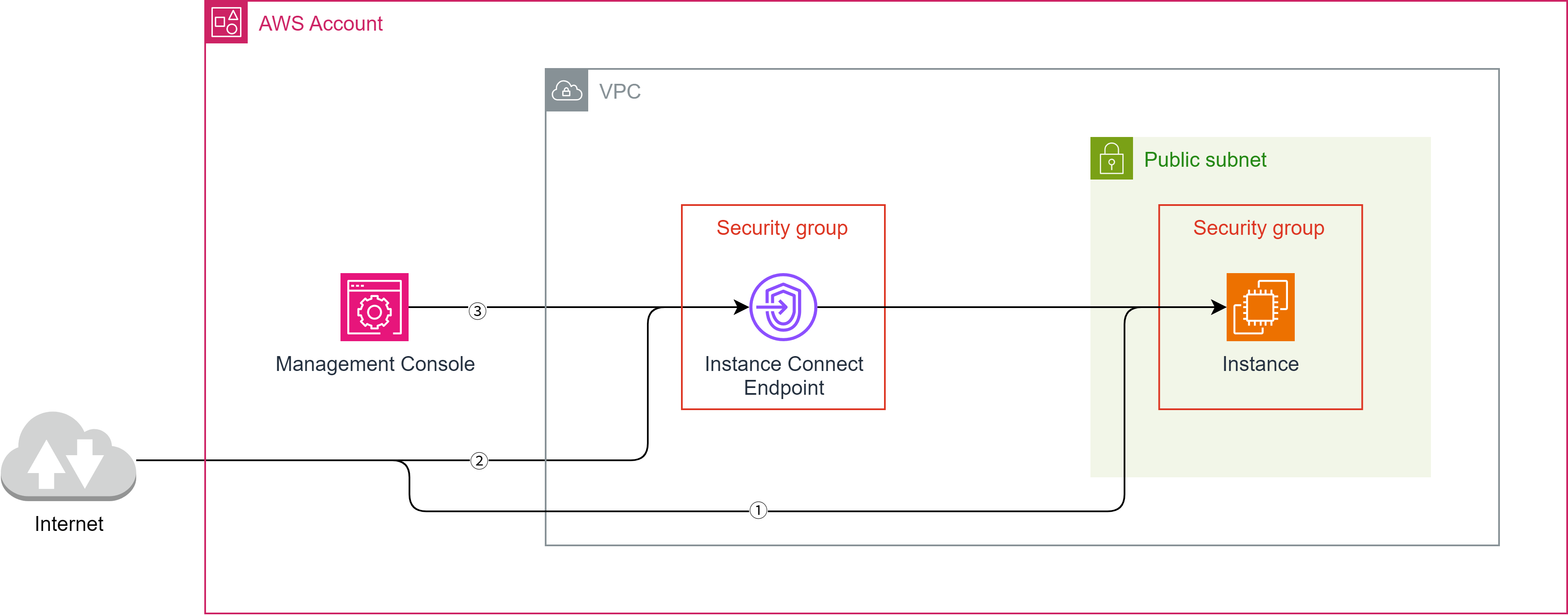
There are several ways to connect to an instance.

Direct connection from the internet requires passing through an Internet Gateway or a NAT Gateway. It also needs a public IP address and cannot be used in a private network environment.

Since the ssh command can be used, it's the simplest method.

ssh <username>@<public IP address>

② Connection via EC2 Instance Connect Endpoint

By using the AWS CLI to connect via an EC2 Instance Connect endpoint, a public IP address is not required.

This also helps save on costs (a few hundred yen per month).

You can connect using a command like the following with the AWS CLI, but you must first import a key pair and configure it for the instance.

For example, a specific connection method is possible with the following command:

aws ec2-instance-connect ssh --private-key-file .ssh/id_ed25519 --os-user <username> --instance-id <instance ID> --connection-type eice

Note: You must first obtain an access key and configure it using aws configure.

This connection method is best if you want to avoid connecting to the internet and wish to use a non-official AMI.

③ Instance Connect Connection from AWS Management Console

For Amazon Linux and Ubuntu, if you have an Instance Connect endpoint created, you can connect to the instance directly from the Management Console.

However, an Instance Connect package needs to be installed, except for some AMIs.

For details, refer to: https://docs.aws.amazon.com/ja_jp/AWSEC2/latest/UserGuide/ec2-instance-connect-set-up.html

④ Other Connection Methods

Connection from Session Manager

Two endpoints for Session Manager need to be set up, and an IAM role that allows connections from Session Manager must be attached to the instance.

Also, a Session Manager package needs to be installed, except for some AMIs.

Connection from EC2 Serial Console

Using the serial console allows direct connection to the instance. Be aware that if a password is not set, you won't even be able to log in.

Security Settings

Network ACL (Subnet where the instance resides)

By default, all traffic is allowed, so no specific configuration is needed if using the default settings.

The minimum required settings are as follows:

Inbound Rules

Inbound rules must allow SSH (port 22).

This allows communication to the instance's SSH server, which typically listens on port 22.

Outbound Rules

Outbound rules must allow custom TCP (ports 1024-65535).

1024-65535 is the port range used by the client side during an SSH connection.

Security Group (Instance)

Inbound Rules

Inbound rules must allow SSH (port 22).

This setting is absolutely necessary.

Outbound Rules

Security groups remember communication (stateful), so outbound rules are usually not required.

Security Group (EC2 Instance Connect Endpoint)

Inbound Rules

Not required due to statefulness.

Outbound Rules

SSH (port 22) must be allowed.

This allows communication to the instance's port 22.

Using Official Rocky Linux Images on AWS

· 5 min read

How to choose an AMI

Obtain the AMI from the official page.

https://rockylinux.org/ja-JP/download

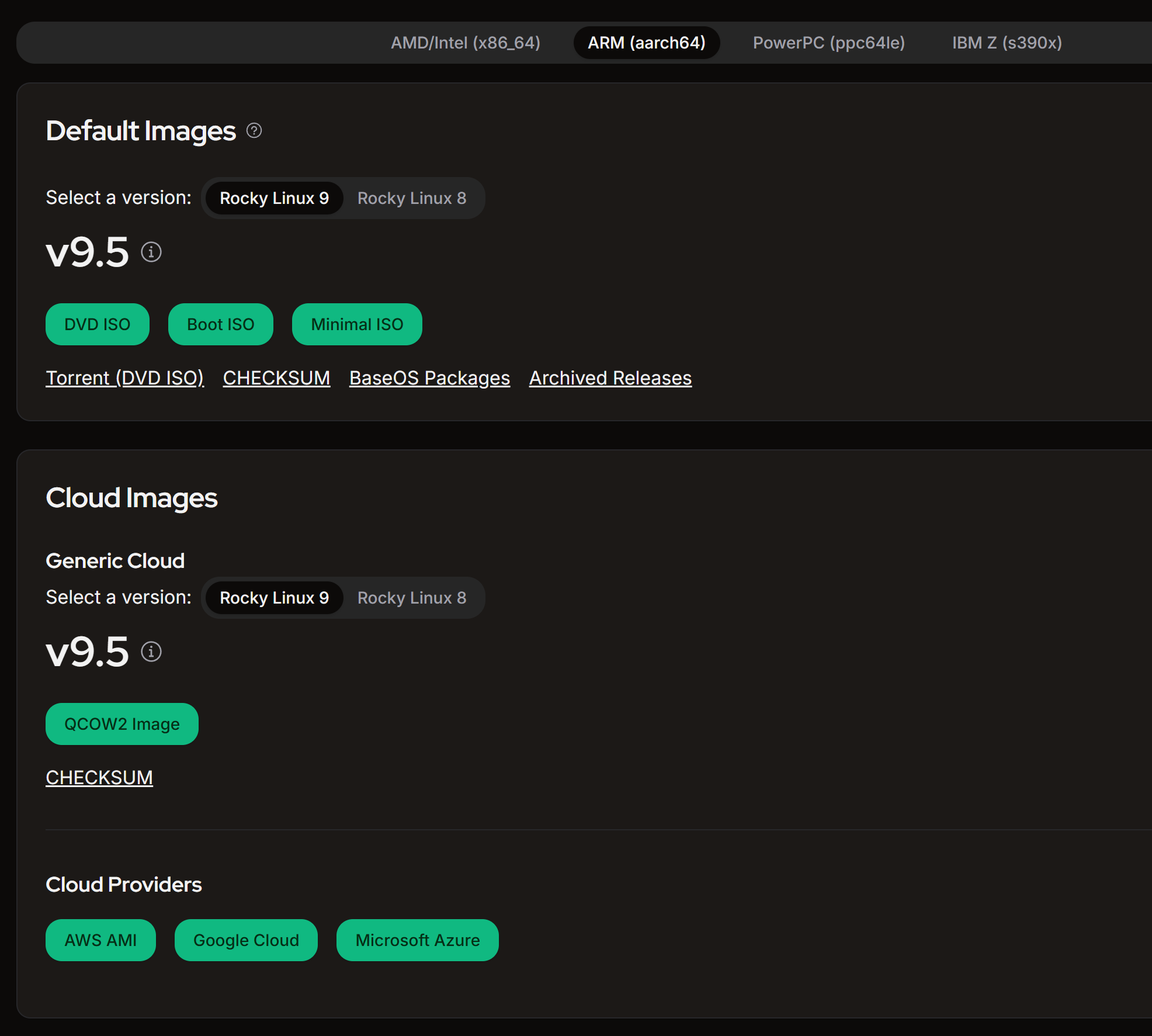
Select the architecture for your instance (ARM (aarch64)) and choose AWS AMI under Cloud Images.

alt text

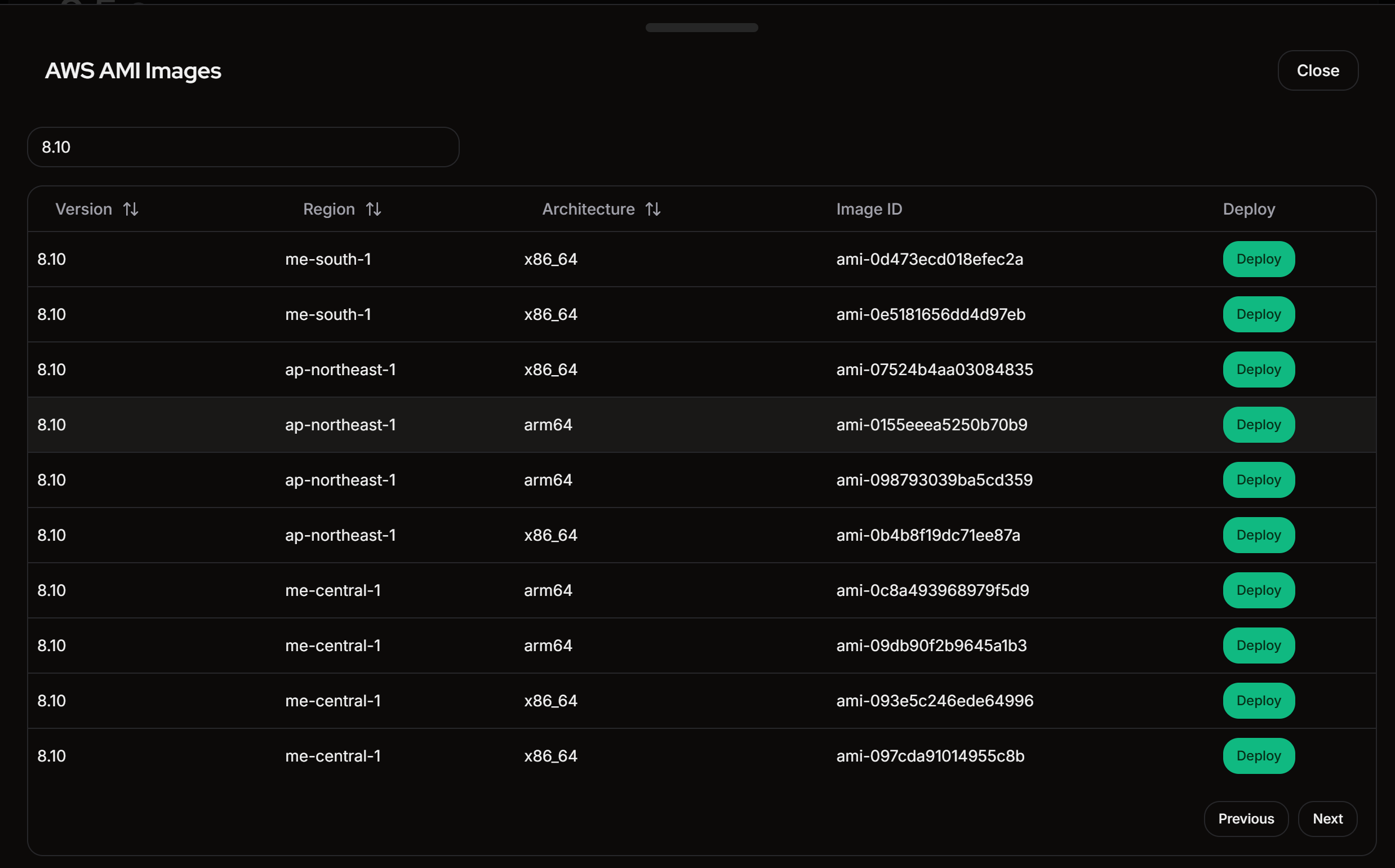
Filter by version number to find the appropriate one.

alt text

The AMI ID cannot be copied directly, so click the "Deploy" button and copy it from the AWS console.

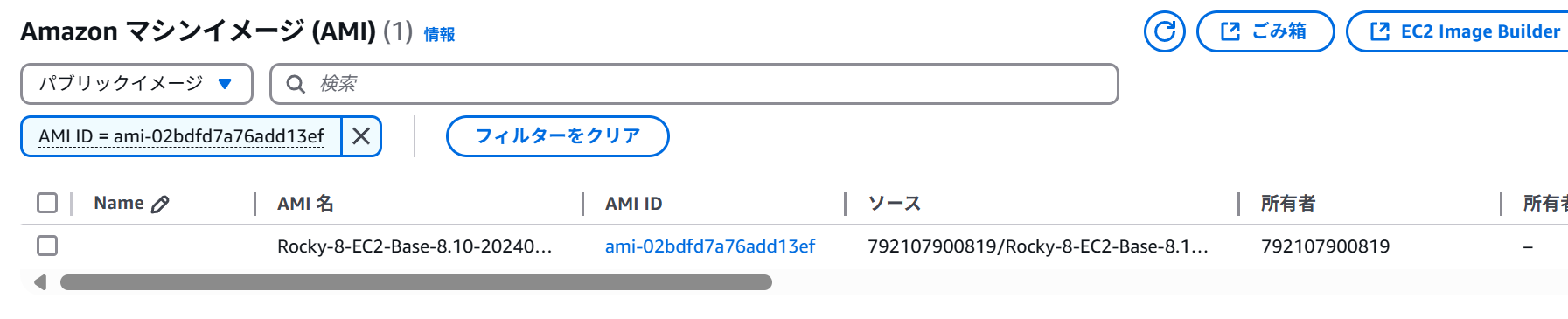
Searching by AMI ID will show it.

alt text

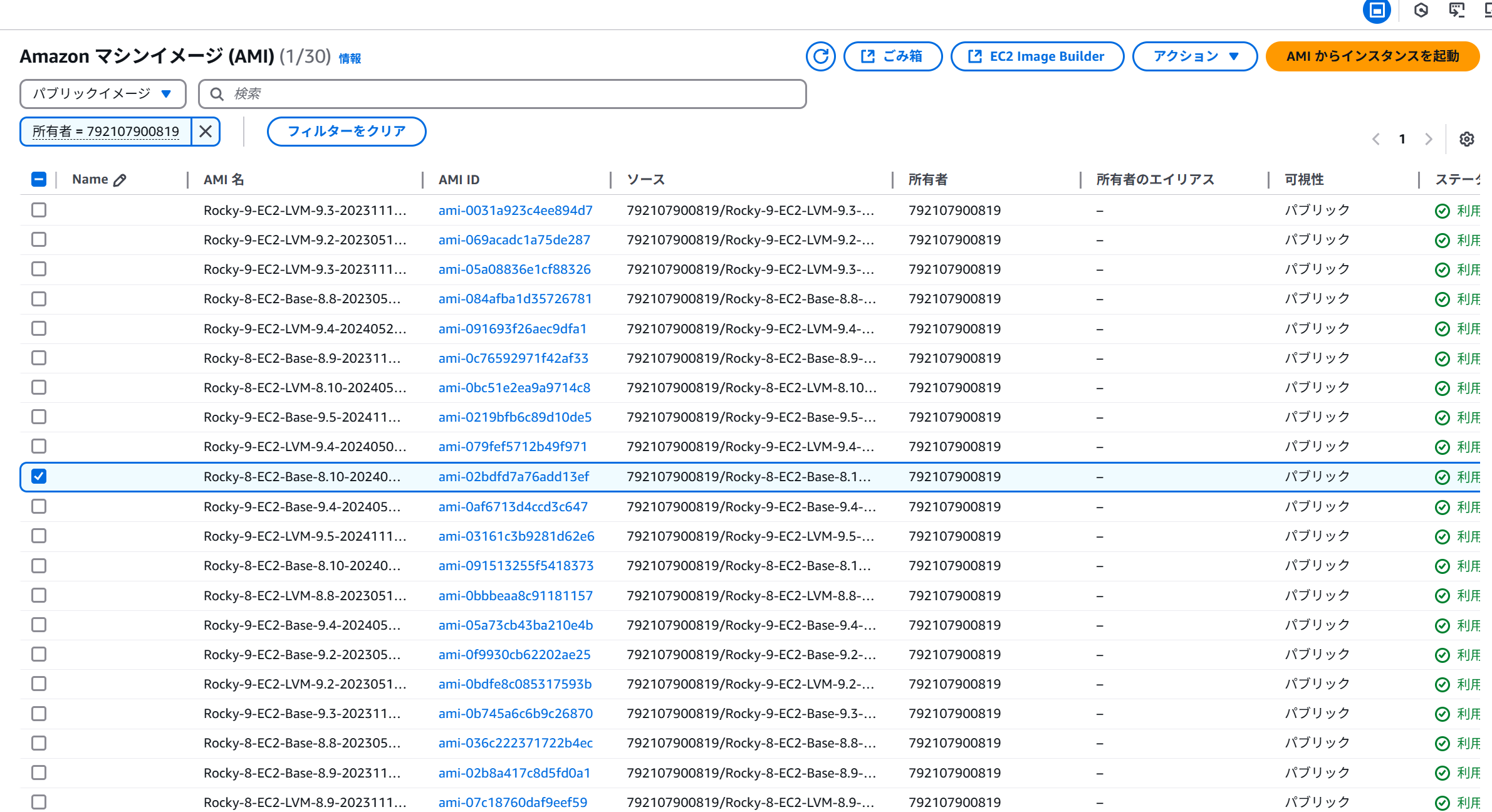
It might be better to filter by owner.

Owner = 792107900819

alt text

Pre-requisites

  • Register a key pair
  • Run ssh-keygen -t ed25519 beforehand to create a public key, then import .ssh/id_ed25519.pub into your key pair.
  • Install AWS CLI
  • Install the CLI.
  • Configure access keys (aws configure).

Setting up the Network

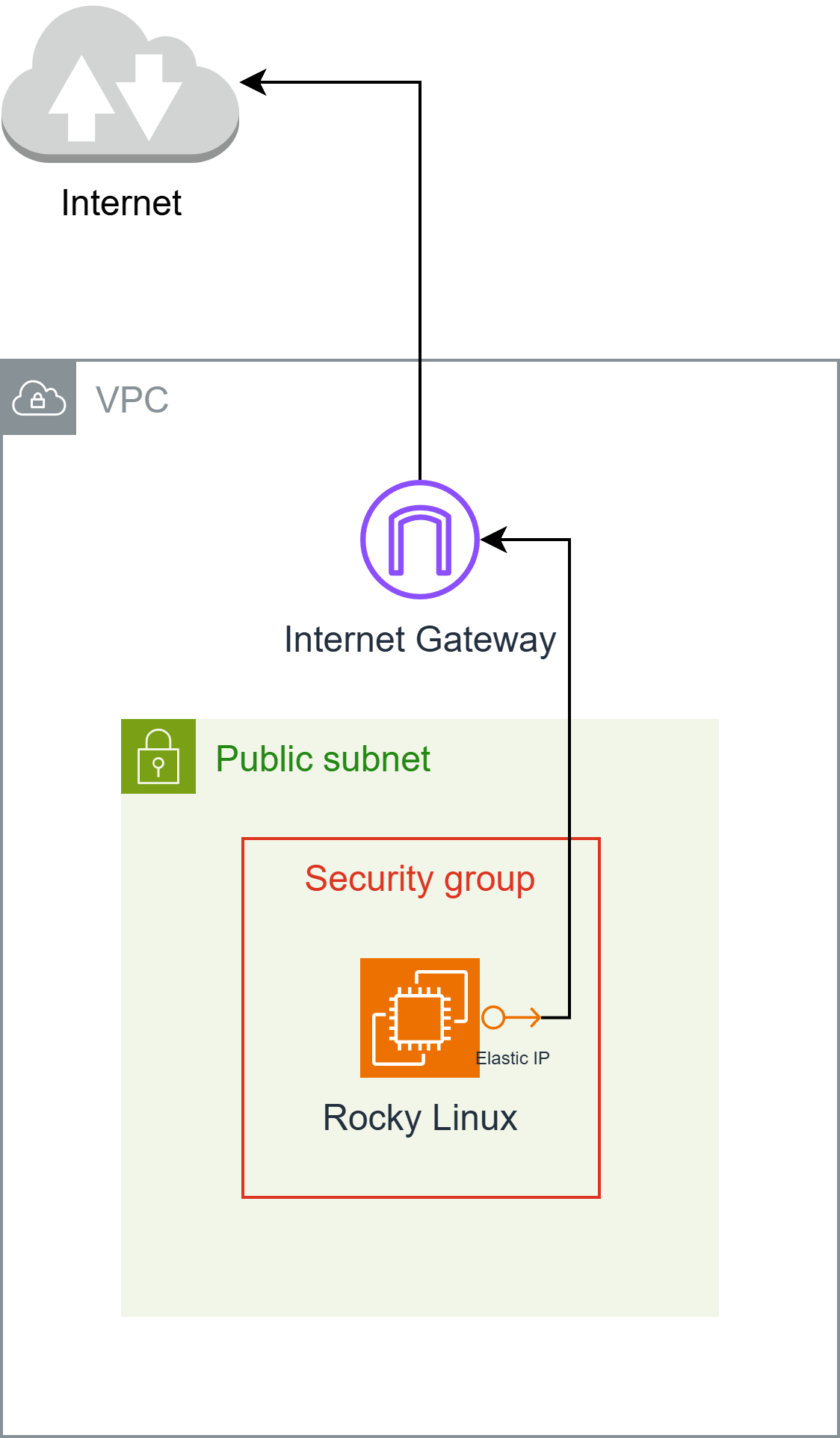
An Elastic IP is cheaper than a NAT Gateway, so create an Elastic IP.

The network architecture looks like this:

Create an EC2 Instance Connect Endpoint

alt text

Creating an EC2 Instance Connect Endpoint allows you to log in from the AWS CLI.

Launching an Instance

  • Allow ICMP (Echo Request) to accept ping requests (Security Group).
  • Allow SSH connections (Security Group).
  • Mumbai region and arm64 instances are inexpensive.
  • Requires 1.5 GiB RAM per vCPU (at least t4g.medium).

Therefore, I launched an instance with the following conditions:

  • Region: Mumbai
  • Architecture: arm64
  • AMI: RHEL 8.10 (LVM, aarch64); ami-0415efd8380284dc4
  • Instance Type: t4g.medium
  • Key pair: Public key created on PC (.ssh/id_ed25519.pub)
  • Network: Public subnet (associated with a route table that defines a route to an internet gateway)
  • Security Group: Create a security group (default name)
  • SSH, 0.0.0.0/0
  • Custom ICMP - IPv4 (Echo request), 0.0.0.0/0
  • Storage: 1x 10GiB, gp3

Connection

Open your PC's terminal and run the following:

aws ec2-instance-connect ssh --private-key-file .ssh/id_ed25519 --os-user rocky --instance-id i-*****************

Install Instance Connect Package

The Rocky Linux AMI does not include the Instance Connect package, preventing connections from the Management Console. Therefore, the package must be installed.

Refer to https://docs.aws.amazon.com/ja_jp/AWSEC2/latest/UserGuide/ec2-instance-connect-set-up.html for instructions on downloading the package.

  • Note: Select the RHEL package.
  • Note: It may not work correctly if the OS major version or architecture differs.

Example

curl https://amazon-ec2-instance-connect-us-west-2.s3.us-west-2.amazonaws.com/latest/linux_arm64/ec2-instance-connect.rhel8.rpm -o /tmp/ec2-instance-connect.rpm
curl https://amazon-ec2-instance-connect-us-west-2.s3.us-west-2.amazonaws.com/latest/linux_amd64/ec2-instance-connect-selinux.noarch.rpm -o /tmp/ec2-instance-connect-selinux.rpm
sudo dnf install -y /tmp/ec2-instance-connect.rpm /tmp/ec2-instance-connect-selinux.rpm

Once installed, you will be able to access the instance from the Management Console.

alt text

CDK (typescript)

I've included the CDK code I created for reference.

Remember to change the keyName (key pair) name.

import * as cdk from 'aws-cdk-lib';
import * as ec2 from 'aws-cdk-lib/aws-ec2';

export interface RockyLinuxStackProps extends cdk.StackProps {
}

export class RockyLinuxStack extends cdk.Stack {
public constructor(scope: cdk.App, id: string, props: RockyLinuxStackProps = {}) {
super(scope, id, props);

// Resources
const ec2dhcpOptions = new ec2.CfnDHCPOptions(this, 'EC2DHCPOptions', {
domainName: 'ap-south-1.compute.internal',
domainNameServers: [
'AmazonProvidedDNS',
],
],
});
ec2dhcpOptions.cfnOptions.deletionPolicy = cdk.CfnDeletionPolicy.DELETE;

const ec2InternetGateway = new ec2.CfnInternetGateway(this, 'EC2InternetGateway', {
{
value: 'igw',
key: 'Name',
},
],
});
ec2InternetGateway.cfnOptions.deletionPolicy = cdk.CfnDeletionPolicy.DELETE;

const ec2vpc = new ec2.CfnVPC(this, 'EC2VPC', {
cidrBlock: '10.0.0.0/16',
enableDnsSupport: true,
instanceTenancy: 'default',
enableDnsHostnames: true,
{
value: 'vpc',
key: 'Name',
},
],
});
ec2vpc.cfnOptions.deletionPolicy = cdk.CfnDeletionPolicy.DELETE;

const ec2VPCGatewayAttachment = new ec2.CfnVPCGatewayAttachment(this, 'EC2VPCGatewayAttachment', {
vpcId: ec2vpc.ref,
internetGatewayId: ec2InternetGateway.ref,
});
ec2VPCGatewayAttachment.cfnOptions.deletionPolicy = cdk.CfnDeletionPolicy.DELETE;

const ec2NetworkAcl = new ec2.CfnNetworkAcl(this, 'EC2NetworkAcl', {
vpcId: ec2vpc.ref,
],
});
ec2NetworkAcl.cfnOptions.deletionPolicy = cdk.CfnDeletionPolicy.DELETE;

const ec2RouteTable = new ec2.CfnRouteTable(this, 'EC2RouteTable', {
vpcId: ec2vpc.ref,
});
ec2RouteTable.cfnOptions.deletionPolicy = cdk.CfnDeletionPolicy.DELETE;

const ec2SecurityGroup = new ec2.CfnSecurityGroup(this, 'EC2SecurityGroup', {
groupDescription: 'launch-wizard-1 created 2025-04-27T00:11:58.641Z',
groupName: 'launch-wizard-1',
vpcId: ec2vpc.ref,
securityGroupIngress: [
{
cidrIp: '0.0.0.0/0',
ipProtocol: 'tcp',
fromPort: 22,
toPort: 22,
},
{
cidrIp: '0.0.0.0/0',
ipProtocol: 'icmp',
fromPort: 8,
toPort: -1,
},
],
securityGroupEgress: [
{
cidrIp: '0.0.0.0/0',
ipProtocol: '-1',
fromPort: -1,
toPort: -1,
},
],
});
ec2SecurityGroup.cfnOptions.deletionPolicy = cdk.CfnDeletionPolicy.DELETE;

const ec2Subnet = new ec2.CfnSubnet(this, 'EC2Subnet', {
vpcId: ec2vpc.ref,
mapPublicIpOnLaunch: false,
enableDns64: false,
availabilityZoneId: 'aps1-az1',
privateDnsNameOptionsOnLaunch: {
EnableResourceNameDnsARecord: false,
HostnameType: 'ip-name',
EnableResourceNameDnsAAAARecord: false,
},
cidrBlock: '10.0.0.0/20',
ipv6Native: false,
{
value: 'subnet-public1-ap-south-1a',
key: 'Name',
},
],
});
ec2Subnet.cfnOptions.deletionPolicy = cdk.CfnDeletionPolicy.DELETE;

const ec2InstanceConnectEndpoint = new ec2.CfnInstanceConnectEndpoint(this, 'EC2InstanceConnectEndpoint', {
preserveClientIp: false,
securityGroupIds: [
ec2SecurityGroup.attrGroupId,
],
subnetId: ec2Subnet.attrSubnetId,
});
ec2InstanceConnectEndpoint.cfnOptions.deletionPolicy = cdk.CfnDeletionPolicy.DELETE;

const ec2vpcdhcpOptionsAssociation = new ec2.CfnVPCDHCPOptionsAssociation(this, 'EC2VPCDHCPOptionsAssociation', {
vpcId: ec2vpc.ref,
dhcpOptionsId: ec2dhcpOptions.ref,
});
ec2vpcdhcpOptionsAssociation.cfnOptions.deletionPolicy = cdk.CfnDeletionPolicy.DELETE;

const ec2RouteHg = new ec2.CfnRoute(this, 'EC2RouteHG', {
routeTableId: ec2RouteTable.ref,
destinationCidrBlock: '0.0.0.0/0',
gatewayId: ec2InternetGateway.ref,
});
ec2RouteHg.cfnOptions.deletionPolicy = cdk.CfnDeletionPolicy.DELETE;

const ec2SubnetNetworkAclAssociation = new ec2.CfnSubnetNetworkAclAssociation(this, 'EC2SubnetNetworkAclAssociation', {
networkAclId: ec2NetworkAcl.ref,
subnetId: ec2Subnet.ref,
});
ec2SubnetNetworkAclAssociation.cfnOptions.deletionPolicy = cdk.CfnDeletionPolicy.DELETE;

const ec2SubnetRouteTableAssociation = new ec2.CfnSubnetRouteTableAssociation(this, 'EC2SubnetRouteTableAssociation', {
routeTableId: ec2RouteTable.ref,
subnetId: ec2Subnet.ref,
});
ec2SubnetRouteTableAssociation.cfnOptions.deletionPolicy = cdk.CfnDeletionPolicy.DELETE;

const ec2Instance = new ec2.CfnInstance(this, 'EC2Instance', {
tenancy: 'default',
instanceInitiatedShutdownBehavior: 'stop',
cpuOptions: {
threadsPerCore: 1,
coreCount: 2,
},
blockDeviceMappings: [
{
ebs: {
volumeType: 'gp3',
iops: 3000,
volumeSize: 10,
encrypted: false,
deleteOnTermination: true,
},
deviceName: '/dev/sda1',
},
],
availabilityZone: 'ap-south-1a',
privateDnsNameOptions: {
enableResourceNameDnsARecord: false,
hostnameType: 'ip-name',
enableResourceNameDnsAaaaRecord: false,
},
ebsOptimized: true,
disableApiTermination: false,
keyName: 'hikari',
sourceDestCheck: true,
placementGroupName: '',
networkInterfaces: [
{
privateIpAddresses: [
{
privateIpAddress: '10.0.3.59',
primary: true,
},
],
secondaryPrivateIpAddressCount: 0,
deviceIndex: '0',
groupSet: [
ec2SecurityGroup.ref,
],
ipv6Addresses: [
],
subnetId: ec2Subnet.ref,
associatePublicIpAddress: true,
deleteOnTermination: true,
},
],
imageId: 'ami-0415efd8380284dc4',
instanceType: 't4g.medium',
monitoring: false,
],
creditSpecification: {
cpuCredits: 'unlimited',
},
});
ec2Instance.cfnOptions.deletionPolicy = cdk.CfnDeletionPolicy.DELETE;

const ec2ElasticIp = new ec2.CfnEIP(this, 'EC2ElasticIp', {
domain: 'vpc',
{
key: 'Name',
value: 'elastic-ip',
},
],
});
ec2ElasticIp.cfnOptions.deletionPolicy = cdk.CfnDeletionPolicy.DELETE;

const ec2EipAssociation = new ec2.CfnEIPAssociation(this, 'EC2EipAssociation', {
eip: ec2ElasticIp.ref,
instanceId: ec2Instance.ref,
});
ec2EipAssociation.cfnOptions.deletionPolicy = cdk.CfnDeletionPolicy.DELETE;
}
}